android
674 TopicsNew policy implementation and web enrollment for Android personally owned work profile
We’re happy to announce two improvements for the management of Android personally owned work profile devices with Microsoft Intune, which will be available in the first quarter of calendar year 2026. A new implementation for how Intune delivers policies to devices Web based enrollment These updates modernize how Microsoft Intune manages devices and improves the enrollment flow. Action may be required by you as we move to the new implementation. Keep reading to understand what’s changing, actions, and timelines you need to know. What’s changing New implementation We’re finalizing our work on moving the Android personally owned work profile implementation to the latest and greatest available – Google’s Android Management API (AMAPI). It has been almost a decade since Intune released support for Android personally owned work profile management. At that time, we accomplished this by building a custom device policy controller (DPC), in the form of the Intune Company Portal app. A lot has changed since then. Google released AMAPI and its companion app, Android Device Policy, which enforces AMAPI policy on devices. This is now Google’s recommended implementation, which we used to deliver the three corporate Android Enterprise management methods: corporate owned work profile, fully managed, and dedicated. Google no longer recommends use of custom DPCs and they’re deprecating associated functionality. The benefits of moving personally owned work profile management to AMAPI include: Faster release of new features across all four Android Enterprise management options. Consistent behaviors across all four Android Enterprise management options. The Microsoft Intune app will replace the Company Portal app as the user app (to manage devices, contact their IT department, collect logs, and more), providing an updated user experience and aligning it with the corporate Android Enterprise management options. Enables Intune to support the latest Android platform management capabilities, which are unavailable with custom DPC implementations. Web based enrollment The move to AMAPI also enables us to build a web-based enrollment flow for personally owned work profile devices, similar to web based device enrollment for iOS. The benefits of this include: Users don’t need to manually install an app to start Intune enrollment since they can start enrollment from a webpage instead. Users can access enrollment from any of the three different entry points which all launch the same webpage: A URL (new!) Productivity apps (when admin has configured conditional access so that the user is required to enroll before accessing corporate resources) The Company Portal app This gives you more options for how to guide your users to get set up. 3. Android enrollment is more consistent with the iOS web-based enrollment flow. How to configure and monitor Web based enrollment We will release a new setting that will allow you to switch your tenant to the new web-based enrollment for all personally owned work profile enrollments going forward. We recommend that you configure this in a test tenant first, try out and document the user flow, and prepare your helpdesks accordingly before opting in on your main tenant. Once you opt in, there isn’t an option to opt out. Later on, we’ll automatically configure all personally owned work profile enrollments across all tenants to be web enrollments. New implementation We’ll release a new configuration policy that allows you to migrate device groups to the new implementation. As a best practice, we encourage admins to evaluate migrating a smaller device set before migrating all devices. Before moving devices to the new implementation, you may want to email users or configure custom notifications to inform them of what to expect. Later on, Intune will automatically migrate all remaining devices using the custom DPC implementation over to the new AMAPI implementation. Monitoring There’ll be a new report that will show how many personally owned work profile devices are in each of the following states: On AMAPI Not targeted to move to AMAPI Targeted to move and pending completion (since it may roll out over some time) Attempted to move and hit an error (and why) How this will affect your users Web based enrollment After you opt in to web based enrollment or later after it’s changed to the default, all devices (on all Android OS versions) will enroll with the web based flow. These devices will be managed with AMAPI. After enrollment, Intune will install a few apps automatically to ensure streamlined management. Microsoft Intune: User-facing app to manage devices, contact the IT department, collect diagnostic logs, and more. Company Portal: For mobile app management (MAM). Android Device Policy: To enforce AMAPI policies. This app is installed in a “hidden” state, so users won't see it in their app list. Microsoft Authenticator: To provide single sign on for users’ work account. Below is an example of the web based enrollment flow that a user would see if they needed to set a PIN on their device to meet admin requirements. New implementation When a device is moved to the new implementation (either through admin configuration or the later automatic move), devices won’t unenroll and users won’t lose access to corporate resources. Moving enrolled devices to the new implementation will be supported on any device running supported Android OS versions for user-based management methods at that time. The changes on the device will be: The Microsoft Intune app will install, and it will be the app for users to interact with instead the Company Portal. Users will not see a notification about this app installing. The Android Device Policy app will install to enforce policies. Users will not see a notification about this app installing and it will be in a “hidden” state on their device. If a device connected to corporate Wi-Fi with username and password authentication, when they move to AMAPI, they will lose access to corporate Wi-Fi until they sign in to the corporate Wi-Fi again. To avoid any potential disruption, we encourage you to move to certificate Wi-Fi authentication instead (as mentioned below). Timeline We'll update these timelines to provide more specific timeframes in the coming months. 2025: Use this time to revise any relevant policy configurations, update your internal documentation, and prepare your helpdesk teams, as advised below. First quarter of calendar year 2026: Enrollment: You’ll be able to opt in for all enrollments of personally owned work profile devices to be web based enrollments on AMAPI. New implementation: You’ll be able to set a configuration policy to migrate groups of previously enrolled devices over to AMAPI. Later on: Enrollment: All enrollments (regardless of past configuration) will be web enrollments for devices running all Android OS versions. New implementation: All devices still on the custom DPC implementation and running supported Android OS versions for user-based management methods at that time will be automatically moved over to AM API. You will receive advanced notice of when these changes will be applying to your tenant. How to prepare We recommend you make these changes to prepare for the upcoming release and provide the most streamlined experience for users. Replace custom policies: Intune ended support for custom configuration polices for personally owned work profile devices in April 2025. Custom policies are not supported in the new implementation. Replace all custom policies with equivalent policies using this setting mapping. Certificate authentication for Wi-Fi: If you’re using username and password authentication for Wi-Fi policies, we strongly encourage you to move to certificate authentication instead. Devices that are connected to corporate Wi-Fi with username and password authentication will lose access to corporate Wi-Fi when they are moved to AMAPI until the user signs into the corporate Wi-Fi network again. Devices using certificate authentication for Wi-Fi won’t lose access, and it’s also a more secure authentication method. Evaluate biometric configuration: Devices on the new implementation won't apply policies that prevent users from using face, fingerprint, iris, or trust agents to unlock their device. However, policies that prevent this at the work profile level are still supported. If you have this configured at the device level, consider blocking at the work profile level to protect work resources in an equivalent way. Note that for users who have turned on the setting to use one lock (unified password for the device and work profiles), then biometric settings configured for the work profile will apply to the device instead, since there isn't a separate work profile unlock. Review enrollment restrictions: In enrollment restrictions (also referred to as device platform restrictions) the “Android Enterprise (work profile)” restriction for personally owned work profile devices has a setting to Allow or Block “Personally owned” devices. This configuration will not apply to devices on AMAPI and the setting will be removed from the Intune admin center when all devices are moved to AMAPI. As communicated in the Intune Android 12 blog, this setting does not work reliably on devices running Android 12 and later. Conceptually, personally owned work profile management is meant for personal devices, so blocking personal devices from enrolling and only allowing corporate devices isn’t recommended. If you currently have the “Personally owned” setting set to Block for personal work profile devices, you should plan an alternate way for blocking these devices. Options include using a corporate management method instead (such as corporate owned work profile) or configuring the personal work profile enrollment restriction to block enrollments for all users except for users in a specified group. Update Android OS: Intune currently supports Android 10 and later on personally owned work profile devices. We recommend you guide users to update to their device’s latest supported Android version for the best experience. Helpdesk preparation: Inform your helpdesk teams of these coming changes so they know what to expect. For devices on the new implementation, diagnostic logs will be collected using the Microsoft Intune app (instead of the Company Portal app). Plan to update any user instructions you have after you try out the web based enrollment flow. iOS web based enrollment: We recommend you consider setting up web based device enrollment for iOS now or when we release Android web based enrollment for a more consistent and improved user experience. Changes to be aware of A few defaults will change as part of the move to the new implementation. Required app installation behavior: In the custom DPC implementation, users can uninstall required apps, and then they are reinstalled automatically within a few hours. In the new implementation, users won’t be able to uninstall required apps from their device, which is the same experience as on corporate Android Enterprise devices. Caller ID and contact search: In the custom DPC implementation, the settings to “Display work contact caller-id in personal profile” and “Search work contacts from personal profile” are two independent settings. In AMAPI, they are controlled with a single setting. If you have blocked either, Intune will automatically block both for devices on the new implementation. Intune will update the policy user interface to have a single setting once all devices are on the new implementation. Screen timeout: In the custom DPC implementation, you can configure screen timeouts either for the full device or for the work profile under “Maximum minutes of inactivity until work profile locks.” In AMAPI, you can only configure this at the work profile level. Intune will set this to the lesser of the two when devices move to the new implementation. We will remove the device level setting from policies when all devices are on AMAPI. Password: There will be some minor changes to how some configurations of password requirements apply on some devices. We will update to provide more information and guidance. Enrollment reports: A couple of enrollment reports will not report on devices enrolled into AMAPI management. They are the “Enrollment failures” and “Incomplete user enrollments” reports that are found in Devices > Enrollment in the Monitor tab. Stay tuned to this blog for updates! If you have any questions or feedback on this change, leave a comment on this post or reach out on X @IntuneSuppTeam. Post updates 02/19/25: Updated the Timeline and How this will affect your users + New Implementations sections. 04/08/25: Updated these sections: How to configure and monitor, How this will affect your users, Timeline, How to prepare, and Changes to be aware of. 04/09/25: Updated the Changes to be aware of section to include details about TeamViewer supportability. 08/22/25: Added images and updated all sections with the latest information, including an updated Timeline section and removing the information about the delay to TeamViewer support. 09/09/25: Added a screenshot to clarify Android enrollment restrictions. 09/23/25: Update the Changes to be aware of section to include more information about 'Enrollment reports'.16KViews2likes13Comments
Microsoft Managed Home Screen: Unwanted Samsung One UI 8.0 Elements Appearing
Hello Tech Community, Our organization is currently deploying a configuration in Microsoft Intune using a Corporate-owned dedicated device enrollment profile. We’ve applied a device restriction policy to configure Samsung tablets in Multi-app Kiosk mode, with Managed Home Screen set as the launcher. Instead of using an app configuration policy, Managed Home Screen is configured through the device restrictions policy. We’ve left the device navigation options unconfigured, which should hide the following UI elements: Android Overview button Android Home button Android App drawer Once all policies and required apps are installed, Managed Home Screen successfully acts as the launcher for end-users to sign in. Overall, this works well; however, we’ve encountered an intermittent issue: After multiple lock/unlock cycles, the navigation bar sometimes reappears, showing the Overview, Home, and App Drawer buttons. This allows users to access background apps that are not exposed through Managed Home Screen, which defeats the kiosk experience. Device details: Samsung Galaxy Tab S10 FE Android 16, One UI 8.0 Managed Home Screen version: 2.2.0.107721 Has anyone experienced this behavior or have recommendations to prevent these UI elements from reappearing? I’ll gladly provide additional details about our configuration if needed. Thank you!181Views4likes1Comment[BUG] Light splash screen on Edge for Android when in dark mode
As the title says, the splash screen on the app for android shows the light theme for a second when starting the app in dark mode. I want to be able to switch completely to edge on both mobile and PC, but with this bug I don't feel like i can. (Since it's kind of blinding at night!). I just thought I'd get this bug out here since I could not find any mentions about it elsewhere. Crossing fingers for a fix soon!Solved4.1KViews1like13Comments
Microsoft 365 OneDrive Android (OxygenOS 13.1) login fails with WebView / Error 2604
On OneDrive Android app, login through Microsoft 365 work / corporate profile fails and always ends up with either blank screen or "No Internet connection" error 2604. Here's the details: Device & Environment: Device: OnePlus 8 Pro (IN2023) OS Version: OxygenOS 13.1 (build IN2023_13.1.0.591(EX01)) Android System WebView Version: 142.0.7444.102 App Affected: OneDrive (latest version from Google Play, 26th Nov 2025) Network: Wi-Fi / Cellular (both tested) VPN/ Private DNS / AdBlockers: Disabled Problem Description: Attempting to log in to OneDrive using a corporate/work Microsoft 365 account: The login screen either shows a blank white screen or fails immediately with Error 2604: “No network”, despite internet connectivity being functional. Logging in with the same credentials in Chrome works, confirming network is not the issue. Issue persists after clearing app data, reinstalling OneDrive, updating Chrome, updating Android System WebView, and ensuring all app permissions and background data settings are correct. Steps to Reproduce: Start with OnePlus 8 Pro (IN2023) running OxygenOS 13.1 Ensure Android System WebView is version 142.0.7444.102 Install latest OneDrive app from Google Play Open OneDrive and attempt to log in with corporate/work Microsoft 365 credentials Observe blank screen or error 2604 Expected Behavior: OneDrive should allow login with corporate Microsoft 365 account Embedded WebView authentication should complete successfully Account token should be saved for ongoing use Additional Notes: Problem appears specific to embedded WebView login on this OS/device combination Likely a systemic issue affecting Microsoft 365 apps relying on WebView for login flows on OxygenOS 13.1 Logging in to a personal outlook.com microsoft account works normally. Hence, it seems to be tied to the WebView failure. Is there any fix to this?292Views0likes1Comment
Microsoft Translator Conversation feature stopped working (“Unable to create new conversation”)
When trying to start a conversation, the mobile app (Android/iOS) shows the message: "Unable to create a new conversation. Try again." (Swedish version: "Det går inte att skapa en ny konversation. Försök igen.") About two weeks ago, the live transcription started to become very slow, with text appearing in large chunks instead of line by line. Shortly after that, the Conversation feature stopped working completely. We have tested this on multiple devices and platforms: – Android (several users, including myself) – iOS (tested by a colleague and a user we support) All users experience the same issue — no new conversation can be created. This function is used as a speech-to-text accessibility tool for deaf and hard-of-hearing users, so it is critical for communication support nationally in Sweden.84Views1like1CommentMicrosoft Ignite 2025: Empowering Innovation with MDEP
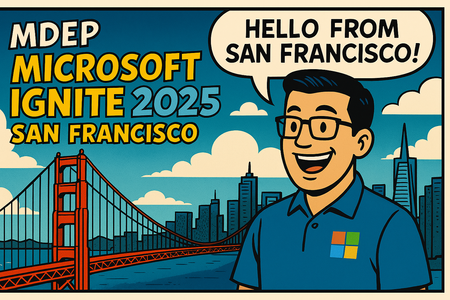
Joining a Global Community of Innovators We’re thrilled to be part of Microsoft Ignite 2025 in San Francisco, CA, where thousands of technology leaders, partners, and customers gather to shape the future. This year’s event is centered on AI-driven transformation, secure platforms, and connected ecosystems, and MDEP stands at the forefront of that vision. Ignite is more than just a showcase for us: It’s a valuable opportunity to connect with partners, exchange insights, and demonstrate how MDEP is enabling collaboration devices, digital signage, and new form factors across diverse industries. Driving Innovation with Our Partners Over recent months, we have worked closely with our distribution and development partners to bolster code delivery pipelines, enhance security posture, and ensure feature readiness. These collaborative efforts include: Platform Security: We are continuing to drive security innovation across the full stack - securing cloud-to-device interactions, assuring device and application integrity through hardware-backed attestation, hardening OS services, and strengthening device identity; These foundational elements power future MDEP services and features like Zero-Touch Enrollment (ZTE) and OTA services, delivering Microsoft-grade security assurance to our customers. We’re taking device security even further with measured Boot based on DICE for trusted startup, Native Microsoft Defender for Endpoint for advanced threat protection and Foundations for Virtualized Execution using the Android Virtualization Framework to harden the platform. All of this builds on our ongoing SFI investments, enhancing security across platform, tools, and build infrastructure, validating device software configurations through comprehensive security test suites, and rigorous penetration testing. MDEP continues to set the benchmark for secure devices and services, ensuring a trusted future for our customers and partners. Streamlined provisioning: Work continues on enhanced certificate lifecycle management and remote access capabilities for large-scale deployments, alongside completing MDEP Zero-Touch Provisioning to simplify onboarding at scale. Future-ready features: We’re expanding support for next-generation SoC platforms and laying the groundwork for an Agentic OS with our AI Framework that’s designed for on-device intelligence with privacy and extensibility at its core. These investments will deliver enterprise-grade security, reliability, and manageability - empowering partners to innovate faster. Growing the community: The MDEP community keeps growing! We recently welcomed Neat and Cisco, who joined our growing list of partners. Every new addition reinforces the power of the MDEP ecosystem – bringing together diverse expertise to drive innovation, scalability, and shared success. Android 15: We shipped our first Android 15-based MDEP release, marking a major milestone in platform evolution: Migration to Android 15: All core MDEP components and services were rebuilt and validated for A15, ensuring compatibility and performance across supported SoCs. Expanded SoC Support: We continue to extend our platform with enablement of additional chipsets: https://aka.ms/MDEPSoCs. Zero-Trust Security Enhancements: Delivered frictionless certificate provisioning, secure pairing, and compliance with Microsoft’s Secure Future Initiative. Networking & Display Parity: Closed gaps with Windows by adding EAP over LAN and dynamic DPI scaling for better enterprise integration. AI Framework Foundation: Introduced ONNX-based runtime for future AI-driven features and telemetry improvements. Improved Management Tools: Enhanced Device Manager for APEX rollback and hardware checks, plus OTA update service for conditional rollouts. Welcome HP and DTEN to the MDEP Community We are proud to announce that HP and DTEN have joined the MDEP ecosystem, further strengthening our commitment to cultivating a diverse and innovative partner network. As a global technology leader, HP’s commitment to innovation perfectly complements MDEP’s mission to deliver secure, scalable, and intelligent device experiences for customers worldwide. By leveraging HP’s deep knowledge in device engineering and user experience, we’re able to co-create collaboration devices that meet the evolving needs of hybrid work environments, enhancing productivity, reliability, and security for organizations of all sizes. Collaborating with HP also enriches our ecosystem with wider device choice, ensuring customers benefit from the very latest advancements in both hardware and software. We are excited about the new possibilities this collaboration unlocks and look forward to driving transformative change together in the workplace technology landscape. “Welcoming HP to the MDEP community is a milestone for our ecosystem and for customers who expect enterprise‑grade security, manageability, and innovation at scale. Together, we’ll bring Android‑based devices to market faster, backed by a disciplined update cadence, Zero Trust–aligned security posture, and deep integration with Microsoft services.” Says Juha Kuosmanen, Head of MDEP, Microsoft. “HP’s global reach and engineering excellence, combined with MDEP’s standardized platform, will help customers simplify deployment, reduce fragmentation, and unlock new experiences across meeting rooms and beyond. We’re excited to partner closely with HP to accelerate what’s possible for our shared customers.” Greg Baribault, Vice President, Hybrid Systems Product and Portfolio Management, HP, commented: “HP and Microsoft have been partnering to bring innovation, cutting edge solutions and choice to our customers for over 30 years. By including MDEP in our HP Poly Studio device portfolio we are able to offer Microsoft Teams Rooms customers the latest HP Poly AI powered audio and video collaboration experiences built upon Microsoft's secure and manageable Android platform.” DTEN, renowned for its intuitive video collaboration solutions, is now a part of the MDEP family. This partnership will enable simplified deployment and unified management of DTEN devices, ensuring enterprise-grade security and exceptional performance. Chris L Johnson, Senior Director Program Management (MDEP): “We’re delighted to welcome DTEN to the MDEP community. Their innovation mindset and customer focus strengthen a rapidly growing ecosystem dedicated to delivering secure, manageable, and intelligent device experiences.” “MDEP provides the foundation we need to scale our solutions globally while maintaining the highest standards of security and user experience.” Said Scott Krueckeberg, Head of Global Alliances, DTEN. Celebrating New Devices Built on MDEP Innovation in our ecosystem extends beyond partnerships – we’re launching cutting-edge devices that are redefining collaboration: Meet Yealink’s new Teams Wi-Fi handset: the first of its kind for Microsoft Teams. This strategic move closes a clear market gap and sets the stage for wireless collaboration. Built rugged and ready, it delivers native Teams calling over Wi-Fi. This handset empowers frontline workers and advances MDEP’s vision for secure, mobile collaboration. AudioCodes RXV200 and RX-PAD: The RXV200, paired with the RX-PAD room controller, is an intelligent AV hub designed to connect to a wide range of meeting rooms peripherals. It offers dual-screen support and AI-powered auto-framing, delivering outstanding meeting experiences for rooms of all sizes. Looking Ahead On the opening day of Ignite, one message stands out: MDEP is more than a platform – it’s a catalyst for innovation. By uniting security, manageability, AI, and extensibility, we’re enabling partners to deliver devices that meet the evolving needs of modern workplaces and set the tone for what’s next. Today, the ecosystem is thriving: we’ve welcomed a broad set of OEM partners, support a wide range of SoCs, and have numerous partner device programs actively in development. This depth of engagement reflects why so many OEMs have joined MDEP – not just for what’s available now, but for the roadmap and capabilities that will define the next generation of collaboration devices.M365 Copilot Android Application Not Working
I am using a Samsung S24 FE phone, and the Microsoft Copilot app is not working. When I open the app, I only see a black screen. I cannot open any menus. I cannot create or search for anything. There is only an empty home screen with dead buttons. I cannot sign out of my current account, nor can I figure out which account I am signed into (it logs in automatically). Here’s what I have already tried, but the issue persists: Enabled all permissions in the app settings. Deleted and reinstalled the app. Cleared the app cache and reopened it. Cleared the app data and reopened it.702Views0likes3CommentsUnable to export powerpoint to word
Good evening, I am struggling to export a PowerPoint presentation to word. I have tried and I keep getting an error message come up which states 'PowerPoint couldn't write to Microsoft word.' However some slides appear converted and others do not. I have tried compressing images in order to reduce the file and still had no luck. I have been on the phone to someone from Microsoft for the last 30 minutes trying to resolve with no luck and they have directed me here. I need to export this for my studies as it is the only way it will be accepted and really need some help. I recently had some help from Microsoft as my tabs kept closing and changes were made to my computer so could have something to do with it. Please help 😕 I look forward to hearing from you. Hayley3.8KViews0likes3Comments