accessibility
5 Topics
Word styles + semantics for accessibility
Word is the most widely used authoring tool, which makes it the best place to build accessibility in from the start. Three requests, in priority order: Show the Navigation Pane (Headings view) by default. Displaying the document's heading structure while users write makes hierarchy visible and errors easy to spot. At minimum, show Headings. Match default visual styles to semantic hierarchy. Make H1 the most prominent style, with H2, H3, and H4 each visibly a step lower. Today, Styles read as purely visual choices, so users often skip levels or fake headings for looks, producing inaccessible documents. Aligning appearance with structure would make accessible output the default. Add heading-hierarchy checks to Check Accessibility (or as a proofing-style alert). Flag more than one H1 or skipped levels (e.g., H3 not under H2), and let users fix them in one step using the styles in request #2. Also flag any fonts less than 12 points for possibly being inaccessible. Make this optional, with an IT policy toggle for organizations. Why it matters: Our organization must meet U.S. Federal Title II accessibility requirements for all web PDFs by April 26, 2027. Without an easy path, our simplest option is to remove them. If users could create properly structured Word documents and export accessible PDFs, we'd have a practical solution to share with staff and the public we serve.63Views0likes0Comments
(Beta) Color issues with Dark Mode in Excel
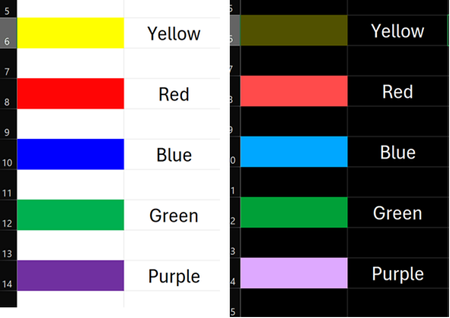
I just downloaded the insider update that allows for a full dark mode in excel. A couple of things I've noticed: Black and white are inverted. If you select black for a font color, cell fill, or border color, you'll end up with white, and vice versa. If someone is in dark mode, they're going to get awfully confused when they try to change various colors of the cells they're working in and aren't getting the color they want to pick, especially for those who need to use specific colors in their spreadsheets for whatever reason. This isn't so bad with black and white; annoying as it is, you can still at least remember to choose black when you need white or white when you need black. But when you choose other colors, you often end up with a color that is vaguely in the family of the color you selected, but not really. Trying to select the standard yellow used for highlighting, and you end up with an almost pale gold-like color. An example of what happens with a few colors is shown in the picture, but every color is affected to some degree. This makes the dark mode feature almost entirely useless for those who rely on colored conditional formatting in some or all of their spreadsheets, as the colors selected in dark mode end up being completely different from the color you actually wanted to select, and it's nearly impossible to try to figure out which color you have to select to get something that even resembles the color you actually want. The colors of individual elements of a spreadsheet (Font color, highlighting, borders, etc.) should not be altered this severely based on whether or not dark mode is turned on.661Views0likes1CommentFreely move toolbar and optimize video in Microsoft Teams screensharing
Hey, Microsoft 365 Insiders! Great news! You can now enhance your Microsoft Teams experience with the new movable Presenter toolbar and one-click video optimization. Tailor your screensharing to fit your needs and elevate your virtual collaboration. Read all about it in our latest blog: Freely move toolbar and optimize video in Microsoft Teams screensharing Thanks, Perry Sjogren Microsoft 365 Insider Social Media Manager Become a Microsoft 365 Insider and gain exclusive access to new features and help shape the future of Microsoft 365. Join Now: Windows | Mac | iOS | Android747Views1like1Comment