accessibility
790 Topics
Intel Extension 2.0.10200.8 keeps reappearing after successful installation
Windows Update repeatedly offers Intel – Extension – 2.0.10200.8, even though update history shows it was successfully installed. After restarting, the same update returns and requires another restart. This causes repeated mandatory restarts under our organisation’s update policy and affects device compliance. How can we safely clear this update from the queue and stop it reappearing without disabling other Windows updates?21Views0likes0CommentsWindows 11 forces PIN validation on boot for Edge, Teams and Phone Link
Hello. I am facing a persistent issue in Windows 11 where Microsoft Edge (running multiple windows and dozens of open tabs that I must keep active), Teams, and the Phone Link app demand PIN validation (Windows Hello) via toolbar prompts or "Your account requires attention" notifications upon every system startup. OneDrive is the only app that does not experience this issue. I want to make it absolutely clear that I DO NOT want to disable any convenience features (automatic reopening of apps on boot and Edge startup boost are enabled by necessity), I DO NOT want to switch to a local account (I strictly need settings synchronization active between my other Windows 11 devices), and I DO NOT clear cookies on close. To save time and avoid repetitive, generic troubleshooting steps, please note that I have already performed advanced troubleshooting procedures. I have disabled the Windows Hello requirement in settings, cleared credentials in Credential Manager, reset the Ngc security cache folder via terminal, applied local Group Policies for Edge, and even implemented a registry startup queue delay to prevent overcrowded login requests before the internet connection stabilizes. The issue gets temporarily fixed for 2 or 3 startups after applying these fixes, but Windows automatically overwrites or ignores these directives and goes back to demanding the PIN to revalidate the Single Sign-On (SSO) token of my personal Hotmail email across native background apps. There is clearly a hidden system maintenance scheduled task or a Cloud Identity Service component forcing this strict re-authentication cyclically, overriding user preferences. How can I stop Windows Hello from interfering with the automatic, silent login of these specific apps without breaking my device synchronization settings?88Views0likes2CommentsFile Explorer Crashing or Freezing Frequently on Windows 11
I am gotting frequent crashes and freezing issues with File Explorer on my Windows 11 system. It often becomes unresponsive or closes unexpectedly, especially when browsing folders or using network drives, which disrupts my workflow and makes it difficult to manage files efficiently.21KViews3likes9Comments
Classic Outlook search results inconsistently skip the first line of an email.
When searching emails in classic Outlook for Windows, the Message Preview skips the first line and starts from a later paragraph with an ellipsis. For example, the email begins with “Dear Sir,” but the search-result preview begins with “…Thank you for your email. Please reach out to...”. This makes the preview unreliable. The skipped first line may identify the intended recipient or audience, such as “Hi John,” “Dear Sir,” or “Dear Sales Team.” In operational workflows, knowing who is being addressed is important context and should not be skipped.349Views1like2Comments
Windows 11 Insider Build 29683.1000 - Explorer.exe does not start automatically after sign-in
Windows version: Windows 11 Pro Insider Preview Build 29683.1000 Issue: Black screen after sign-in; desktop and taskbar do not load. Temporary workaround: Running explorer.exe manually from Task Manager restores the desktop. Troubleshooting already performed: DISM SFC Registry verification New user profile test System Restore Attempted in-place repair installation When the issue started: Approximately 1-2 months ago. The ISO download and repair installation could not be completed. Help is required. Pradeep Kumar Bebarta19Views0likes0Comments
Full-screen video freezing issue
한국어와 영어로 글을 남깁니다. 이 글을 남기기 이전에 기술 지원을 24시간 대기 중이라는 분에게서 받았습니다. 그 분은 가장 해결 확률이 높고 가장 해결이 완벽에 가까운 방식을 제안했습니다. 그건 코덱을 업데이트하거나 코덱을 설치하라는 것이었습니다. 전 이 방법이 해결방법에 가깝다고 느낍니다. 제가 드리려는 말은 우연히 이 문제를 해결했다고 생각하기에 그 해결 방법을 공유하는 것입니다. 윈도우 제품에는 사소한 버그가 있고 서로 다른 프로그램이 충돌하는 경우가 있을 수 있으며 특정 프로그램이 버그를 만들 때도 있기 때문입니다. 전 전체화면으로 영상을 시청할 때에 멈추는 증상이 해결이 안 되었어요. 신기한 건 다른 회사의 그래픽 카드를 사용할 때엔 이런 문제가 발생하지 않는다는 점이었습니다. 인텔 ARC 그래픽 카드는 이런 문제가 없어요. AMD의 라데온 그래픽 카드를 사용할 때에 다 좋은데 이 문제 때문에 좀 불편했습니다. 지금도 인텔 CPU와 인텔 GPU를 쓰면 문제가 없고, 인텔 CPU와 AMD GPU 혹은 AMD CPU와 AMD GPU를 쓰면 전체화면 영상이 멈춥니다. 모니터는 상관이 없던 것 같아요. 그래서 결론은 코덱을 찾아볼 수도 있는데 어떤 코덱이 필요한지 제가 정확하게 모르거든요. 우연하게 찾은 해결책은 윈도우 설정에 작업 표시줄 옵션이 있습니다. 거기서 작업 표시줄 단추 합치기 및 레이블 숨기기 / 작업 표시줄 단추 합치기 및 다른 작업 표시줄의 레이블 숨기기 / 더 작은 앱 아이콘 표시 옵션을 조절하는 것이었습니다. 항상-작업 표시줄이 꽉 찼을 때-안 함 중에 문제가 해결되는 옵션을 고르세요. 전 작업 표시줄이 꽉 찼을 때를 3개 모두 설정해 두니 전체화면 영상이 더 이상 멈추지 않아요. 라데온 그래픽카드 드라이버 문제일 수도 있고 이 라데온 프로그램이 윈도우와 우연하게 충돌이 일어나는 것일 수도 있을 것 같아요. 전 전문가가 아니라 우연히 옵션 조정으로 방법을 찾았다는 점만 말하고 싶습니다. 그러므로 이 문제는 해결이 될 수도 사용자에 따라서 해결이 되지 않을 수도 있습니다. 제가 지내던 커뮤니티에선 라데온 그래픽카드 드라이버 프로그램이 이전부터 전문적이지 않다는 이야기가 돌았는데 전 그 때 그 말을 믿지 않았지만 지금은 그 말에 신빙성이 있다는 생각도 듭니다. 엔비디아 지포스에서도 동일한 증상이나 멈춤 현상이 있는 것 같기는 합니다. 윈도우의 호환성 문제일 수도 있겠지요. 잘은 모르겠지만요. 도움이 되시길 바랍니다. I am posting this in both Korean and English. Before writing this, I received assistance from a technical support representative who was available around the clock. They suggested a solution that was highly likely to work and offered the most complete fix: updating or installing the necessary codecs. I believe this is the right approach. I am sharing this because I managed to resolve the issue—albeit somewhat by chance—and want to pass on the solution. Windows products can have minor bugs, conflicts between different programs can occur, and specific programs can sometimes trigger these issues. I wasn't able to resolve the issue where the video would freeze during full-screen playback. Interestingly, this problem didn't occur when using graphics cards from other manufacturers; Intel Arc graphics cards, for instance, don't have this issue. While AMD Radeon graphics cards are otherwise excellent, this specific problem was a bit of a hassle. Even now, I experience no issues when using an Intel CPU with an Intel GPU, but the video freezes in full-screen mode if I pair an Intel CPU with an AMD GPU or use an AMD CPU with an AMD GPU. The monitor didn't seem to be a factor. I suppose I could look into codecs, but I'm not exactly sure which ones are needed. I stumbled upon a solution within the Windows taskbar settings. The fix involved adjusting options such as "Combine taskbar buttons and hide labels," "Combine taskbar buttons and hide labels on other taskbars," and "Use small taskbar buttons." You should experiment with the available settings—"Always," "When taskbar is full," or "Never"—to find the one that resolves the issue. For me, setting all three options to "When taskbar is full" stopped the full-screen videos from freezing. This could be an issue with the Radeon graphics card driver, or perhaps a random conflict between the Radeon software and Windows. I am not an expert; I simply wanted to share a method I discovered by chance while tweaking settings. Consequently, this solution might work for some users but not for others. In the online community I frequent, there had long been talk that Radeon graphics card driver software wasn't exactly professional-grade; I didn't believe it at the time, but now I’m starting to think there might be some truth to it. That said, it seems like similar symptoms or freezing issues occur with Nvidia GeForce cards as well. It could be a Windows compatibility issue, though I’m not entirely sure. I hope this helps.48Views0likes0CommentsSave the date: Windows office hours - October 15, 2026
Need answers from the people behind the products you manage every day? Join us for Windows Office Hours on October 15th from 8:00–9:00 AM PT, where experts from Windows, Microsoft Intune, Configuration Manager, Windows 365, Windows Autopilot, security, public sector, FastTrack, and more will be available to answer your questions. This is a live, chat-based event with no video and no meeting link. Simply join the discussion, ask your questions, and participate in conversations with Microsoft engineers and specialists. If you can't attend live, post your questions on the event page in advance and we'll address them during the session.109Views0likes0Comments
Why do Snap Layouts stop appearing when I hover over the maximize button?
Why do Snap Layouts on my Windows 11 PC sometimes stop showing up when I hover over the maximize button, even though the feature is enabled in Settings? Why does it work perfectly for a while, then suddenly nothing happens when I move the mouse to the top of the window? I've already tried restarting Explorer and checking the multitasking settings, but it only fixes it temporarily. Could this be caused by a corrupted shell experience, a conflict with a third-party window manager, or a recent update? And is there a way to bring Snap Layouts back permanently instead of rebooting every time they stop working?144Views0likes3Comments
How to highlight active instance of a program when hovering over combined taskbar button?
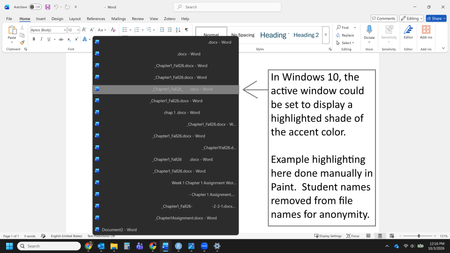
Description of problem: When I have many windows/instances of a specific program open, they are combined on the taskbar (which I love), but when I hover over the taskbar icon, I can't see which window/instance is open and active. In Windows 10, I had customized my color settings so that the active window/instance of the application was highlighted in a brighter shade of my accent color, and then had chosen an accent color to maximize that contrast difference. I can't seem to figure out how to do that in Windows 11. I've searched the forums here, but I don't think I've found the exact same issue. I have Windows 11 Enterprise, Version 25H2. Example screenshot showing what I want: All names have been redacted from this screenshot for privacy. In this screenshot, I have manually added highlighting to show what this feature looked like in Windows 10. In reality, all windows/instances of Word in the list are the exact same color and I can't tell which one in the list is open without looking for the file name. Use case: I'm a teacher and like to grade my class's work simultaneously, one question at a time. For example, I grade question 1 for all students, then I grade question 2 for all students, etc. This speeds my work while maximizing grading consistency. I often have 20+ instances of Microsoft Word open at the same time, and I need to be able to switch from one Word window to the next without skipping any. Not looking for and reading the file name allows me to work faster and grade my students' work much more quickly, as well as with greater anonymity/consistency. Not a good option: Registry edits, because of IT department restrictions 3rd party Windows customization software, because of IT department restrictions Grading from the browser using Office 365 with each student's work in its own tab, because I use comments to give detailed feedback and Word 365 does not have as many comment features as the desktop version Rolling back to Windows 10 or switching to Linux, because the content that I teach requires Microsoft Windows 11. Failed attempts to solve the problem: I have attempted these fixes without success: In Settings --> Accessibility --> Contrast themes, choosing a contrast theme. In Settings --> Personalization --> Colors, setting Choose your Mode to Custom and Changing settings for "Choose your default Windows mode" Changing settings for "Choose your default app mode" Toggling "Transparency effects" Changing the accent color to Manual, then trying several accent colors Toggling "Show accent color on Start and taskbar" Toggling "Show accent color on title bars and window borders" In Settings --> Personalization --> Taskbar -->Taskbar behaviors, changing settings for: Toggling "Show flashing on taskbar apps" Toggling "Show badges on taskbar apps" Changing the settings for "Combine taskbar buttons and hide labels" Changing the settings for "Show smaller taskbar buttons" Your help/suggestions are greatly appreciated!65Views0likes1Comment