onedrive
591 TopicsOneDrive Office Hours | January 2026
There’s no better way to start the new year than listening, learning, and taking action! OneDrive Consumer Office Hours are back this January, creating space for open conversation around the latest updates and how they support the way you use your files every day. In this month’s session, we’ll walk through what’s new and open the floor for questions, feedback, and shared experiences.239Views0likes6CommentssharedWithMe returns only one item
A request from a standalone application to the https://learn.microsoft.com/en-us/graph/api/drive-sharedwithme endpoint returns only one item. Scopes used for authorization are: files.readwrite.all, group.readwrite.all, sites.readwrite.all, offline_access user.read When calling the same endpoint https://developer.microsoft.com/en-us/graph/graph-explorer, all shared items are returned. Result from application: { "@odata.context": "https://graph.microsoft.com/v1.0/$metadata#Collection(microsoft.graph.driveItem)", "value": [ { "createdDateTime": "2025-11-13T18:48:46Z", "id": "700DF30854FEF749!sd0cb731281c141acb1bf78fed133f933", "lastModifiedDateTime": "2025-11-13T18:48:46Z", "name": "saĝa-simio", "webUrl": "https://onedrive.live.com?cid=700df30854fef749&id=700DF30854FEF749!sd0cb731281c141acb1bf78fed133f933", "size": 0, "createdBy": { "user": { "email": "email address removed for privacy reasons", "id": "email address removed for privacy reasons", "displayName": "Saĝa Simio" } }, "lastModifiedBy": { "user": { "email": "email address removed for privacy reasons", "id": "email address removed for privacy reasons", "displayName": "Saĝa Simio" } }, "fileSystemInfo": { } Note that only one item is returned. Result from Graph Explorer: { "@odata.context": "https://graph.microsoft.com/v1.0/$metadata#Collection(microsoft.graph.driveItem)", "@microsoft.graph.tips": "Use $select to choose only the properties your app needs, as this can lead to performance improvements. For example: GET me/drive/microsoft.graph.sharedWithMe?$select=audio,bundle", "value": [ { "createdDateTime": "2025-11-13T18:48:46Z", "id": "700DF30854FEF749!sd0cb731281c141acb1bf78fed133f933", "lastModifiedDateTime": "2025-11-13T18:48:46Z", "name": "saĝa-simio", "webUrl": "https://onedrive.live.com?cid=700df30854fef749&id=700DF30854FEF749!sd0cb731281c141acb1bf78fed133f933", "size": 0, "createdBy": { "user": { "email": "email address removed for privacy reasons", "id": "email address removed for privacy reasons", "displayName": "Saĝa Simio" } }, "lastModifiedBy": { "user": { "email": "email address removed for privacy reasons", "id": "email address removed for privacy reasons", "displayName": "Saĝa Simio" } }, "fileSystemInfo": { "createdDateTime": "2025-11-13T18:48:46Z", "lastModifiedDateTime": "2025-11-13T18:48:46Z" }, "folder": { "childCount": 1, "view": {} }, "remoteItem": { "createdDateTime": "2025-11-13T18:48:46Z", "id": "700DF30854FEF749!sd0cb731281c141acb1bf78fed133f933", "lastModifiedDateTime": "2025-11-13T18:48:46Z", "name": "saĝa-simio", "size": 0, "createdBy": { "user": { "email": "email address removed for privacy reasons", "id": "email address removed for privacy reasons", "displayName": "Saĝa Simio" } }, "fileSystemInfo": { "createdDateTime": "2025-11-13T18:48:46Z", "lastModifiedDateTime": "2025-11-13T18:48:46Z" }, "folder": { "childCount": 1, "view": {} }, "lastModifiedBy": { "user": { "email": "email address removed for privacy reasons", "id": "email address removed for privacy reasons", "displayName": "Saĝa Simio" } }, "parentReference": { "driveType": "personal", "driveId": "700df30854fef749" }, "shared": { "scope": "users", "sharedDateTime": "2025-11-13T19:16:19Z", "owner": { "user": { "id": "700df30854fef749", "displayName": "Saĝa Simio" } }, "sharedBy": { "user": { "email": "email address removed for privacy reasons", "id": "email address removed for privacy reasons", "displayName": "Saĝa Simio" } } }, "sharepointIds": { "listId": "a5aff78d-98ee-4b34-b35b-f4fe365ebd74", "listItemId": "184", "listItemUniqueId": "d0cb7312-81c1-41ac-b1bf-78fed133f933", "siteId": "87dbe7ee-ae0c-4854-82e7-d56d982fef54", "siteUrl": "https://my.microsoftpersonalcontent.com/personal/700df30854fef749", "webId": "9d8b91c3-b0b9-45d1-83e4-17babde0d1dc" } } }, { "createdDateTime": "2025-11-13T18:24:59Z", "id": "D26CADA368C1131F!116", "lastModifiedDateTime": "2025-11-13T18:24:59Z", "name": "Beastie", "webUrl": "https://onedrive.live.com?cid=d26cada368c1131f&id=D26CADA368C1131F!116", "size": 0, "createdBy": { "user": { "email": "email address removed for privacy reasons", "id": "email address removed for privacy reasons", "displayName": "Faerie Graceful" } }, "lastModifiedBy": { "user": { "email": "email address removed for privacy reasons", "id": "email address removed for privacy reasons", "displayName": "Faerie Graceful" } }, "fileSystemInfo": { "createdDateTime": "2025-11-13T18:24:59Z", "lastModifiedDateTime": "2025-11-13T18:24:59Z" }, "folder": { "childCount": 1, "view": {} }, "remoteItem": { "createdDateTime": "2025-11-13T18:24:59Z", "id": "D26CADA368C1131F!116", "lastModifiedDateTime": "2025-11-13T18:24:59Z", "name": "Beastie", "size": 0, "createdBy": { "user": { "email": "email address removed for privacy reasons", "id": "email address removed for privacy reasons", "displayName": "Faerie Graceful" } }, "fileSystemInfo": { "createdDateTime": "2025-11-13T18:24:59Z", "lastModifiedDateTime": "2025-11-13T18:24:59Z" }, "folder": { "childCount": 1, "view": {} }, "lastModifiedBy": { "user": { "email": "email address removed for privacy reasons", "id": "email address removed for privacy reasons", "displayName": "Faerie Graceful" } }, "parentReference": { "driveType": "personal", "driveId": "d26cada368c1131f" }, "shared": { "scope": "users", "sharedDateTime": "2025-11-13T18:41:30Z", "owner": { "user": { "id": "d26cada368c1131f", "displayName": "Faerie Graceful" } }, "sharedBy": { "user": { "email": "email address removed for privacy reasons", "id": "email address removed for privacy reasons", "displayName": "Faerie Graceful" } } }, "sharepointIds": { "listId": "5d31fd1e-38af-4117-b637-c1a0f7d5ca95", "listItemId": "4", "listItemUniqueId": "68c1131f-ada3-206c-80d2-740000000000", "siteId": "74111012-f9e7-4940-ad60-5e53a21e2d3c", "siteUrl": "https://my.microsoftpersonalcontent.com/personal/d26cada368c1131f", "webId": "f1ea2ab8-b5ee-4c93-8ce2-6c12700c226a" } } } ] } Any tips or suggestions are welcome.123Views0likes5Comments
OneDrive for Android: Camera Backup keeps uploading screenshots
Hi all, Every so often when I check OneDrive, I see my Android phone has uploaded screenshots as well as camera photos. In the Android app, when I check the Camera Backup setting, the "Back up device folders" has the setting "Camera, Screenshots" However, when I click that value, and go into the "Organise new backups in subfolders" list, the Screenshots folder is _not_ actually selected as one to be uploaded. If I turn the folder on, then off, OneDrive will temporarily not upload images from my Screenshot folder. But eventually, it decide that again it should do this. How do I make this behaviour stop permanently? P.1.5KViews2likes8Comments
Can a mobile app programmatically trigger the OneDrive mobile app?
Hi, I am developing a native mobile application (Android and iOS) and I would like to clarify what is officially supported when interacting with OneDrive on mobile devices. Specifically, I would like to know: - Is there any supported way (Android Intent, iOS URL scheme, or similar) for a third-party mobile app to programmatically trigger the OneDrive mobile app to create folders or upload files? - Or is Microsoft Graph API the only supported approach to create folders and upload files to OneDrive / SharePoint from a mobile application? I am looking for an official clarification on the supported approach. Thank you.57Views0likes1CommentOneDrive asks to "Delete these 13888 items?"
We have MS 365 Family with six users. The last few days, in updating one of the PCs with MS 365 Family, maybe two minutes after each restart, I get this message: Microsoft OneDrive Delete these items? Review the 13888 items before they are deleted. You are going to delete [filename], [filename] and 13886 more items (Checkbox) Don't ask again for large number of deletes {Button) Keep 13888 items (Button) Delete all items FYI – I opened this OneDrive and looked in its Recycle Bin, and none of these 13888 items is there. That Recycle Bin is currently empty. I am not at all sure what happens where if (a) I do “Keep 13888 items”, (b) I do “Delete all items” or (c) I check “Don’t ask again for large numbers of deletes”. Does anyone have personal experience with this and knows what happens (and where) for each of these choices? Thanks.119Views0likes2CommentsOneDrive Office Hours | December 2025
Join the OneDrive product team live each month on our monthly OneDrive Customer Office Hours to hear what's top of mind, get insights into roadmap updates, and dig into a special topic. Each call includes live Q&A where you'll have a chance to ask the OneDrive product team any question about OneDrive - The home of your files.817Views0likes2CommentsOneDrive for Mac Now Supports Removable Drives
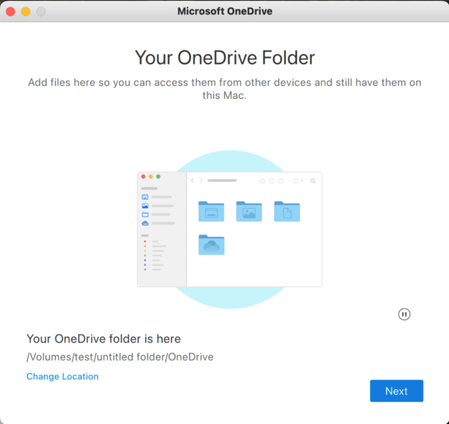
Earlier this year, we announced support for several improvements to OneDrive for Mac, including support for external, non-removable drives. We’ve heard feedback about the differences between “non-removable” and removable drives, and wanting the flexibility to sync OneDrive to any external drive—no matter the type. Now, with OneDrive version 25.127 or later, you can seamlessly sync your OneDrive files to any external drive, including removable ones. Syncing to a removable drive works just like any other drive, except that if you unplug your drive, OneDrive will stop syncing and show an error. You’ll need to plug your drive back in and restart OneDrive to resume syncing. There’s a short grace period between when a drive gets disconnected and when OneDrive shows an error to handle drives that sporadically disconnect. There are a few requirements your system must meet to use this feature: You’ll need version 25.127 or later of OneDrive. You also need to be running macOS 15.0 or later. The drive you select must meet the following requirements: Formatted for APFS Protected by FileVault (see below for instructions) Not read-only, a network drive, or marked as quarantined by macOS. Just like before, you'll need to manually set up a new sync relationship on the new drive. Sync settings won't transfer automatically. You cannot use OneDrive by moving your external drive between Macs; you must set up OneDrive again on each new Mac with the external drive. To protect a drive with FileVault: Format the drive for case-insensitive APFS, if it is not already. Find the drive in the Finder. Option/right click the drive and choose Encrypt. Follow the prompts. That’s it! We’d love to hear your feedback about this change! The best way to do that is to click on the OneDrive icon in the macOS Menu bar (near the clock), click the gear icon, and choose Send Feedback. You can also leave a comment here. We read them all, even if we can’t reply to them all.5.6KViews8likes56CommentsSimple, Smart, and Secure: The next step in sharing files in Microsoft 365
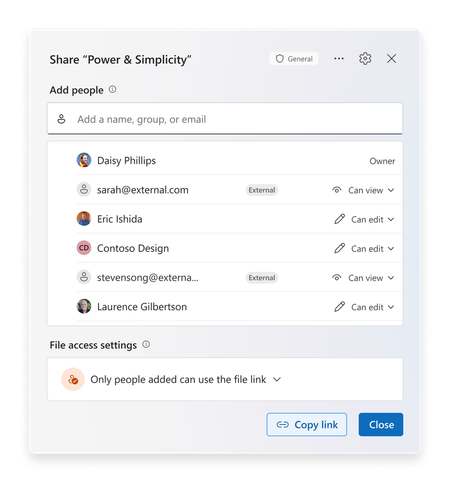
Today at the Microsoft 365 Community Conference, we announced the next generation of sharing for Microsoft 365. Not just an experience refresh, this year we are improving the underlying model that enables collaboration within oM365. We are making it simpler to use, more intelligent, and ensuring that users can keep their content secure by default. In 2011, the cloud revolutionized collaboration and SharePoint Online launched with direct permissioning to enable sharing. Three years later, the on-going cloud transformation led to the invention of “link-based sharing” to allow users to forward and share URLs that grant access within defined, yet secure scopes. Over the last decade, collaboration flourished with over 1.2 Billon people using the share dialog in M365 per month. But as we look ahead, we see new demands emerging to meet the needs of collaborative, agentic workplaces. We are excited to give you a walkthrough of the third generation of sharing in Microsoft 365 and introduce the hero link, the power behind the next decade of collaboration. Meet the hero link The next generation of sharing makes you the hero of collaboration! Each file gets a single hero link which controls all access to the file. Whether you’re clicking “Copy Link”, sending an e-mail, or yes, even copying the URL out of the address bar, it’s all the hero link! This removes the need to create, delete, and manage multiple links on your files, creating a vastly simpler experience. Sharing files with your company has never been easier: simply update the hero link and anyone with the link in your company will get access. Need to lock down a file? Change the link to only allow access for people you directly add, keeping your files secured. We know that users don’t always check file permissions before they send out a link, which can lead to frustrating “Access Denied” page. With hero links, users are empowered to update the link that they already sent, enabling them to quickly increase or decrease the scope of the hero link to match their needs. Secure by default Every hero link starts by working for only the people who have already been added to the document. As users embark on their collaboration journey, they can add more people and teams directly to the document or update the hero link as needed to broaden access. For files that are shared externally, the new share experience explicitly tags external users and guests to make sure they stand out and can be managed appropriately. Administrators will be able to change this default on a per-site collection or OneDrive basis, as needed. With the next generation of sharing, users can further secure their content by controlling who can add people or update access of the file or folder, which gives users the granular control they need to protect their most important content. At a glance access The next generation of sharing requires easy understanding of not only who has access to a file, but how they have access. The Share Dialog and Manage Access experiences are now unified into a single, powerful interface, ensuring users can see and manage their documents and folders with effortless precision. Updates to permissions now appear in real-time, giving users confidence and real-time feedback as they share! With this new sharing model, you can now update permissions in bulk. It is now easier than ever to change or remove permissions for multiple people in a single session. Changes appear instantly, helping you stay in control! If a user wants additional granularity, they can even create additional sharing links to be used for specific purposes. These links can even be named, to help users track and assign them to specific tasks. Copilot + Sharing Save time for your coworkers and keep your team up to speed by using Copilot when you share. With a single click, generate a summary of your document that will be included in the notification mail. Recipients can now understand what the file is about, without needing to open it and read the content. This is a great way to save time and help get your collaborators up to speed! Choose when you notify Have you ever had those days where your notifications are going crazy from teammates adding you to files? We hear your frustration-and we are happy to tell you that you can now choose whether to send an e-mail notification or not when you add people to your file. This update puts you in control of how you share and notify teammates – simply check the box or not based on your preference! This control is critical when you’re bringing a colleague up to speed on multiple documents, or just want to make sure that your file is shared correctly before incorporating into a SharePoint News Post or Amplify! Looking Ahead This new sharing experience and model will be rolling in late 2025! You can track the latest timelines and updates via the Microsoft 365 Message Center or the Microsoft 365 Roadmap (ID: 492622). We know change management is top of mind with any product change, and especially one’s as critical to your organization as collaboration.In addition to the standard updates at Microsoft Docs, we’ll also be uploading how to videos for end users and IT Pros to the Microsoft Community Learning YouTube Channel, walking through the changes in depth on the Sync Up Podcast and in the OneDrive Customer Office Hours. We’re excited to share the future with you! Frequently Asked Questions We know how important collaboration is to your organization! Here are answers to a few of the common questions we’ve heard! If you have others, let us know in the comments below! Q - What do I need to do to prepare for this change? A – For now, keep an eye on the roadmap id and Message Center for more information! As we get closer to release, we’ll ensure you have the content you need to update and prepare your users, admins and security teams. Q - What happens to my existing collaboration experience? A – Nothing! The new sharing model is fully backwards compatible. All the links and permissions you have today will continue to work and will show up in the “Other Links” section of the dialog! Q - Where will this change happen? A - Everywhere! OneDrive powers the sharing experience across 64 apps in M365. This change will be updated consistently across the entire ecosystem.22KViews16likes34CommentsOneDrive Context Menu Missing on Windows 11
OneDrive Context menu missing Hi guys, I’m having some issues regarding OneDrive and it’s Context Menu not being present on files. Environment: Windows 11 23H2, Intune managed OneDrive Build: 25.005.0112.30003 (64-bit) Affected users: all I tried all the fixes I could find on the Internet, but none have helped. Devices don’t have issues with synchronization, they only have an issue with the Context Menu missing. I can only see Always Keep on this Device and Free Up Space. Even if I press Show More Options, only the same only two previously mentioned appear. Is there anything else which I could have missed? Intune policies – no one seems to control such a thing, the context menu. Is there really not a known fix for this issue? 1. UAC control - ⦁ https://support.microsoft.com/en-us/office/how-to-change-the-user-account-control-policies-to-allow-onedrive-context-menus-1f957672-848d-48bb-bfe8-5af828613211 In my case, both explorer and onedrive are with No, at the Elevated status According to the above article, the following Local Security policies are in place: 2. Check if the shell extension is blocked https://www.elevenforum.com/t/add-or-remove-move-to-onedrive-context-menu-in-windows-11.26916/ The Key Blocked did not even exist on the device. I’ve went and added it manually, for both current user and all users, nothing has changed. 3. Fresh install of OneDrive, downloaded from ⦁ https://www.microsoft.com/en-us/microsoft-365/onedrive/download – no luck 4. Reinstalling OneDrive with /allusers parameter – no luck. Had a look through HKRoot\* - nothing I did made a difference. I can see that other users are complaining of this issue to this day - Windows 11 File Explorer context menu missing View Online and Version - Microsoft Community Options OneDrive not visible in File Explorers context menu - Microsoft CommunitySolved12KViews7likes15Comments
Force OneDrive/Excel to return the local file path instead of a cloud URL
Hello, I have all my 3D models stored in a OneDrive-synced folder, including the Excel file that controls many of the model parameters. I work on three different PCs, so using OneDrive for synchronization would be ideal. However, my modeling software Solid Edge runs into a specific issue: it does find the linked Excel file in the OneDrive-synced folder and attempts to open it, but as soon as it tries to read the parameters, it gets stuck in an endless loop. The reason is that Excel no longer provides a normal local Windows file path for the workbook—even though the file is fully available offline. Instead, Excel exposes the OneDrive/SharePoint URL, and Solid Edge cannot process this URL, which causes the loop. What I have tried so far: Enabled “Keep files on this device” for the entire project folder Completely shut down OneDrive (disabled it and killed all OneDrive processes in Task Manager) Tried changing the stored Excel path inside Solid Edge from a local path to the OneDrive URL — Solid Edge does not accept URLs as valid paths None of these attempts solved the issue. If anyone has a reliable method to make Solid Edge read a OneDrive-synced Excel file as a local file path, I would really appreciate your help.336Views0likes3Comments