onedrive for business
2109 Topics
No way of running OneDrive on Windows Server 2019?
I'm running an instance of Windows Server 2019 on Amazon AWS, and need to sync some files. Apparently Windows Server 2019 comes with no traces of OneDrive (even though the OneDrive webpage recognizes my web client as Windows 10 and assures me that it should be installed), so I'm trying to install the app manually. I've downloaded OneDriveSetup.exe (from onedrive.live.com), but the system ignores it when I try to run it, ie. nothing happens... I'm close to tear out my hair, what is happening?Solved121KViews0likes16Comments
OneDrive personal account not signing in 0x800704cf
OneDrive app (Windows 11) personal account has stopped working. Stuck on signing in. After unlinking PC and attempting to sign in again as part of troubleshooting it comes up with a message about not being connected to the internet. 0x800704cf. But the sign in works on a business account on the same PC. Does anyone have a fix? I have tried the following: restarting OneDrive reinstalling OneDrive clearing cahed credentials reseting OneDrive firewall/antivirus disable check check date and time settings web sign in works992Views5likes11CommentsEnabling OneDrive Health Sync
Hello, once again being victimized by Microsoft 😒 Have a series of users reporting constant sync errors. We've reached out to Microsoft technical support and they just successively told us it was garbage and not to use it. Anyway, trying to get the Sync Health Dashboard to work, based off this document: https://learn.microsoft.com/en-us/sharepoint/sync-health?tabs=windows It's one of those Microsoft documents that the community CAN'T edit, so of course - it's out of date and incorrect. From what I can figure, based on research from other sources, most of this process is now arbitrary, and you have to create a 'EnableSyncAdminReport' in some policy location in the registry. Computer\HKEY_LOCAL_MACHINE\SOFTWARE\Microsoft\OneDrive < already exists, but not referenced by documentation Computer\HKEY_LOCAL_MACHINE\SOFTWARE\Policies\Microsoft\OneDrive < key doesn't exist, but is referenced by documentation. but this sorta 'try it and see' methodology really upsets me. Anyone have any insight to this, and why the documentation team fails to update the documentation, or whether this process will work or not?41Views0likes0CommentsShorten local OneDrive path to avoid windows path length limitations
When we set up OneDrive for business, we keep the same local path on every pc: c:\OneDrive Since our company name is quite long, every synced SharePoint will be somthing like: c:\OneDrive\veryveryverylongcompanyname\project_xxxx Currently we are moving some local network drive folders to SharePoint or Outlook Groups and are facing path length conflicts due to the long base path. Any way to shorten your company name without changing it globally?54KViews0likes16Comments
Unable to @ mention external collaborators in comments within Office online files
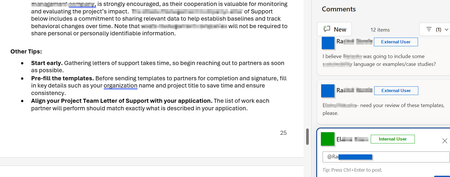
Is anyone aware of whether Microsoft will someday enable the ability to @ mention users who do not belong to the M365 tenant within comments in Office online files? I've attached a screenshot of what this looks like in a Word Online file in OneDrive. There are a number of Microsoft feedback posts about this, but it really feels like an unnecessary gap in functionality. Anyone have any insights on roadmap?31Views0likes0Comments
# OneDrive AutoSave Stopped Working After Update to Version 26.007.0112 on macOS
**Product:** Microsoft 365 and Office | OneDrive | For home | macOS ## Summary Since OneDrive automatically updated to version 26.007.0112 (26007.0112.0002) a few days ago, I am experiencing multiple issues with how Office files interact with OneDrive on my Mac. AutoSave no longer works, files that are stored locally now take noticeably longer to open, and attempting to work around the problem through Word/Excel directly results in upload failures and outdated file versions. Prior to this update, everything was working perfectly. ## Environment - **macOS version:** Tahoe 26.1 - **OneDrive version:** 26.007.0112 (26007.0112.0002) - **Office version:** Version 16.105.2 (26012530) - **Account type:** Business ## Symptoms ### 1. AutoSave no longer activates when opening files from Finder Opening any .docx or .xlsx file from the OneDrive folder in Finder results in AutoSave being off. The title bar shows "Saved on My Mac" instead of the OneDrive location. Attempting to toggle AutoSave on prompts me to "upload" the file — even though it is already in the OneDrive sync folder and marked as "Always Keep on This Device." ### 2. Files that are stored locally now open slowly Previously, opening an Office file from the OneDrive folder in Finder was instantaneous, as you would expect for a file stored on the local drive. Now, even though the files are marked as "Always Keep on This Device" and should be fully available locally, there is a noticeable delay when opening them. It appears that OneDrive or the Office app is downloading or re-fetching the file from the cloud rather than simply opening the local copy, which defeats the entire purpose of keeping files on the device. ### 3. Opening from within Word/Excel results in "Upload Failed" and serves an older version As a workaround, I tried opening files from within Word using File > Open and selecting the OneDrive location. However, this now produces an "Upload Failed" error message, and the file that opens is an older version — not the most recent version I had been working on. This is extremely concerning, as it suggests the sync between the local copy and the cloud copy may be broken, and there is a real risk of data loss or overwriting recent work with outdated content. ## Steps to Reproduce 1. Ensure files are in the OneDrive folder and marked as "Always Keep on This Device." 2. Open a .docx or .xlsx file by double-clicking it in Finder. Notice: the file takes several seconds to open (previously instant), AutoSave is off, and the title bar says "Saved on My Mac." 3. Close the file. Open Word or Excel, go to File > Open, and navigate to the OneDrive location. Open the same file. Notice: an "Upload Failed" message appears, and the file that opens is an older version, not the most recent one. ## Expected Behavior - Files stored locally via "Always Keep on This Device" should open instantly, just as any local file would. - AutoSave should be enabled automatically when opening files from the synced OneDrive folder. - Opening a file from within Word/Excel via the OneDrive location should open the current version of the file without upload errors. All of this worked exactly as expected before the update to version 26.007. ## What I've Tried - Verified that "Always Keep on This Device" is enabled for the affected folders. - Confirmed I am signed into the same Microsoft account in both OneDrive and the Office apps. - Verified files are in modern formats (.docx, .xlsx), not legacy formats. - Checked that OneDrive sync is not paused. ## Impact This is a severe workflow disruption. The combination of broken AutoSave, slow file access, and the "Upload Failed" error serving stale file versions means I cannot trust that I am working on the latest copy of my documents. There is a genuine risk of data loss — if the cloud version is out of sync with the local version, saving could overwrite recent work with an older copy. I am currently unable to rely on OneDrive for day-to-day work on my Mac. ## Additional Notes This appears to be a regression introduced by the recent OneDrive update to version 26.007. I have seen numerous other users reporting similar AutoSave and sync issues across Microsoft Q&A, Apple Community forums, and MacRumors, dating back to the original Files On-Demand changes on macOS. However, my setup was working correctly until this latest update. Relevant threads with related issues: - https://learn.microsoft.com/en-us/answers/questions/5419331/onedrive-says-saved-on-mac-autosave-not-working - https://learn.microsoft.com/en-us/answers/questions/5371608/one-drive-auto-save-no-longer-working-on-mac-os - https://learn.microsoft.com/en-us/answers/questions/5402091/onedrive-app-on-mac-not-working-for-autosave-and-t - https://forums.macrumors.com/threads/onedrive-autosave-disabled-when-opening-files-from-onedrive-folder.2442775/ I would appreciate any guidance from the community or the Microsoft team. Is this a known regression in version 26.007? Is a fix in progress? Is there a way to roll back to a previous OneDrive version that was working? Thank you.374Views3likes2CommentsSharepoint Shortcut to OneDrive
Hi, We’ve been using “Add shortcut to OneDrive” from SharePoint instead of the “Sync” option. Recently, however, some users have reported missing files. After investigating, I noticed that the shortcut appears to have been converted into a local copy in the user’s OneDrive. I realized this because the folder no longer shows the shared (people) icon, and I’m able to re-add the shortcut without any errors. Normally, if a shortcut already exists, SharePoint would display an error indicating that the shortcut is already present in OneDrive. Has anyone else experienced this issue? Thanks, Sur63Views0likes0CommentsThumbnail previews not working after switch from Onedrive Private to Business
In short. After switching to Onedrive for Business (was using a personal Onedrive before), the thumbnail preview in Windows File Explorer stopped working for several filetypes. All files are synced and stored on my harddisk Moving them out of OneDrive makes the thumbnails reappear Before files are uploaded, the thumbnail shows up, but as soon as the file is uploaded and I refresh the folder or have to re-open it later, its showing the application Icon instead of the preview. For STL files, OneDrive replaces the preview created by powertoys with a different color and background. This is assuming it is able to create and the preview is not just the gray background without the 3D-Object. According to my research this is a known bug which exists since at least 2023. Still, I was not able to find any information about Microsoft at least working on a fix. The Thread on Microsoft "Learn" was closed: https://learn.microsoft.com/en-us/answers/questions/5299951/certain-onedrive-thumbnails-not-showing?orderby=newest&page=1&forum=msoffice-all&referrer=answers#answers Filetyps not working so far: Fusion 3D Files *.f3d Stereolytograhpy *.stl (sometimes yes, sometimes not) 3mf mov .CR3 files (Canon RAW files) .... If you are affected as well, please post which file types are not working for you.36Views0likes0Comments
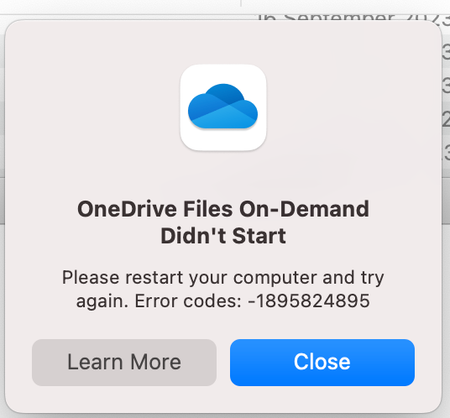
OneDrive Files On-Demand Didn't Start
Recently moved from an Intel iMac to a M2 Mac mini running Sonoma. Trying to use Onedrive on an external drive with the above error message keep coming up. Initially it work ok for a few days but then this error occurred. Now I cannot get it to go pass this page and only gives me an option to close. Tried everything without successSolved11KViews1like3Comments