microsoft teams
744 TopicsSyncing Security Groups with team membership
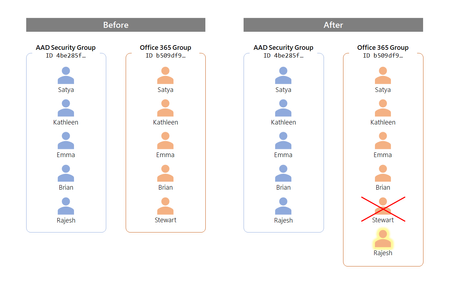
In this post, I present a PowerShell script to synchronize the membership between security groups and Office 365 groups, a long-standing request from Microsoft Teams admins and team owners. Source code on GitHub at https://github.com/danspot/Danspot-Scripts-and-Samples-Emporium.99KViews23likes29CommentsManage meeting space availability with Microsoft Teams Panels
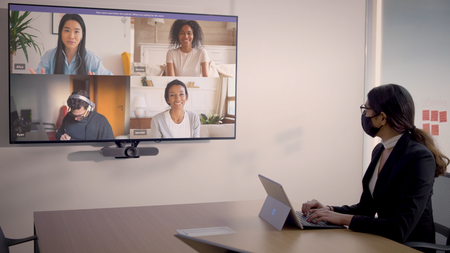
Microsoft Teams Panels are now generally available, providing a space and time management solution powered by a native Teams experience, running on a compact digital display that can be mounted virtually anywhere.119KViews14likes117CommentsSmarter Shifts Start Here: Reimagining Retail Frontline Experiences
The pace of change for retail organizations has never been faster. To meet the rising bar, store associates need quick access to accurate information, centralized communication, and AI-powered tools integrated directly into their daily flow of work. Retail teams are ready for frontline tools that meet the moment. We’re excited to share new agentive innovations that empower frontline workers to unlock efficiency by transforming how they communicate, find information, and perform their work – without compromising security and control. New AI Innovations for Retail Frontline Workers Frontline transformation requires more than isolated AI features – it requires solutions designed to work together across the full spectrum of frontline needs. Microsoft has introduced a new set of AI innovations for frontline workers, shaped by common pain points like information overload, manual processes, and mobile‑first work environments. When combined, Frontline Agent (Public Preview), the Store Operations Agent Template (Public Preview), and Microsoft Copilot Chat and Agents can provide a holistic AI experience that supports frontline teams with the right intelligence, at the right time, in the right context. Empower faster, smarter work with an out-of-the-box agent designed for the Frontline Frontline work moves fast – so should access to the right information. The new Frontline Agent, available in public preview, is a purpose-built and persona-tuned AI assistant that supports everyday workflows for frontline teams by delivering concise, simple responses grounded in the context of their work. With this out-of-the-box AI agent, retail associates can easily find answers to information scoped from SharePoint sites in real-time, like store policies, procedures, and product information. At the start of a shift, store associates can quickly use the agent to catch up on missed Teams chat and channel messages and prioritize detailed action items. Store managers can generate shift recaps for smooth handovers, including insights such as customer feedback, task completion, and open items for the next shift. By automating routine tasks, surfacing real-time information, and centralizing role-specific updates, the Frontline Agent helps keep teams informed and connected – enabling faster service, reduce errors, and contribute to improved employee and customer experiences. &A and recap of messages. How Bic Camera is exploring new ways to keep their retail teams informed and ahead For Bic Camera, a leading consumer electronics retailer in Japan, providing solutions that meet the needs of their frontline store associates is a priority. Through a proof‑of‑concept, the company is beginning to see how persona‑based AI capabilities designed for frontline roles can help close a critical gap left by traditional digital tools – offering fast access to the right information and tools that fit the realities of a retail environment. In the POC, store associates use features such as the “Catch up” prompt to help them start their shift informed and ready, and the agent’s Q&A to quickly find the information they need with greater confidence. Hisashi Tamura, Group Manager at AX Promotion Group, Bic Camera said, “While most of today's AI solutions are designed for office workers and often fail to meet the needs of the field, this agent is specifically built for frontline workers. Microsoft is deeply attuned to the needs of the retail industry. Their commitment has led to the implementation of features that streamline frontline operations, elevate the customer experience, and empower staff through effective training. By supporting staff on the ground, it has the potential to eventually unlock the full human potential within the workplace.” Customize and extend AI agents to meet your specific needs For retailers who need deeper capabilities that handle processes specific to their organization, the Store Operations Agent Template, available in public preview, offers a customizable solution that connects to internal systems, adapts to your store’s unique processes, and offers instant insights such as inventory availability – all while autonomously orchestrating workflows, flagging exceptions, and recommending next best actions. By analyzing internal signals like sales trends and foot traffic alongside external factors such as weather and holidays, this agent template provides contextual recommendations to help store operations leaders make smarter, faster decisions. Together with the Frontline Agent, these agentic solutions can create a powerful solution that provides essential AI capabilities across frontline roles, helping drive operational efficiency from the store floor to the back office. Empower mobile-first workers with multimodal AI Microsoft Copilot Chat and Agents bring multimodal interaction with voice, images, and real-time translation right into their mobile flow of work. For retail associates on the move in dynamic, fast-paced store environments, this can be a game-changer. No more thumb-typing on tiny screens. Just snap a photo, share it, and get instant guidance via their mobile device. With AI that sees, listens, and responds, stores associates can gain hands-free efficiency and real-time support when it matters most. Reimagine frontline experiences and unlock efficiency through AI-assisted retail store associates. Secure every device and scale with confidence Delivering AI-powered experiences is only part of the frontline story. For retailers navigating seasonal spikes, high turnover, and the need to modernize back‑office operations, it’s also crucial that these solutions are deployed securely across device types, at scale. Microsoft’s latest innovations are designed to simplify Teams frontline deployment and BYOD onboarding and help ensure compliance from day one. By modernizing desktop strategy with Windows 365 – a secure, cloud‑based Windows experience that streams your desktop and apps to any device – retailers can enable a cloud-powered desktop experience, empowering employees to work productively from anywhere. Together, these capabilities can contribute to more streamlined operations, help reduce security risk, simplify IT management, and empower the retail workforce to focus on delivering exceptional customer experiences. Streamline Teams deployment for your frontline and manage pilots at scale Deploying digital solutions for your frontline teams doesn’t have to feel overwhelming. The new Microsoft Teams pilot deployment experience, available in public preview, simplifies this process and makes it easier to start small, measure impact, and scale confidently. Begin with a guided admin journey in the Frontline hub, where suggested actions help you take the right next steps based on your deployment stage. Launch a Teams pilot in minutes: choose the capabilities you want to test, add members and owners, and click Deploy. Stay in control by managing all pilots in one place. Reorder pinned apps, create channels, and adjust membership as your needs evolve. Built-in analytics let you track adoption and usage through the frontline dashboard, so you can validate engagement and optimize performance. This streamlined approach helps reduce setup complexity, accelerate rollout, and build a clear path from pilot to organization-wide rollout. Onboarding made simple for Microsoft Teams on frontline personal devices Onboarding shouldn’t slow down your frontline teams, regardless of device. For frontline workers who rely on personal devices, the new Teams BYOD Onboarding Wizard, available in public preview, is designed to make it easier than ever for frontline employees to set up Teams on their personal devices. This self-serve experience walks users through downloading and activating the Teams mobile app and installing required apps like Microsoft Authenticator and Company Portal, helping them stay compliant with organizational security policies – without needing to wait for IT or a manager. The result? Help streamline onboarding, reduce support calls, and offer frontline teams a simple way to get connected from day one. Optimize shared spaces with Windows 365 Frontline and Windows 365 Link To ensure secure sharing of workstations, provide access to AI tools, and prevent workflow disruptions, retailers are rethinking how to deliver technology to every employee. Windows 365 Frontline, now updated with new capabilities to extend Windows apps and desktops to a broader set of users, gives retailers a cost‑optimized option to provide Cloud PCs or Cloud Apps to those employees who don’t need 24/7 access to a desktop or applications. Cloud PCs can be delivered in dedicated or shared mode so each employee can access a secure, high‑performance environment with the right level of personalization – removing friction from shared device sign-ins while giving IT the control and consistency they need. And with Windows 365 Cloud Apps now generally available, staff can access secure, app‑only access for tasks like inventory lookup, task management, reporting, and store communications, from any device. Windows 365 Link further simplifies device management in shared spaces with affordable, durable devices that require minimal configuration and upkeep. Associates and managers can securely sign‑in in seconds to Cloud PCs across shifts and locations using Windows 365 Link. With no data stored locally, retailers improve their Zero Trust posture and reduce risks tied to lost or outdated hardware. For organizations taking the next step in their AI initiatives, Windows 365 for Agents, now in public preview, extends Windows 365 further – providing a secure platform to accelerate rollout and delivery of agents that can browse websites, process data, and automate tasks, all powered by a secure, policy-controlled Cloud PC. See it in action at NRF: Microsoft is committed to empowering retail organizations with smart, secure digital solutions for their frontline workforce, and we’re excited to showcase these latest innovations at the National Retail Federation (NRF) expo in New York from January 11 – 13, 2026. Visit our Booth #4503 to explore live demos of these solutions in real-world retail scenarios, including ‘day in the life’ experiences for frontline store associates and managers. Visit us at the Microsoft Booth #4503 on level 3, located at the main entrance of the Javits Exhibition Hall. Learn more about Microsoft 365 for Frontline and watch the Ignite on-demand session that presents latest product vision and innovation. Discover how Microsoft agentic solutions are helping move retail forward. Explore industry-specific AI scenarios for Microsoft Copilot Chat and Agents. Learn more about Windows 365 Frontline and Windows 365 Link 1KViews3likes0Comments
Updates for Town Hall in Microsoft Teams and Teams Live Events
Our goal in Teams is to make hybrid work and communication easier and more inclusive than ever before. This pursuit is core to the effort we put into creating meaningful connections between people through our end-to-end events platforms, whether one-to-one meetings or large one-to-many hosted digital events. We introduced our new digital streaming event solution for large events, town hall, in September 2023. Town hall has continued to drive new, exciting experiences for our customers, such as the ability to bring multiple presenters on stage, send out attendee emails, and see real-time health analytics for the event. As we move forward, we are excited to continue to share our latest features with you and let you know what to expect from town hall in the next year.62KViews9likes57CommentsMicrosoft Teams Town Hall: Host Professional Digital and Hybrid Events at Scale
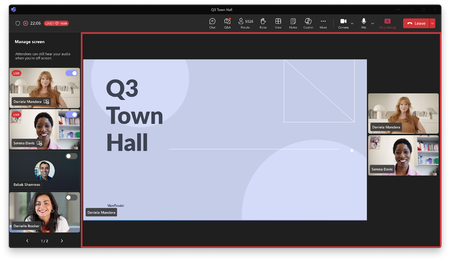
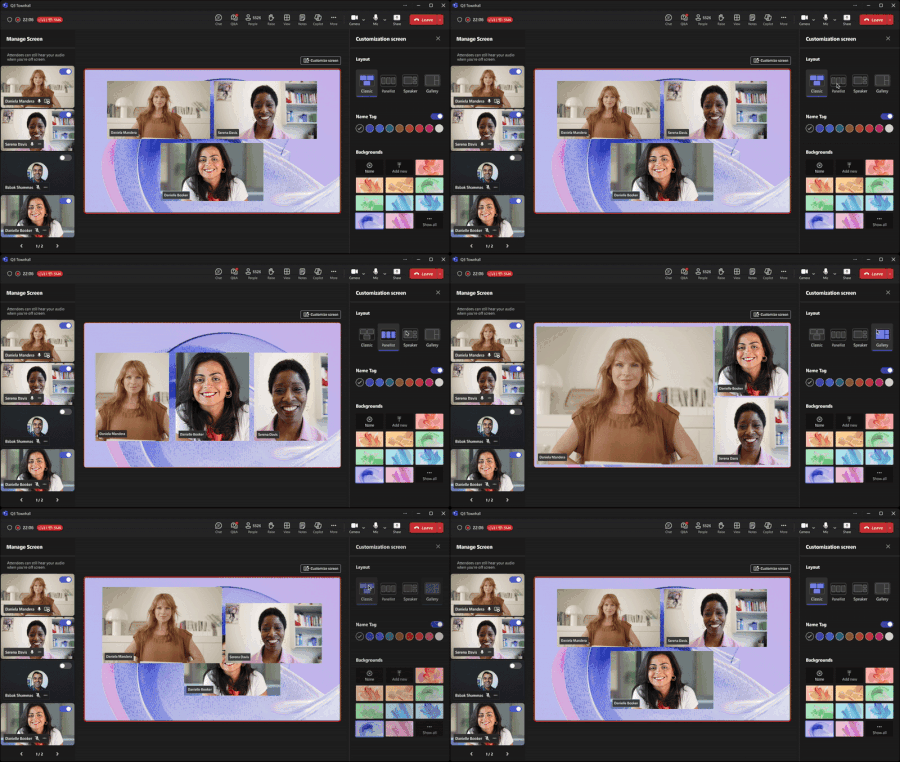
Over the past year, Microsoft Teams town hall has made significant strides, continuing to evolve as a platform for scalable digital and hybrid events. It now provides enhanced production controls and richer attendee experiences. Whether you’re hosting a company-wide all hands, a hybrid town hall from your headquarters, or a large presentation for clients, Teams town hall provides a unified, professional solution that keeps everyone engaged and connected, supporting up to 100,000 simultaneous attendees. If you are new to town hall or are considering consolidating your communication on Teams to host scalable events, we’d like to share the latest progress and key features that make town hall a great choice for large-scale events with enhanced customer experiences. Scalable event experience in Teams Rooms - Hybrid events made easy Modern events often combine an in-person audience with remote participants. Teams town hall now fully supports these co-located experiences through seamless integration with Teams Rooms systems. When using Teams Rooms on Windows, a conference room system assigned as a presenter can join the event in presenter mode, with the front-of-room display defaulting to the attendee view. From the console, presenters maintain complete control over what appears on screen, including access to the green room and off-stage management. They can also switch the front-of-room display to presenter view without affecting what remote attendees see. The result is a smoother, more coordinated hybrid experience—transforming the on-site AV setup into a powerful production studio. In addition to this new capability for Teams Rooms on Windows, town hall is now supported for Teams Rooms on Android. These systems can now join a town hall as an attendee, allowing a group to participate together in-person with a Teams Room on Android device. Ultra-low latency (ULL) streaming – Real-time engagement Historically, large broadcast-style events had a significant delay of around 20–30 seconds for attendees. Town hall now reduces that delay with ultra-low latency (ULL) streaming for Teams Premium users. When enabled, ULL streaming dramatically reduces the delay for attendees watching the live stream to less than five seconds. This means your audience hears and sees the presenters in near real-time allowing more natural engagement. . This low-latency stream is auto-activated for town halls organized with a Teams Premium license, and it works with Microsoft’s eCDN solutions to scale securely for up to 20,000 concurrent event attendees. 1080p full HD video quality – Crisp, professional broadcasts Visual clarity is key to professional, high-quality event production. Town hall now supports 1080p full HD video for live event streams, a significant improvement from the former 720p limit. With 1080p, your town hall comes through with sharper, more detailed video meaning faces, text, and visuals are crystal clear for every attendee. This professional, studio-quality look helps land your message with a more engaging experience that holds audience attention. This feature enables 1080p resolution for up to 20,000 concurrent event attendees. This feature is currently in private preview, but will soon be generally available, and requires a Teams Premium license to enable. Event layouts & “Manage What Attendees See” – Polished production control Town hall gives organizers and presenters with Teams Premium powerful event layout control to craft a dynamic viewing experience for event attendees. Using the “Manage What Attendees See” feature, you can act as a producer in real-time, deciding who and what appears on the screen at any time. For example, you might start with a full-slide view during a critical data presentation, then switch to a side-by-side layout showing the presenter’s video alongside the slides for commentary. Town hall allows up to seven presenters to be shown simultaneously alongside shared content, an improvement over previous limits, so a whole panel can appear with the presentation media at once. Attendees stay focused on the content you want to highlight, and you can seamlessly transition between layouts (slides, speaker gallery, demos, etc.) to keep the presentation engaging and ensure that presenters land their key messages with the right information for attendees. Screen sharing navigation – No need to say ‘next slide’ During large events it’s common for multiple presenters to speak to the same presentation. Now presenters can share control of their slides with up to 20 other presenters at the same time, removing the need to hand off control between sections and providing seamless navigation of the slides throughout the presentation. Control is delegated by the user sharing their screen and can be adjusted at any point of your event. Live polls – Real-time audience engagement Keeping large audiences engaged can be challenging, but town hall now includes integrated polls to allow participants to stay involved. Organizers with Teams Premium can create and launch polls during the event, and results can be shared instantly with everyone. This capability transforms a one-way broadcast into a two-way conversation. For attendees, polls provide a quick and easy way to participate and contribute. For presenters, polls offer immediate feedback that can help tailor the live discussion. This can result in a more attentive audience, new opportunities for communication, and moments of collective participation. Raise Hands – Inclusive Q&A Town hall is designed to scale to tens of thousands of viewers, but we haven’t forgotten the importance of letting individual voices be heard. We’re excited to bring the raise hand feature to town hall. When an audience member raises their hand, organizers and presenters are notified and can choose to bring that attendee on screen to ask a question or share a comment, with full audio and video. This is a game-changer for live Q&A sessions. Instead of relying solely on typed Q&A or pre-submitted questions, you can invite attendees to actively participate in the discussion. For event organizers, this feature means you can foster authentic, live interaction, even when presenting at scale. Town hall Graph API – Greater control and customization Microsoft Graph APIs empower organizations to integrate Teams town hall with the internal platforms and workflows they are already using. These APIs enable organizations to automate the entire event lifecycle, by creating, publishing, and canceling town halls directly from their own systems, eliminating manual steps and reducing operational overhead. Organizations can use Graph APIs to suppress default Teams notification emails and instead trigger their own internal email communications, ensuring consistent user experiences. An additional recent enhancement is resource-specific consent (RSC), which allows apps to request permissions scoped to a specific town hall (or webinar) rather than requiring global admin rights. This improves security, simplifies consent processes, and enables developers to build integrations that respect organizational boundaries, all while ensuring compliance and scalability for enterprise events. Teams town hall has evolved into a comprehensive platform that raises the bar for virtual and hybrid events. From ultra-low latency streaming and HD video that make your broadcast feel crisp and professional, to interactive features like polls and raise hands that turn passive viewers into active participants, town hall is built to engage audiences at scale. Town hall helps mitigate the challenges of hybrid work and delivers tools for co-located experiences and Teams Rooms system integration so you can connect with people across offices and geographies in one seamless event. All of these innovations are available to use today as part of the current town hall experience. Try them out to create more impactful, inclusive events for your audiences. Learn more about Teams Town hall and what is coming next: Teams Town hall adoption Hear more from our experts on how to execute successful town halls at scale: Customer Hub Read more about our best practices for hosting Town hall events in Teams Rooms: Teams town hall in Teams Rooms best practices4.8KViews4likes2CommentsWhat’s New in Microsoft Teams | December 2025
As 2025 comes to a close, I want to thank you all for being part of the Microsoft Tech community! Your suggestions and feedback have been incredibly impactful as we’ve continued working toward our goal of making Teams smarter, more secure, and easier to use. In 2026, you can look forward to new ways to collaborate and do more, with Teams as the platform where people and agents collaborate together. We hope you’ll keep sharing your experience with new Teams features in the new year! To wrap up the year and lead into the next, we’re announcing some new features that can help you customize Teams for the way you like to work and make your conversations and connections more secure. “Pop out core Teams functions into a new window” gives you the ability to organize the elements of Teams that you use most frequently however you want on your desktop. “Tenant-Owned Domain Impersonation Protection for Teams Messaging” analyzes the identity and domain authenticity of external users when they make their first contact with you, to make sure they’re not impersonating your organization’s domain. These and all the other features below are now available, so give them a try and let us know what you think. Best wishes for a very happy and productive start to 2026! Chat and collaboration Meetings, webinars, and town halls Teams Phone Fundamentals and Security Frontline Worker Solutions Certified for Teams Devices Chat and Collaboration Pop out your core Teams functions into a new window You can now organize your work environment to fit your needs by opening Teams chat, calls calendar, activity, and more in separate windows. This gives you the flexibility to multitask and organize your workspace the way you want. Whether you're catching up on chats while reviewing call history or managing notifications alongside your calendar, this update helps you stay productive without switching tabs. Simply right-click an app icon or use the app flyout to pop it out into its own window. Joining a private team by code now requires owner approval Joining a private team using a code now requires a team owner’s approval. This update gives team owners more control and boosts security by ensuring every new member is approved even when using a Join code. This helps prevent unintended or unauthorized access to private teams while keeping code-based joining convenient for those who are authorized. Meetings, webinars, and town halls Enhancements to Interpreter and multilingual meeting experience Spoken language is now automatically detected and updated across Interpreter, live captions, and live transcription when Interpreter is enabled, keeping all speech features consistent with the language being spoken – no manual setup required. When Interpreter is disabled, live captions and transcription will still work, but auto-update spoken language will not be available, and meeting participants will need to speak in the spoken language manually selected in the meeting settings to ensure accuracy. Additionally, a new “preparing” status provides clear visual feedback while Interpreter initializes, helping users know when the system is ready – especially important for multilingual meetings. Interpreter settings have also been improved with concise explanations for each configuration and field, making setup easier and minimizing confusion. Teams Phone Microsoft 365 Copilot chat in Calls app post-calling experience – Generally available The post-call Copilot experience for Teams Phone on desktop and in mobile is now powered by Microsoft 365 Copilot Chat. After a call ends, users can open Microsoft 365 Copilot Chat as a side panel in the Teams ‘Calls’ app to generate summaries, surface key insights, and get suggested next steps. By using data from Microsoft Graph and the web—not just the call transcript—Microsoft 365 Copilot Chat delivers responses that are more personalized, relevant, and actionable, helping users quickly move from conversation to follow-up. Compliance Recording ISV Support for Call Queues in Microsoft Teams Phone Teams Phone now supports third‑party ISV compliance recording at the call queue level, giving organizations a simpler and more consistent way to meet regulatory requirements. Recording is applied at the queue—rather than per individual calling representative—so every call routed through that queue is automatically captured by the organization’s chosen compliance solution. This approach is especially useful for large enterprises and dynamic support teams where calling representative membership frequently changes. Admins can apply a single queue-level policy to ensure all incoming calls are recorded compliantly without managing individual calling representative user settings. Learn more. Fundamentals and Security Tenant-Owned Domain Impersonation Protection for Teams Messaging Own Domain Impersonation Detection in Teams identifies if an external user comes from a domain that is impersonating the recipient tenant's own domains during their initial contact with an enterprise user via Teams messages. This helps to protect users from bad actors spoofing tenant domains by analyzing sender identity and domain authenticity in real time, alerting users to suspicious activity and reducing phishing risks across messaging. Frontline Worker Solutions Frontline Hub Say goodbye to scattered tools and fragmented workflows. Frontline hub brings everything you need to deploy, manage, and monitor frontline Teams experiences into one streamlined destination—now available on the manage frontline teams page in the Teams Admin Center. With dynamic recommendations tailored to your deployment journey, frontline hub helps you deploy faster, simplify management, and deliver connected experiences that empower your frontline workforce. Teams Devices and Peripherals EPOS IMPACT 500 MS UC ANC WL USB-C+A Headset Designed for modern communication, IMPACT 500 delivers clarity and comfort all day. Certified for Microsoft Teams Open Office with a future software release that will add support for Teams over native Bluetooth® - for dongle free calls. EPOS microphone technology blocks out background noise for clear, precise speech and focused conversations. Hybrid ANC and EPOS BrainAdapt™ reduce noise and listening fatigue in the open office, while an impressive 35 hours of talk time keeps you connected longer. EPOS IMPACT 400 ANC Headset The IMPACT 400 delivers the focus and clarity professionals need to communicate seamlessly across office and home environments. Equipped with EPOS Hybrid ANC, it balances noise reduction for distraction-free focus, while four AI-powered microphones ensure your voice is transmitted clearly—even in noisy surroundings. Certified for Microsoft Teams Open Office, the IMPACT 400 delivers reliable performance in any environment. With plug-and-play connectivity and intuitive functions like lift-to-mute the IMPACT 400 combines effortless usability with all-day comfort, making it an ideal choice for professionals who demand clarity and productivity throughout their workday. Lenovo Webcams: FHD, QHD and 4K Pro The Lenovo FHD Webcam is a FHD webcam with1080P resolution, leading image quality, and a focus on design that delivers unparalleled clarity and functionality for users in various work environments. The Lenovo QHD Webcam provides 2K resolution, superior image quality, innovative design, and seamlessly integrates into collaborative work environments. Advanced AI features like auto-framing, face AE/AF, and AI noise reduction enhance communication and productivity. It's not just a webcam; it's a comprehensive video conferencing solution with advanced technology and functionality. The Lenovo 4K Pro Webcam delivers 4K resolution and exceptional performance in low-light settings, and is equipped with AI, making it a complete communication solution. Lenovo FHD Webcam Lenovo QHD Webcam Lenovo 4K Pro Webcam Lenovo Dual-mode Wireless ANC Headset 6550 (USB-A and USB-C) For professionals in open offices or hybrid work setups, the Lenovo Dual-Mode Wireless ANC Headset 6550—a Microsoft Teams certified headset for open office—elevates workplace communication to a new standard. It provides stable call performance and seamless integration with Microsoft Teams. Equipped with hybrid ANC (Active Noise Cancellation) and AI-powered ENC (Environmental Noise Cancellation) technologies, it effectively blocks out ambient distractions even in bustling, high-noise environments so that every word in calls is clear. Designed for all-day wear and certified by SGS, its ergonomic structure, premium leatherette, and memory foam deliver long-lasting comfort; meanwhile, its intelligent dual connectivity enables smooth, instant switching between devices (such as PCs and smartphones). Tailored for dynamic workspaces, this headset stands as a dependable tool to help professionals stay focused and boost productivity. Yealink Solutions for Teams Rooms The Yealink MVC S90 is an intelligent Dual-cam solution for Microsoft Teams Rooms, designed to enhance collaboration and is ideal for large meeting spaces. This set includes the new generation mini-PC MCore 4, the 11.6-inch touch panel MTouch Plus, the intelligent dual-lens camera UVC86, the audio and video processor AVHub, the intelligent detect sensor RoomSensor, and BYOD-Extender. The Yealink S50 is ideal for medium meeting spaces. This set includes the new generation mini-PC MCore 4, the 11.6-inch touch panel MTouch Plus, the MeetingBar A50 all-in-one video bar with USB mode, and the intelligent detect sensor RoomSensor. The Yealink MVC S40 is designed for small meeting spaces, and includes the new generation mini-PC MCore 4, the 11.6-inch touch panel MTouch Plus, the SmartVision 40 all-in-one video bar, and the intelligent detect sensor RoomSensor. The Yealink MVC S90 The Yealink S50 The Yealink MVC S409.6KViews3likes1Comment
New enhancements in Private Channels in Microsoft Teams unlock their full potential
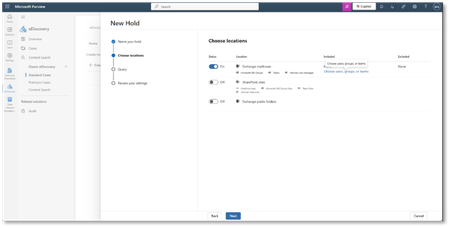
Private channels have long empowered focused collaboration among a subset of a team’s members. Whether you're managing sensitive projects, driving confidential initiatives, or simply need a space for more targeted discussions, private channels offer the control and privacy your team needs. Now, private channels are evolving to meet the needs of modern teams. In response to customer feedback, we are introducing enhanced flexibility, greater scalability, and streamlined compliance management. Read on to learn about these key enhancements and how to prepare. Why Private Channels Matter Private channels offer a dedicated space for conversations that benefit from added structure, persistence, and control. They’re especially valuable when navigating sensitive topics like budgets, HR discussions, managing project-specific workstreams, or collaborating with clients and vendors who require limited access .While chat are ideal for quick exchanges, private channels help keep discussions organized, make shared files easier to find, and help ensure conversations remain accessible over time, all while giving you more control over who can access. What’s Changing—and Why It Matters To support growing usage and help simplify compliance, private channels will now use a group mailbox (like shared channels) instead of storing messages in individual user mailboxes. This change unlocks several key benefits: 🚀 Expanded Limits Feature Current New Max private channels per team 30 1000 Max members per private channel 250 5000 Meeting scheduling ❌ ✅ Supported Simplified Compliance At a user level Group Helping to Simplify Compliance By aligning private channels with group-based storage, compliance policies (e.g., retention, legal hold, DLP, eDiscovery) can be applied at the team (Microsoft 365 group) level, helping to reduce complexity and driving consistency across channel types. For example, one retention policy can be applied to the team’s group, instead of managing a separate policy for private channels. Organizations with compliance policies (retention, legal hold, DLP, eDiscovery, Optical Character recognition) for private channels must ensure those policies are also applied to the team’s group scope before migration begins. Existing policies for user mailboxes will continue to apply; post-migration, new private channel data will be governed by policies of the group mailbox. What Compliance Admins Need to Do To enable a smooth transition and help maintain compliance coverage, follow the below: Microsoft Purview Hold and eDiscovery Before Migration: In Microsoft Purview compliance portal, update hold policies to include the team’s Microsoft 365 group mailbox in addition to user mailboxes. After Migration: New data will reside in the group mailbox. For full eDiscovery, search both user and group mailboxes. Note: Private channel message history (edits/deletes) in user mailboxes under an existing hold will remain in their preserved user library folder until the hold expires. Microsoft Purview Data Loss Prevention (DLP) Policies Before Migration: In Microsoft Purview compliance portal, update DLP policies to include team’s group. After Migration: Check that the DLP policies are scoped to the group mailbox for private channels. Microsoft Purview Retention Policies Before Migration: In Microsoft Purview compliance portal, go to solutions -> Data Lifecycle Management -> Retention policies Create Teams channel messages policy scoped to Teams having equivalent Retention type and duration similar to existing private channel retention policies. After Migration: Set retention policies for the parent team with all channels in the team in mind, including private channels. Microsoft policies for Optical Character Recognition Optical character recognition (OCR) is managed via Data Loss Prevention (DLP) policy. Before migration, modify the corresponding DLP policy that needs be applied for OCR to private channels and change locations to all users and groups. What’s Next This update helps make private channels more scalable, manageable, and compliant. It’s a big step forward for organizations that rely on Teams for secure, structured collaboration. Migration is scheduled to begin in early October 2025 and is expected to be completed by the end of December 2025 for the worldwide cloud. During this period, private channel data will gradually move from user mailboxes to the team’s group mailbox. Private channels can be used throughout the migration. Special cloud migration will happen in early 2026. Migration can start or end at different times for each tenant during the rollout period. To track progress, a new PowerShell command will be available for tenants to check whether their migration has started or is completed. The command will be - Get-TenantPrivateChannelMigrationStatus -TenantId <tenantId> We’ll be updating public documentation soon and will share links here.19KViews8likes27CommentsFrom Threads to Workflows: Microsoft Teams Features That Boost Everyone’s Productivity
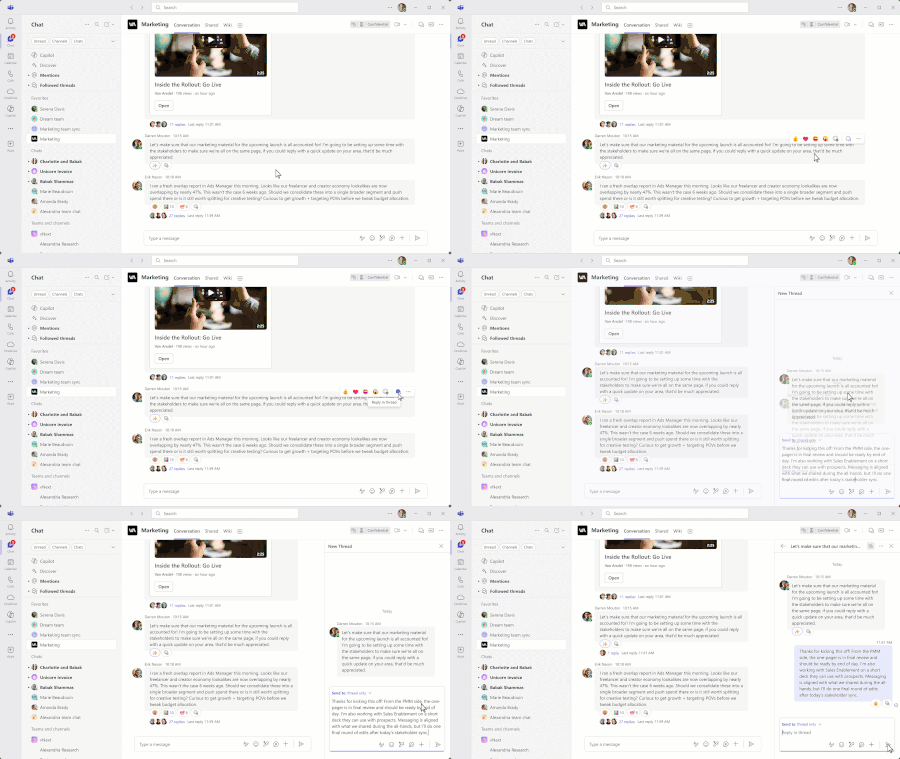
Organizations are looking to achieve more—and need tools that help them work faster, simpler, and smarter. Guided by customer feedback, Microsoft Teams continues to evolve. Earlier this year, we launched the new chat and channels experience: a unified, streamlined interface that brings simplicity by default, with powerful capabilities just a click away. We’re introducing the next wave of innovations in Teams, with features like threads, multiple emoji reactions, and emoji-triggered workflows. These updates help make collaboration more open and organized, bringing together people and, increasingly, AI agents. They also boost personal productivity by automating routine tasks and enabling you to adapt Teams to your work style. Threads in channels, something many users will be familiar with, are a key part of this evolution. It combines the simplicity of chat-like conversations with the structure, durability, and manageability of channels—helping you stay on top of the information that matters most without getting overwhelmed. Let’s take a look. Enhance group collaboration Efficient collaboration moves work forward—and seamless communication is key. Teams need to share knowledge, brainstorm ideas, and resolve challenges quickly. But in today’s fast-paced, always-on-work environment, the workday can feel like a blur. The Work Trend Index calls this the “infinite workday”—where the workday is stretched and attention is constantly under pressure. To help with this challenge, we’re introducing threads in channels—to make collaboration more efficient and focused. With threads, you can reply directly to specific messages, keeping related conversations grouped together without disrupting the main flow. This preserves context and order, making it easier to stay up to date, while allowing for in-depth discussions. You can follow the threads that matter most to you, and when an important update or decision is made, you can send it back to the main conversation, so everyone stays aligned without requiring them to sift through every reply. The Followed Threads view brings all your followed conversations into one interactive list. You can quickly access all your threads, triage and respond—without jumping between channels. And when you're done with a thread, unfollow it to stop receiving future updates. By default, you’ll only follow threads you’ve started, replied to, been mentioned in, or explicitly chosen to follow. ‘Follow’ helps you stay engaged with key conversations, without unnecessary interruptions. The new threads layout complements the existing post layout. While posts are ideal for announcements and broad updates, threads are a better fit with dynamic, scaled collaboration. When creating a new channel, select between threads or posts layout, and don’t worry, this can be changed later without loss of fidelity. By setting up dedicated channels for each project, you can keep stakeholders, files, and updates all in one place—making teamwork more connected, transparent, and efficient. Apps are supported in the threads layout. Bots can start new threads, read messages and respond within a thread, just like a teammate. Channel meetings and ‘meet now’ are supported too, with each meeting getting its own thread to keep content grouped together and easy to find. Threads in channels are now in public preview. Your work isn't limited to just a desktop, so we will bring threads in channels to all devices for seamless productivity, including desktop, mobile, iOS, and Android. Threads in channels is now in public preview. Threads help you keep context while reducing clutter, and emojis help build meaningful connection. In a hybrid workforce, being able to express yourself on Teams helps strengthen team culture. You can now react with multiple reactions per message, enhancing your ability to express a wide range of emotions effectively. For example, react with✅ and 🙏 to convey appreciation and alignment without extra replies. And with custom emojis, introduced last year, your team can reflect its unique identity, from inside jokes to branded visuals, making interactions more personal and fun. Multiple emojis per message is now in public preview. Boost personal productivity Staying productive and meeting deadlines is critical. With the right tools, you can spend less time on repetitive tasks and more time driving impact. These new features let you tailor Teams to your needs, helping you make meaningful progress where it counts. You can now trigger workflows with emojis by reacting to messages in a chat or channel—streamlining tasks, reducing manual follow-ups, and speeding up responses. For example, reacting with ❗️can escalate a support issue by creating a helpdesk ticket, while 👀 can forward a message to the right channel. This helps ensure urgent items are addressed quickly and without a manual follow-up. Use emojis to automate DevOps, incident response, team collaboration, and more with the Workflows app. This is now available in public preview. Slash commands in Teams are getting more powerful. With support for multi-step inputs, you can now complete more complex tasks—like searching for a GIF, or jumping directly to a channel using /goto—without ever leaving your chat. These enhancements help you move faster and stay in the flow. Slash commands enhancements are now in public preview. Customize your keyboard shortcuts in Teams to work the way that’s most intuitive to you. Whether you're used to shortcuts from other tools or have your own workflow preferences, you can now set commands that match your habits—helping you work efficiently. To set it, open Keyboard shortcuts from the top bar menu (•••), and enter your own custom commands. Customize your keyboard shortcut is available in public preview. What’s next These latest Teams updates help you spend less time managing work and more time making progress. By cutting distractions, streamlining communication, and automating tasks, we’re helping you reclaim focus in a world where the workday often feels infinite. Teams enables people and agents to work together through secure, collaborative AI — from Copilot integration to agents created with Teams AI library, Copilot Studio, SharePoint, and more. The new threads layout helps bring together the right mix of people and agents for every step of the project, while keeping discussions focused and organized. We recently announced Model Context Protocol (MCP) and Agent to Agent Communication (A2A) support which allows developers to build more comprehensive agents that can talk to one another. These updates are just the beginning of enhancing human and agent interaction in Teams and there’s much more to come. Ready to try it out? Visit Microsoft adoption to learn more, or head to the Teams app to start using these features in public preview today.109KViews11likes17CommentsAnnouncing Compliance Recording ISV Support for Call Queues in Microsoft Teams Phone
We’re excited to announce Teams Phone now supports third-party ISV compliance recording at the call queue level, making policy-based recording simpler, more automated, and easier to manage. What’s New? Compliance recording for call queues enables organizations to use third-party solutions to record the entirety of call queue calls, supporting regulatory compliance and a seamless caller experience. User-level compliance recording isn't supported for call queues, which can cause overlapping announcements and disrupt user experience. This new feature helps simplify management across large enterprises, support dynamic rep membership, and improve regulatory compliance through seamless integration. Admins can easily apply the policy to ensure that all calls for a specific queue are recorded. Highlights: Less administration overhead: Calls are recorded at the call queue level, not at individual participant level, ensuring less administration overhead. Conference-mode only: Available exclusively for conference-mode call queues. Improved caller experience: Eliminates redundant announcements and ensures the recorder is present before the agent joins. Customizable announcements: Configure a custom message to inform callers that their call “may” be recorded, played after the initial greeting and in tandem with recorder invitation which results in faster connection times. How to Configure Compliance Recording for Call Queues Initial setup: Provision the third-party compliance recording solution in your tenant. Microsoft offers a Teams certification program for compliance recording vendors, learn more. Configuration is applied at the call queue level, not per user. Use the following PowerShell cmdlets for setup: New-CsComplianceRecordingForCallQueueTemplate Set-CsComplianceRecordingForCallQueueTemplate Remove-CsComplianceRecordingForCallQueueTemplate New-CsCallQueue Set-CsCallQueue Options include: On/off switch for the feature List of compliance recording applications (with strict/optional toggles and high-availability options) Custom recording announcement (text-to-speech or audio file) -BotApplicationInstanceObjectId field set to the object ID from Get-CsOnlineApplicationInstance Paired application configuration for high availability Note: Configuring via Teams admin center is planned for a future release. Feature Limitations and Intersections Only available for conference-mode call queues (not transfer-mode or outgoing on-behalf-of scenarios). Standard compliance recording policies assigned to agents are ignored when the agent joins as part of a queue enabled for this feature. Some advanced features (call chaining, custom banners, grouping) are not initially supported. Questions or Feedback? For more detailed configuration steps and technical guidance, please refer to the official documentation or discuss with your third-party compliance recording solution partner to ensure it is enabled on your recording platform. The feature must be activated by your partner before it can be used in your environment.1.6KViews1like1CommentOrganize your digital environment and boost your focus with flexible Teams layouts
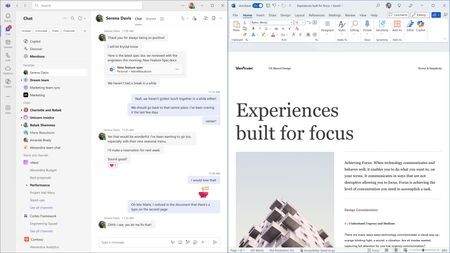
More than ever, in today's fast-paced workplace digital tools must be efficient and flexible to adapt to the wide variety of work styles. Empowered with this ability, end users’ productivity often increases as a result of tailoring their collaboration to their needs. The latest round of enhancements to Teams, now rolling out to public preview, promises just that. In essence, users have more options to arrange the Teams window across their screen real estate while keeping communication in context. Organize your workspace with resizable Teams windows Simply put, Teams now allows you to tailor the size of its windows and panes. Whether your goal is to streamline workflows, minimize distractions, or simply achieve better visibility, you can leverage the flexible layout as a means to place emphasis on what makes most sense to you. Like water in different sized glasses, Teams' adjustable windows and panes fit perfectly into any workspace, molding to each user’s unique workstyle. In this way, the fluidity of Teams experiences helps keep you productive, adapting to your device and task at hand. Be sure to try out the scenarios below to get a sense of what may enhance your use of Teams. These new capabilities will be rolling out to Windows, Mac and Web. How it works Similar to Windows 11 Snap layouts you can quickly organize your workspace with Teams Snap by choosing an efficient, side-by-side view of multiple applications. You can retire the hassle of switching between multiple app windows with [Alt + Tab] and give a try of a new shortcut [Win + Z] to reach the Snap layout box. With a layout selected, showing Teams alongside other panes, grab (i.e., click/hold) the edge of a window and begin to resize the layout. Notice that as the Teams window reduces in size the selected chat thread stays present while other functionality is nested into available pull-down menus. The meeting screen will optimize for up to 200% zoom and screens as small as 360px x 502px to ensure you have access to the most important parts of your meeting. In the Teams experience itself, Teams chat, channels and activity panes can be resized to tailor the view. As you resize the panes to be wider or narrower, the displayed content will adjust to fit the updated pane size, helping you concentrate on specific tasks while maintaining access to all functions of Teams. You can also customize your view by resizing side panes within meetings. When you adjust the side panes to your liking, Teams' fluid experience will instantly adapt to fit the new layout. Coming soon, Teams will remember your layout, defaulting to it for your next meeting. Do you have some extra screen space available? Go ahead and detach meeting panes from the main window and reposition them. In April, you will be able to also pop out chat, Copilot, notes side panes, and captions. Pop out, drag, and resize meeting panes to customize your meeting view to suit your needs without missing any meeting activity. Adjust the zoom level to your needs Teams now offers additional zoom levels to help you find the font size that works best for your vision and devices. Whether you're using a 6k display or have low vision and need larger text, icons, and controls, you can zoom in across a broader range to select the perfect zoom level. Simply press CTRL + + (on Mac, CMD + +) to zoom in, or CTRL + = (on Mac, CMD + =) to zoom out and adjust the overall zoom level to your preference. Rest assured that Teams’ fluid experience will adapt to the zoom size without losing functionality or requiring to scroll in two directions to read the text. What’s next These features are now rollingin public preview with expected generally available in the Q2 of calendar year 2025. Customers eager to try out the new features can learn how to access the Microsoft public preview HERE.448KViews9likes11Comments