Folders
23 Topics
General folder automatically created
Hi For some reason Teams keeps creating a folder called General for a all teams I'm a member of. This is really annoying as it gets replicated on a sharepoint site where we don't want a folder call General. If the folder is deleted it reappears (is created by me) when I log into teams. How can I stop this from happening?Solved78KViews4likes12Comments
Show the total number of files in a SharePoint library
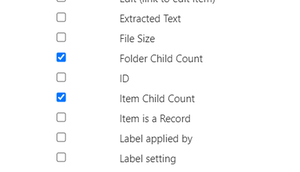
My users (non developers) are often complaining that it is so hard in SharePoint to show: - The total number of files (not items) in a library I know that its possible to see the total number of items if I go to "site contents" and find the document library there. But this includes the folders. Often people are interested how many files are there. Is there any way to do this? - The total number of files inside a folder In the Windows Explorer I can right click a folder and see the number of files in the details. But in SharePoint I can only show the top level children via changing the view: But this info is worthless for most of the people. They want to see the number of files including all sub folders. - Is there a way to archive this? We have huge document libraries and it is not recommended to sync those via OneDrive client. This would be a (bad) way to archive what we need via Windows Explorer. But there must be a way in SharePoint how to do this that does not require a PowerShell skript. Any idea how to (easily, for normal users) do this in the GUI?13KViews0likes3CommentsGet all OneDrive for Business folders recursively
I have a litte problem. I'm migrating OneDrives between Office 365 tenants. In the receiving end they require that all documents have a major version. In the orginating end there are a few users that have turned on Minor versions i the versioning settings. This requires me to check-out and check-in files to raise all files to major version. . Using Office 365 Dev PnP PowerShell CmdLets (SharePointPNPPowerShellOnline) I created this little nifty function. Function checkin-allfiles { [cmdletbinding()] param ( [Parameter (position = 0,HelpMessage = 'The Folder Site Relative URL (/Documents)', Mandatory = $TRUE)] [String]$FSRU ) $files = Get-PnPFolderItem -FolderSiteRelativeUrl $FSRU -ItemType File foreach ($file in $files) { Set-PnPFileCheckedOut -Url $file.ServerRelativeUrl -Verbose Set-PnPFileCheckedIn -Url $file.ServerRelativeUrl -CheckinType MajorCheckIn -Comment 'Checked In with Script to raise version to major' -Verbose } } My problem is recursively running this function on all subfolders. Can anyone help me out?11KViews0likes2Comments
Making a Team template including all folders
For one of our departments, I need to make the very same Team in Teams regularly, BC each project has the same set-up. So what I need is a Team template form which all folders and subfolders (more that 30) can be cloned. However, when I clone such a Team, the folders (and files) are NOT copied along. What is the best way to do it anyway?7KViews0likes2CommentsList items not saving in folders
Morning all - tearing my hair out with this one! Here's the scenario: Using SharePoint Online. I've created a list using site content types to collect relevant fields of data dependent on the content type. I've enabled folders in the list so that I can control view / edit access at folder level. Here's the problem: I select a folder to go into it. Click the '+New' button and select the relevant content type. Complete the relevant fields and click Save. The list item saves in the root of the list, not the folder I was in when I clicked the New button. I've also noticed that when I right-click on a folder there's no 'Rename' option as there would be in a Document Library. There's an Edit option which shows the path and folder name, but no option to change it. It's as if the list is treating the folder as a list item and not a folder. I really hope someone can help as this is causing me real headaches! Thanks as always. Oz5.2KViews0likes7Comments
Deleting Folders as part of retention
I have a query about how to delete empty folders after retention policy has been applied. Some users set up folders in document libraries. Regardless of whether we apply retention at library or folder level, only the files within the folder will delete at the specified time but the actual (now empty) folder remains. How can we automatically get SharePoint to delete the empty folder as well as the files with in? I've seen a solution to create a flow but that will delete any empty folder, not just the ones where files have come to the end of their retention.3.2KViews1like1CommentSS37: scrollable bookmarks bar
Suggestion (SS): 37 Classification: bookmarks bar PRIORITY IN MY OPINION: 5 on a scale from 1 (low) to 10 (high) I already told you different suggestions about bookmarks bar for example here https://link.ws/tedgbookbar but even in other post too. I already told you about favicon extension bar in safari too. Now what i want is that the bar is able to do what favicons can. If i add 400 links, and each section contains a workflow (for example link 1-50 workflow 1, 50-75 to 2, etc...) i want to scroll such bookmarks, so that i can see workflows link directly. instead of seeing a-g in the bar and h-z hidden, you need to hide a-g (left), show me h-o and hide p-z (inside >> to the right). i still wish i can add custom color to folders in the bar; replace javascript icons with a text (example P for pocket) or an icon (pocket), etc. see more here https://link.ws/tedgbookbar PS: pin javascript links! they are already on the left. so if i visit workflow 2, i want to see my 4-8 javascript on the left, not that you hide it. so we need a feature "pin urls" too, but i already told you about that in other post too (especially pin to the right). your bookmarks bar should work a bit like my touchbar. i have pinned things on the left and right, and i scroll things in the middle.2.1KViews0likes5CommentsSearch of new folder (library) not working for some users
Hi All, My client has requested I create multiple document libraries for them by adding folders and subfolders for each requested topic/subject. The client uses the search function for each document library to either search the document library as a whole or to search the respective (sub-) folder. Creating new libraries/folders has worked successfully since the beginning of the year and we had no problems with the search. Recently, when we add new folders in already existing document libraries, the "Search this Library" search does not show results for certain users. The creator of the library can generally search the library. However other users (owners and members alike) cannot search this library. All the current advice provided by Microsoft (re-indexing...etc.) under the following link (and all relevant links in this area of the site) does not solve the problem: https://docs.microsoft.com/en-us/sharepoint/troubleshoot/search/search-results-missing Any new ideas out there concerning this problem? Any support would be much appreciated!1.5KViews0likes1CommentSharePoint Online Access Rights on Shared Folders.
Hello! We have a web-site on SharePoint Online, specially dedicated for our developers team, and i have a specific request from them. Teams asking me: can we make a specific access rights for the clients where they can upload files in the shared folders, but can't delete same files afterwards. What i need to have for this?1.4KViews1like3Comments