excel for web
2000 Topics
Unwanted format changes on Excel worksheet in SharePoint
Hello - I've been working successfully with an Excel worksheet (.XLSX extension) that is published to SharePoint and has multiple Users viewing/updating data on this worksheet every day. Today, columns on this worksheet keep reverting back to varying widths (some way too wide and others way too narrow) despite going into the worksheet, re-formatting the column widths and saving the document. Other worksheets in the same workbook so far do not exhibit this behavior and are maintaining the desired column formatting (i.e., proper widths). I cannot figure out what is causing this unwanted formatting to happen and it has not happened before. I'm guessing this is an Excel issue, but might the SharePoint component be a factor as well? What are the potential causes of this, and what can I do to make the desired formatting remain and not revert back to the unwanted formatting? Thank you!31Views0likes0Comments
Sorting data on multiple sheets
Hi, I'm using Excel to track data from my team for analysis. I have 5 sheets in my workbook one for each week and a monthly overview. each week totals all data and totals are added to overview using SUM function, however when i sort a column, let's say i sort column a (Name) A-Z, all the data for each person on the monthly report changes. the same happens on the weekly sheets if i change the order of a column everything get mixed up so that each persons stats change. is there a way to stop this from happening? I want to be able to arrange it so that all the data in a row stays the same on each sheet79Views1like2Comments
Newly created folder and files doesn't appear in power query transform data
Hi team Happy Thursday !! I wants to merge all files in a SharePoint folder. However, that newly created file and folder doesn't appear in the Power query. I have tried to clear caches, it still doens't appear there Can anyone please assist to solve this issue ? ThanksSolved71Views0likes4Comments
unpivot data and handle merged cells without using Power Query (Unpivot_Toolkit)
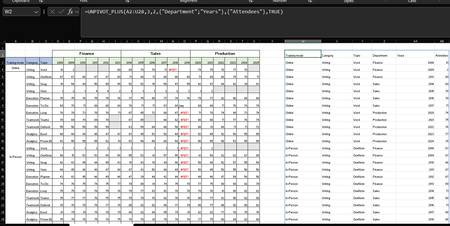
Hey, guys!! I’ve been working on a set of functional Excel Lambdas to solve a common headache: transforming "Wide" human-readable data into "Long" database formats without having to open Power Query every time. =UNPIVOT_PLUS(table, [no_of_cols], [no_of_headers], [attribute_names], [value_name], [remove_errors], [remove_blanks],[pad_blanks_with],[pad_errors_with]) Don’t worry about the full list, most use cases only require 5 arguments. I've included a table of default values at the end. Merged Cell Support: Automatically handles fill-down/fill-right logic for merged headers/columns. Bonus Helper: SPLIT_INJECT =SPLIT_INJECT(array, target_indices, delimiter, [ignore_empty], [match_mode], [pad_with]) It targets specific columns, splits them by a delimiter (like TEXTSPLIT), and expands the entire table horizontally while keeping all other columns perfectly stable. Optional arguments match TEXTSPLIT defaults. Feel free to tear this apart or adapt it for your own edge cases. I’d love to hear how you end up using it! You can grab both functions from my GitHub Gist https://gist.github.com/Medohh2120/f8553c149684e39bb499249e39f01017 File with use cases https://1drv.ms/x/c/6c310c8fd1669a94/IQCscpo3yh7jR5XdGZe2AQGyAf4-vCd8K6BvLZQgrP2V8Oo?e=gPdbOd Argument Description Default Behavior table The array or range of data to unpivot. Required argument (no default) [no_of_cols] Fixed left columns to keep as identifiers. 1 [no_of_headers] Top rows used as headers, handling merged cells. 1 [attribute_names] Header name for the unpivoted attributes . "Attribute" [value_name] Header name for the unpivoted values. "Value" [remove_errors] Excludes grid rows with formula errors. FALSE [remove_blanks] Removes grid empty cells and empty strings. TRUE [pad_blanks_with] Value to substitute for empty cells. Leaves cell blank [pad_errors_with] Value to substitute for errors. Leaves error as-is488Views2likes5Comments
Sheet View Issues with Excel Web Browser
Hi, I have created a Excel document for my department to use, I tried Excel App but due to the size of the Spreadsheet it kept freezing, as a result I switched it to use Excel through Web Browser. The sheet no longer freezes which is good. I do have another issue though.....I wanted multiple users to be able to access, edit the sheet at the same time so I did some research and Sheet View seemed to be the way forward. I created a Sheet view for each employee to use so when you go to View, Sheet View and click on the relevant person their work is updated, saved etc and this shouldn't affect others view. This is working in terms of people editing. The main issue now though is that despite following advice sometimes when someone changes a filter on their own sheet view it seems to change others view. My understanding was you can hide, filter etc within your own Sheet view but this doesn't seem to be the case.......PLEASE HELP!!!! My excel and computer Skills aren't excellent to please any simple advise would be great.613Views0likes5Comments
Disable Auto-Fit/Auto-Wrap on Web?
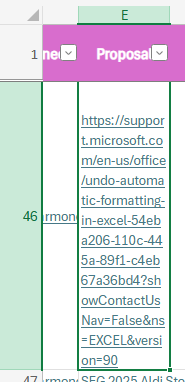
About a week ago Excel rolled out a new feature to me that offered to auto-fit my cells whenever needed. Not knowing what it was, I accepted it and turned it on. Now, I want to turn it off and cannot find it anywhere. I've tried following https://support.microsoft.com/en-us/office/undo-automatic-formatting-in-excel-54eba206-110c-445a-89f1-c4eb67a36bd4?showContactUsNav=False&ns=EXCEL&version=90instructions, but these instructions are for the app, not web, and the issue doesn't replicate on the app. Below in E46 is an example of the issue. I want to paste links without them auto-wrapping my text or auto-fitting the column. I have tried turning wrapping on and off again in this column, but it doesn't work. I could manually disable the wrapping every time I enter a link, but I would much rather just turn this feature off.4.1KViews4likes7CommentsRevenue structure
File Structure Reference Column A contains Client Names (e.g., A, B, etc.). Row 2 (starting Column B onward) contains month-end dates from Jan 2026 through Dec 2027. Columns B through the last month column contain monthly revenue values. The final column is the Total column (annual total calculation). 1. Termination Logic If a client terminates in a specific month: Revenue should appear normally up to the month prior to termination. In the termination month, revenue should become zero (or stop, based on effective date assumption). All future months (including months in the following year) must remain zero automatically. The annual Total column must update correctly based only on active months. The model must not require manual zeroing of future months — this should flow automatically once the termination month is specified. 2. Fee Update Logic If a client’s fee changes in a specific month: The revised fee should apply only from that month forward. All prior months must remain unchanged. The increase should not assume a uniform annual escalation. The updated fee must flow correctly into the next year without altering historical data. For example: If the fee increases in July 2026, then: Jan–Jun 2026 remain at old rate. Jul 2026 onward reflects the new rate. 2027 months continue with the revised rate unless changed again. It will be great if the formula works on Google Sheet as well.221Views0likes8Comments
Validating & Populating Cells with dates based on a Date Picker
Hello, we are working on a really simple delivery schedule for Monday thru Friday. The top row has a cell that is formatted as a short date picker. In choosing a date in that cell, I would like the dates of the 5 numbered cells below for each day of that week to be updated based on the date chosen. For instance, I chose 2/1/26 in the date picker. I would like cells A2, H2, O2, V2, and AC2 to correlate to that date number and automatically populate the proper day of the month. If possible, it would be great if the month names that are in cells D3, K3, R3, Y3, and AF3 would also correlate and update properly. Any help would be most appreciated, I attached a screenshot to show the layout. Thank you very much in advance.113Views0likes1CommentExcel sheets that populate a drop down menu
Hello Is there a way to have a drop-down list of all the sheets in a workbook in a selected cell and the selected sheet from the list's data populates other cells in the first sheet? My goal : To easily see what machines are connected to a list of RJ45 wall points. In the workbook, there is 1 sheet that has a list of wall points . Each machine has its own sheet. Each machine sheet has lots of corresponding data that is not pertinent to the RJ45 wall point sheet. My goal is to select a cell next to a given wall point row in the RJ45 wall point sheet, that drops down a list of machines (that are all the machine sheets in the workbook). The selected dropdown list machine, will populate pre-defined adjacent cells with corresponding data from the selected machine sheet. Each cell in the MACHINE NAME column has a drop down list of the sheet names to select from. Once a machine is selected, the hardware names and model columns that are on the same row are populated with the corresponding data on the machine sheet. I have asked ChatGTP and Gemini AI to help ... without any success. Is this possible to do? Thank you172Views0likes3Comments