Accessibility
243 Topics
Insider Program Switching channel
I hope this message finds you well. I am reaching out regarding an issue I am facing with my Windows Insider Program settings. By mistake, I switched my device to the Dev Channel, but I would like to return to the Beta Channel. I attempted to switch back to Beta and even recovered my system once to resolve the issue. However, after an update, my system reverted to the Dev Channel again. I do not require the Dev Channel and would prefer to stay on the Beta Channel. Unfortunately, I am unable to perform a clean installation of Windows, as my laptop contains private and critical data that I cannot risk losing. I kindly request your assistance in providing a solution to help me switch back to the Beta Channel without the need for a clean installation. Please Microsoft team reach me out with the mail with solution i dont want to lose my data as i dont have any bootable drive21Views0likes1CommentIs the security system of Windows 11 and ntoskrnl functioning normally in Task Manager?
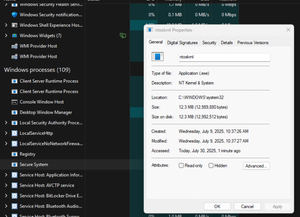
There is a Secure System process in Task Manager. When I click on it, it shows ntoskrnl, and it is classified as WINDOWS in all capital letters (others are usually in lowercase). Is this normal? I don't know if I'm overthinking it.41Views0likes2Comments
Sharing a Folder Issue
I have 4 computers and all share a folder off one of the machines. Recently power went out for a few hours and 2 of the coimputers stopped sharing the folder and kept popping up to enter the password. I did this to no avail. I have gone so far as to remove all passwords and tell the networking to allow people to access the shared folder without a password. Again it still pops up asking for a password. Here is what I have done Rebooted Removed all Passwords Made sure everything was on a private server Used CMD Prompt to make sure the account was unlocked Tried to share a completely different folder (same results) Rebooted the modem Made sure everything was updated. Tried resetting passwords to ones I know Checked Credentials and there was nothing there. Any help?39Views0likes2Comments
Network & OneDrive block
I have a problem with networking my Desktop PC (Windows 11 Home v.10.0.26200) and my Laptop (Windows 11 Professional , also v10.0.26200). They are connected by a 2m ethernet cable and have connection lights flashing at both ends. 1. On the Desktop, Explorer will show folders from the Laptop under <Network>. However any attempt to open one of the displayed folders results in the message “Windows Cannot access \\*. You do not have permission to access \\*. Contact your network administrator to request Access” While drives and folders on the Laptop that HAVE been set to Share do NOT show up 2. On the Laptop, when I open the <Network> in Explorer it ONLY shows a drive named <Music>. Any attempt to open this folder results in a Windows Security window asking for Username and Password. I believe this folder is a left over from a much earlier attempt to link the two computers in Windows 10 which was aborted, and I suspect it is causing a ‘block’ on the network, as there are no drives or folders named <Music> on my Desktop machine. 3. I have run OneDrive on the Laptop and have created an account in the cloud and added folders. However it has proved impossible to get OneDrive to run on the Desktop. Every attempt (including uninstalling One Drive using Revo uninstaller – which also removes all ‘left-overs’ - and then installing the latest downloaded copy of OneDrive) produces an icon in the apps list, but when I attempt to run it (double click) nothing happens. I have traced the .exe file to "C:\Program Files\Microsoft OneDrive\OneDrive.exe" but attempting to run it from there, even as an Administrator, fails to produce any reaction from the PC. My problem obviously resides with the Desktop PC and is effecting both the ability to network, and run OneDrive. I suspect the non-existent <Music> may be the culprit, but how to remove it? If I right click the icon on the Laptop I get a window showing the location as being on the \\ Desktop and size as being 0 bytes – but nothing more. Selecting the <Network> tab in the window produces an error message “You do not have the appropriate access rights for this server. For more information, contact your network administrator” Attempts to delete the phantom drive, even using Revo Uninstaller have proved unsuccessful while attempting to run <Remote Desktop Connection> from the Laptop have proved to be equally futile (“Remote Desktop can’t connect to the remote computer for one of these reasons. 1,2,3 etc.). How can I get rid of the phantom <Music> drive? and if this has nothing to do with my problem, what else might be the cause that prevents OneDrive from running on the Desktop and the failure to network with the Laptop?53Views0likes2Comments
W11 25h2 2fa prompt not showing
W11 24h2 2fa prompt not showing in Woolworths online website & NAB > settings > privacy & security > site settings >additional content settings > on device site data > delete data sites .... Close browser after each session of chrome or NAB (deletes cookies) Select pc Settings > privacy & security > delete browser data > select cookies & other site data (All time) If 2fa prompt stops working, then > open task manager & end task for chrome (closes all sessions of chrome) What finally fixed the issue - I stopped using Google Gmai Reset PC - fixed the issue26Views0likes1Commentsharing problem after update
hello After installing update KB5065426, the system is no longer able to use shared printers. The PC clients are joined to a domain, and all user accounts are standard users. All machines are running Windows 11 LTSC (latest version and updates). The problem: I shared printers on some clients. When I enter the destination IP or PC name to access the shared resources, I encounter the “Enter Network Credentials” window. I have tried the following: Changed both destination and source user accounts to Administrator. Used the local Administrator username and password. Used the domain Administrator username and password. Used the destination user’s username and password. Rejoined both systems to the domain. Created a new local user with the same username and password on both systems. Checked Windows Credentials in Credential Manager and removed old users/passwords. Disabled password-protected sharing via the registry. Installed the SMB 1.0/CIFS Client feature. Created the registry key: Computer-HKEY_LOCAL_MACHINE-SYSTEM-CurrentControlSet-Services-LanmanWorkstation-Parameters DWORD (32-bit): AllowInsecureGuestAuth =1 I don't know what else I should do29Views0likes1Comment