User Profile

Florisz
Brass Contributor
Joined Aug 20, 2019


User Widgets
Recent Discussions
Re: Explicit FTP connection over TLS
It is years later and the FTP Action in Power Automate has a complete makeover where even more options are removed and while all documentation still reflects the old version, still the same problem. FileZilla can connect, while Power Automate refuses. If I leave the port in FileZilla blank, the log shows me it connects over port 21 instead of 990 for FTPS. Copilot kind of told me the same, That FTPS-Explicit, by the standards, uses port 21, while FTPS-implicit uses port 990. But still, connection fails. Also missing the options for passive/active mode and timeout in the latest FTP Action now😥Re: conditional formatting based on content of another cell
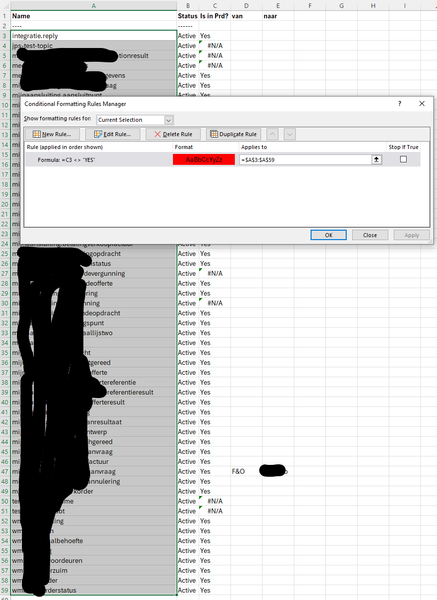
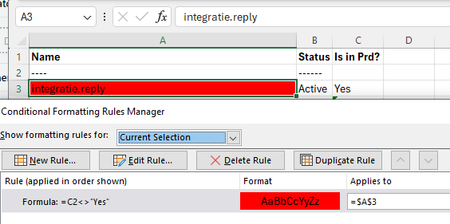
HansVogelaar , thanks for the feedback. That was an easy bug/typo and cristal clear with the screenshot. However. Even with the right formula and correctly selected cells it is not working how I would like it to. Also I know why. The cells in column C are also formula's of the kind ='vlookup'. It seems like conditional format is not working in that case.1.8KViews0likes1CommentRe: 'Copy Link' for Folder/Files does not work in Teams
Paul_IQPC See link below with screenshot how it used to be. In this screenshot is the option for edit/view and for who the link will be accessible already missing. https://techcommunity.microsoft.com/t5/microsoft-teams/teams-get-link-dialog-missing-can-t-get-a-teams-link/td-p/18691977.4KViews0likes0CommentsRe: 'Copy Link' for Folder/Files does not work in Teams
I can confirm that after disabling GPU hardware acceleration under general settings in Microsoft Teams Desktop and after signing out from Teams Desktop and signing in again, that the Copy Link works again on the subfolders only.(as I had posted before). So still not working on root folder and also not giving the option for the link within Teams. Only SharePoint link is offered. After re-enabling the GPU hardware acceleration under general settings in Microsoft Teams Desktop again, signing out and signing back in the Copy Link option is still working. So this triggers something(temporarily)...7.6KViews1like5CommentsRe: 'Copy Link' for Folder/Files does not work in Teams
Well Sign Out Everywhere did not do a thing for the 'Copy link' spinning wheel problem in Microsoft Teams Desktop app on Windows 10. The problem is still there/back. I say back because couple of days ago it was working partly for links to files and folders under the root 'Documents/General'. See screenshots in my previous post.7.6KViews0likes7CommentsRe: 'Copy Link' for Folder/Files does not work in Teams
For the Sign Out Everywhere After opening this link; https://myaccount.microsoft.com/%20target= Click on Security Info in the left column. Then in the right pane you will see something like; 'lost device? Sign Out everywhere link. I give it a try and will see tomorrow... Because after my previous positive post that it was partly working again today again a Spinning wheel....7.6KViews0likes8CommentsRe: 'Copy Link' for Folder/Files does not work in Teams
Paul_IQPC , the original functionality was that after click on the 'Copy link' you would get a popup with 2 tabs. First for the link within MS Teams and second for link to SharePoint. Although the link for Teams was quite ugly as it was a very long link, it was quite functional to keep everything within Teams. Than the spinning wheel started some weeks/months ago and now we(I) have half the functionality back with links to SharePoint only and not working on the library root folder(General) and files in that folder. It is obvious that there is some work going on at Microsoft. But it would have been nice if they shared a little info so we know what to expect. The only thing I know is that they are working on a more seamless Woking together between Teams and SharePoint; https://admin.microsoft.com/AdminPortal/home#/MessageCenter/:/messages/MC306666?MCLinkSource=MajorUpdate But this is just an educated guess. Edit: I just realise this link is behind admin center password. The message is about; Pairing naming convention between Teams channels and corresponding SharePoint folders; MC306666 Public info link:(with help of Google) https://www.google.com/search?q=MC306666&rlz=1CDGOYI_enNL948NL948&oq=MC306666&aqs=chrome..69i57j69i60l3.1363j0j7&hl=en-GB&sourceid=chrome-mobile&ie=UTF-88.5KViews0likes4CommentsRe: 'Copy Link' for Folder/Files does not work in Teams
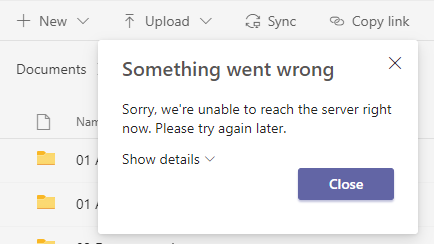
Henry Edwards Today, instead of an ever spinning wheel I got served with an actual error when I click on the 'Copy link' in the ribbon of the Microsoft Teams Windows Desktop app on the root folder 'Documents/General'. When I click on 'Copy link' on a sub folder or selected file of 'General' I get served with the SharePoint link. But no Teams link anymore...😥😥. Click on 'Show detals' ; Click on 'Copy' ; {"innerError":{},"name":"GraphError","correlationId":"47e30ea0-d0d2-3000-872d-7b0b3139dd1e","isExpected":false,"code":"tooManyResources","extraData":{},"response":{"error":{"code":"notSupported","innerError":{"code":"tooManyResources"},"message":"The request is unprocessable because it uses too many resources"}},"status":422,"serverStack":"","request":{"requestUrl":"https://gs1nederland.sharepoint.com/sites/IT/_api/v2.0/sites/root/items/11a7211d-6bed-49f7-8304-65d5847c8962/driveItem/createLink?ump=1"},"error":{}} In text: {"innerError":{},"name":"GraphError","correlationId":"47e30ea0-d0d2-3000-872d-7b0b3139dd1e","isExpected":false,"code":"tooManyResources","extraData":{},"response":{"error":{"code":"notSupported","innerError":{"code":"tooManyResources"},"message":"The request is unprocessable because it uses too many resources"}},"status":422,"serverStack":"","request":{"requestUrl":"https://gs1nederland.sharepoint.com/sites/IT/_api/v2.0/sites/root/items/11a7211d-6bed-49f7-8304-65d5847c8962/driveItem/createLink?ump=1"},"error":{}} Screenshot after click on 'Copy link' when a sub folder or selected file in 'General' is selected;8.5KViews0likes14CommentsRe: 'Copy Link' for Folder/Files does not work in Teams
I suspect 1 or more added/installed apps in Microsoft Teams Desktop App. Does any of you know where/how you can find which apps you have installed? When I click on the 'apps' icon in the left column bottom icon(next to the help, feedback and settings) of Microsoft Teams Desktop app, I see hundreds of available apps. But I don't see a way to filter on the ones I have installed.8.8KViews0likes0CommentsRe: 'Copy Link' for Folder/Files does not work in Teams
Hi @Henry, I looked at both apps, but what they do is just the sharePoint functionality, which works as the 'Copy link' option in SharePoint(=in browser) does not have the problem bug. So this is a workaround for getting the SharePoint link in Microsoft Teams Desktop app. The problem/bug of the 'copy link' in the default 'File' tab in Microsoft Teams Desktop Application is still there. To my knowledge this used to give a popup where you could choose between copying the link in/of teams or the link to SharePoint. For the time being I use the new Onedrive for Business and Teams Progressive Web App(from MS Edge) to use the 'copy link' option and working with files. And the Teams desktop app purely for meetings/calling. But getting the 'copy link' this way gives you only the link to SharePoint as well. Not the link for/to Teams.13KViews0likes0CommentsRe: 'Copy Link' for Folder/Files does not work in Teams
Because of the reply from Paul_IQPC about Microsoft not reading this forum, I posted a question on answers.microsoft.com ; https://answers.microsoft.com/en-us/msteams/forum/all/teams-desktop-copy-link-spinning-wheel/da888a99-145b-4196-bcbe-0bc068ae05a9 The first tip given there of clearing cache does not work.(tried it already) See my comments. The second tip I did and maybe you can do as well. hitting the help button in Teams and click Feedback.59KViews2likes0CommentsRe: 'Copy Link' for Folder/Files does not work in Teams
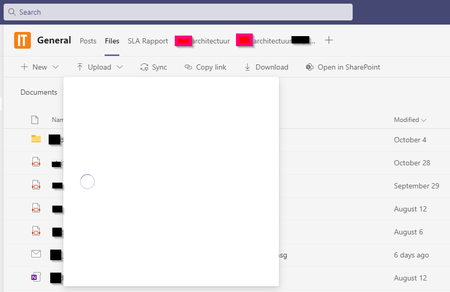
Henry Edwards Same problem. Sometimes it works again, but most of the times the Microsoft Teams client gives this white popup with spinning wheel and after a while the white popup becomes larger(see screenshot) but nothing more. Workaround for now is using the Browser(Egde), or the PWA(Edge Progressive Web App) or the new Onedrive window(which is in essential a webbrowser also). Microsoft Teams Client: Onedrive client works. PWA(progressive Web App) works as well: (this is of course same as the browser)60KViews4likes0CommentsRe: Search function crippled
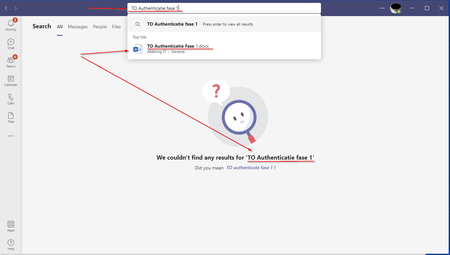
Sometimes an image speaks for more than 1000 words! Also searching for documents is 'broken'. As you can see, the suggestion does find a document with the searched for name(and this document really does exist!), but the actual search results just says 'We couldn't find any results for..."3.1KViews0likes0CommentsRe: Conditional formatting rules using a formula AND an icon set
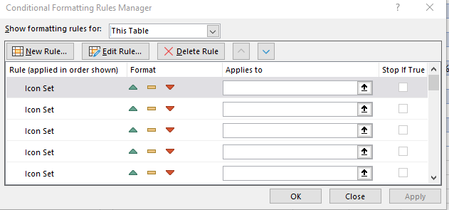
Jeremy Norbury It does not help when scrolling though the CF list the contect of 'Applies to' just disappears(not really). Close and open the 'Rules Manger' brings them back. This makes it very hard to adjust the rules on the specific cells.44KViews0likes1Comment
Recent Blog Articles
No content to show