User Profile

MohamedT_Trabelsi
Brass Contributor
Joined Nov 07, 2021


User Widgets
Recent Discussions
Back up and restore encrypted Azure virtual machines
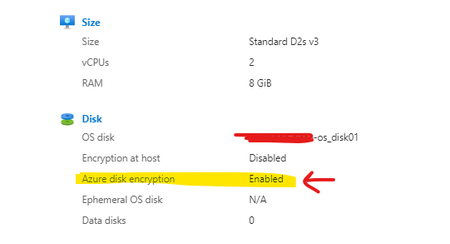
1- Back up an encrypted VM If you want to backup an encrypted Azure VM and you have this error : │ Protected Item Name: "VM;xxxxxxx;xxxxxxxxxxx;xxxxxxxxxxx"): backup.ProtectedItemOperationResultsClient#Get: Failure responding to request: StatusCode=400 -- Original Error: autorest/azure: Service returned an error. Status=400 Code="UserErrorKeyVaultPermissionsNotConfigured" Message="Azure Backup Service does not have sufficient permissions to Key Vault for Backup of Encrypted Virtual Machines. Please grant the required permissions to the Azure Backup Service. For more details, refer to http://aka.ms/UserErrorKeyVaultPermissionsNotConfigured " Link : https://learn.microsoft.com/en-us/azure/backup/backup-azure-troubleshoot-vm-backup-fails-snapshot-timeout#usererrorkeyvaultpermissionsnotconfigured---backup-doesnt-have-sufficient-permissions-to-the-key-vault-for-backup-of-encrypted-vms Why ? Azure Backup Service does not have sufficient permissions to Key Vault for Backup of Encrypted Virtual Machines Solution : Azure Backup needs read-only access to back up the keys and secrets, along with the associated VMs. Notes : 2- Restore an encrypted VM Encrypted VMs can only be restored by restoring the VM disk and creating a virtual machine instance as explained below. Replace existing disk on the existing VM, creating a VM from restore points and files or folder level restore are currently not supported. Step 01 ==> Restore VM Disks Step 02 ==> Recreate the VM from the template that was generated during the restore operation. https://learn.microsoft.com/en-in/azure/backup/backup-azure-arm-restore-vms#use-templates-to-customize-a-restored-vm References : https://learn.microsoft.com/en-in/azure/backup/backup-azure-vms-encryption https://learn.microsoft.com/en-in/azure/backup/restore-azure-encrypted-virtual-machines1.6KViews0likes0CommentsAzure Private Monitoring Solution
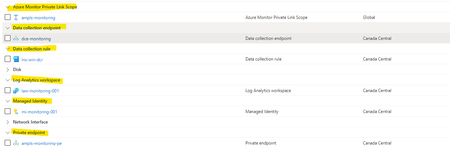
Resources to deploy an Azure Private Monitoring Solution : - Azure Log Analytics Workspace - Monitor Data Collection Rule - Monitor Data Collection Endpoint - Monitor Private Link Scope - Private Endpoint With 2 VMs Windows and Linux that Azure monitor agent must be installed Use Azure Private Link to connect networks to Azure Monitor https://learn.microsoft.com/en-us/azure/azure-monitor/logs/private-link-security Data collection rules in Azure Monitor https://learn.microsoft.com/en-us/azure/azure-monitor/essentials/data-collection-rule-overview?tabs=portal Log Analytics workspace overview https://learn.microsoft.com/en-us/azure/azure-monitor/logs/log-analytics-workspace-overview What are managed identities for Azure resources? https://learn.microsoft.com/en-us/entra/identity/managed-identities-azure-resources/overview What is a private endpoint? https://learn.microsoft.com/en-us/azure/private-link/private-endpoint-overview372Views0likes0CommentsQuickly demo : Azure DNS Private Resolver (Hub and Spoke - PE DNS name resolution)
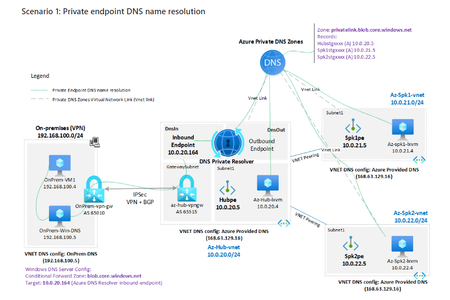
Inbound endpoints : Outboundendpoints : Rule Set config : Look at the On prem DNS Server : DNS Vnets Azure must be : Our VMs and Private Endpoints : Validation : From VM linux On Prem ==> PE storage account spoke 01 From VM linux Spoke 02 ==> PE storage account spoke 01 Thanks dmauser1.1KViews2likes1CommentTerraspace for Azure - Delete resources from tfstate using CMD
- Create a new branch from the Master - connect to your subscription - list all resources in your state file - if you have the error of "zsh: no matches found" , you must use this cmd : setopt no_nomatch - delete one resource from this tfstate (Remotely in a container Storage account Azure) Go on with Terraspace , it's an amazing tools for IAC https://terraspace.cloud/docs/learn/azure/370Views1like0CommentsMicrosoft Dev Box - LAB
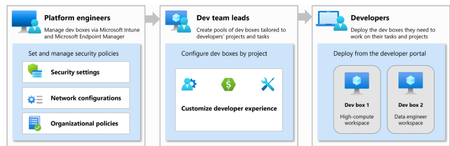
Link : https://learn.microsoft.com/en-us/azure/dev-box/overview-what-is-microsoft-dev-box note that this is a personal effort Design How does Dev Box work? How developers are using Microsoft Dev Box ? Dev Box uses cloud resources to host complete development environments that be accessed from any device anywhere. Infrastructure as code, for code ? ARM model (Terraform and Bicep in future releases) NOTE: (Cloudshell) you need to register a new resource provider az provider register --namespace Microsoft.DevCenter Concepts & Roles Azure Dev Box roles High-level Dev Box workflow Our Lab : Let's Go Create Dev Center Create Virtual Network Create a Virtual Network Connection and link to Dev Center ==> Our Goal in this step is : Allow the Dev Boxes to connect to the Vnet Next step, Dev Center ==> Networking ==> Add+ ==> the network connection Create Dev box definitions https://learn.microsoft.com/en-us/azure/dev-box/how-to-configure-azure-compute-gallery Create and assign Project Dev Center ==> Projects ==> Create ==> Next, ==> Limits ==> +Create Limits allow you to restrict how many dev boxes each developer can create in a project. A limit of zero will prevent creation of all dev boxes in this project. If the the Project is available, you must assign all the assignees to manage this project. Affect the role "DevCenter Dev Box User" to the users who will manage the project To do that, please refer to this steps : Create Dev Box Pool Dev Center ==> Projects ==> "Choose your project" ==> Dev box pools ==> Create Create Dev Box Now, you can create the DevBox So, you can navigate to this link : https://devbox.microsoft.com/ Connect with your account that have the role "DevCenter Dev Box User" Click on 'New Dev box' Choose the name and click on 'Create'. Time for provision : +25min How to connect to the Dev Box ? 01 - Microsoft Dev Box Portal Click on "Connect" : 02 - Remote Desktop Application Also, you can manage your Dev Box : Configure hibernation in Microsoft Dev Box (Preview) Link : https://learn.microsoft.com/en-us/azure/dev-box/how-to-configure-dev-box-hibernation Other informations : - Pricing : https://azure.microsoft.com/pricing/details/dev-box/?WT.mc_id=AZ-MVP-5004796 - Configure Azure Compute Gallery for Microsoft Dev Box : https://learn.microsoft.com/en-us/azure/dev-box/how-to-configure-azure-compute-gallery - Grant administrative access to Microsoft Dev Box projects : https://learn.microsoft.com/en-us/azure/dev-box/how-to-project-admin - Grant user-level access to projects in Microsoft Dev Box : https://learn.microsoft.com/en-us/azure/dev-box/how-to-dev-box-user - Control costs by setting dev box limits on a project : https://learn.microsoft.com/en-us/azure/dev-box/tutorial-dev-box-limits - Dev Box could be enrolled into intune ? This is a very good service for developers1.8KViews2likes0CommentsBackup fortigate Firewall VM with Azure Backup (Solution)
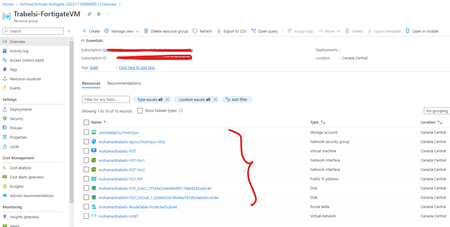
The documentation is simple and it is based on screenshots (step by step) Unfortunately, Azure Backup does not allow backup of a Fortigate VM (or most appliances in the Azure Marketplace). Only Azure approved distributions are supported: https://learn.microsoft.com/en-us/azure/backup/backup-support-matrix Example of the error obtained when you launch the backup of a fortigate VM? {"code":"DeploymentFailed","message":"At least one resource deployment operation failed. Please list deployment operations for details. Please see https://aka.ms/DeployOperations for usage details.","details":[{"code":"Conflict","message":"{\r\n \"status\": \"Failed\",\r\n \"error\": {\r\n \"code\": \"ResourceDeploymentFailure\",\r\n \"message\": \"The resource operation completed with terminal provisioning state 'Failed'.\",\r\n \"details\": [\r\n {\r\n \"code\": \"UserErrorUnSupportedDistribution\",\r\n \"message\": \"Unsupported OS version for virtual machine backup.\"\r\n }\r\n ]\r\n }\r\n}"}]} ---> The agent cannot install correctly in the Fortigate VM A solution ? ----> through snapshots in Azure Backup. We can make a small LAB that already contains the configured Fortigate VM. 1- Create a Recovery Service Vault Go to 'RSV' ---> Backup Center Then, Click on VAULT You must choose, Backup Vault you have to choose the necessary parameters : The next step is to create the Policy, You muste choose the Datasource type : Azure Disks and the right Vault type also. Here, you configure the policy as you need. (Choose the right parameters) Here, you choose the configuration according to your need. 2- Now we need to add the necessary permissions - Permission on the disks of the VM fortigate Go to the disks of the VM fortigate and follow the screenshots : Click “Add role assignment”, then “disk backup reader” role. Give the role to the Vault. the documentation is not complete due to an error, I will re-upload it12KViews0likes3CommentsRetrieving resource ids with Terraform remote state
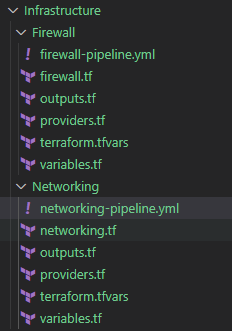
So, if you want to retreive a rersource id of an Azure resource and share it between configurations when working with Terraform. To explain that, we can refer to this example : Here, we will deploy via two pipeline to simplify this example : -Infrastructure ---Networking ##Create the resource group ##Create Virtual Network ##Create Subnet Workload ##Create "AzureFirewallSubnet" ---Firewall ##Create the Firewall Policy ##Create Firewall NOTE THAT, we have two different state file : When you’re using multiple folders, you simply cannot have a single state file. You can have a single location where you store the different state files. -- One for the networking deployment -- Second for the firewall deployment So, the first step is to deploy the network part : ( state file is "networking.tfstate" ) and outputs , that we will need it later Here is the network deployment After that, we need to create the firewall and here we need to use the RG, location and the "AzureFirewallSubnet" of the network folder. How ? NOTE : To get the outputs of the first folder and make them available for the second folder, you can use terraform_remote_state (https://www.terraform.io/language/state/remote). The best practice is to use a data source to get the data you need, but that does require you to provide some info in the second folder. We need to add the configuration of the terraform_remote_state in the firewall.tf who is located at the folder Firewall Then, we can refer for the resources from the folder Netwoking with the outputs of the networking part : - RG : Output from netwokring firewall.tf file - location : Output from netwokring firewall.tf file - Subnet Firewall : Output from netwokring firewall.tf file -------------*********------------- ALL the file firewall.tf : We can see the deployment now : I tried as much as possible to simplify things6.7KViews0likes0CommentsAutomanage for Azure virtual machines (Preview)
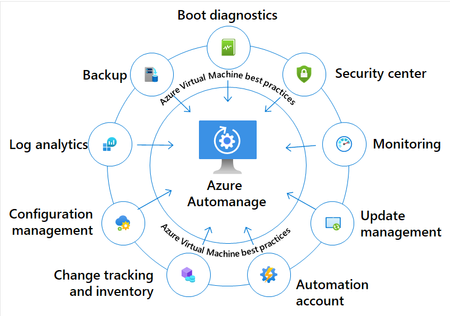
The best benefits of using Automanage are: -- Intelligently onboards to select best practices Azure services -- Automatically configures each service per Azure best practices -- Configures guest operating system per Microsoft baseline configuration -- Automatically monitors for drift and corrects for it when detected -- Simple experience: Point, click, set, forget -> done If you are enabling Automanage with a new Automanage account, you need : -- Owner role or Contributor and User Access Administrator roles on the subscription(s) containing your VMs. If you are enabling Automanage with an existing Automanage account: -- Contributor role on the resource group containing your VMs you can detect, integrate and configure different Azure services during the entire life cycle of virtual machines, making a distinction between Production environments and DevTest environments. The Azure services currently covered by Azure Automanage are the following: Supported regions Automanage only supports VMs located in the following regions: West Europe North Europe Central US East US East US 2 West US West US 2 Canada Central West Central US South Central US Japan East UK South AU East AU Southeast Southeast Asia Example : -- you can configure a custom profile and choose your services : (backup, antimalware, monitoring, update, inventory, MS defender for cloud (security), boot diag and windows admin center) and here, all services are configured : 1- Backup 2- Update : 3- Inventory 4- Change tracking 5- Monitor (waiting for data, so you can see it after some times ) 6- MS defender for cloud 6- Antimalware 7- boot diag Go and try it 🙂 Link : https://docs.microsoft.com/en-us/azure/automanage/automanage-virtual-machines1.1KViews1like0CommentsAzure Private DNS Zone : Create Resource Records and verify DNS resolution using VMs
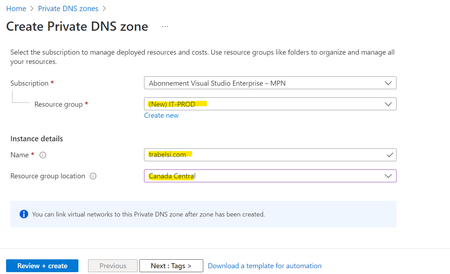
Link: https://docs.microsoft.com/en-us/azure/dns/ Benefits of having Private DNS in Azure : Gives you secure and reliable name resolution You can use Private DNS : Same VNET / Across VNET / Across resgions and subscriptions Also, you need to specify allowed vnets. Resolution Virtual Network : Specify list of Vnets Registration Virtual Network : add or delete VMs (automatically add DNS records) How to use it ? 1-Create a Private DNS Zone 2-Create a VNET/Subnet 3-Link VNET to the private DNS Enable auto registration : enables automatic creation of DNS records in this Private DNS zone, for the virtual machines connected to the virtual network. 4-Create the first Virtual Machine Than Create the second VM. If you go the private DNS zone, you found the record fo the two VMs (because the auto registration was enabled) Connect to the two VMs and enable the 'ICMPv4' protocole with this command : New-NetFirewallRule –DisplayName "Allow ICMPv4-In" –Protocol ICMPv4 Ping the VMs by name From VM 1 to VM2 : From VM2 to VM1 : Go and try it 🙂917Views0likes0CommentsImporting Terraform State in Azure
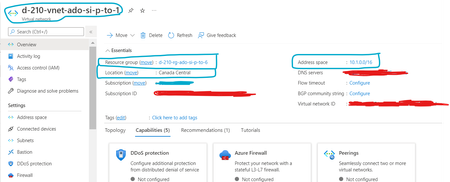
Some engineers start to provision services manually before they find out this might not be a good thing for the long run. So, they must use Terraform import. If you are using Hashicorp’s Terraform to manage your infrastructure, you can bring existing resources that have been provisioned outside of Terraform. This tuto help you to import Azure resources into a terraform state file. You can do that locally or if you want to initialise the tfstate in a remote local (form a Storage account) So, we are going to import a resource group, a virtual network and a subnet that are created manually; Screenshot from the portal (for the manual resources) First step : create a tf configuration file using manually created resource information (See Screenshot) ***** For you information, we use a tfstate stored remotely in a storage account Second Step : Import Resource details to terraform State After creating the configuration tf file, we can import these resources into it by using the "terraform import" command : terraform import terraform_id azure_resource_id 1- Resource Group : terraform import "azurerm_resource_group.rg_name_auto" "/subscriptions/xxxxxxxxxxxxxxxxxxxxxxxxxxxxxx/resourceGroups/d-210-rg-ado-si-p-to-6" You can find : **The terraform_id **The azure_resource_id 2- The Vnet : terraform import "azurerm_virtual_network.vnet_auto" "/subscriptions/xxxxxxxxxxxxxxxxxxxxxxxxxxxxxxxxxxxxxxxxxxid/resourceGroups/d-210-rg-ado-si-p-to-6/providers/Microsoft.Network/virtualNetworks/d-210-vnet-ado-si-p-to-1" 3-The Subnet : terraform import azurerm_subnet.sub_auto /subscriptions/xxxxxxxxxxxxxxxxxxxxxxxxxxxxxxxxxxxxid/resourceGroups/d-210-rg-ado-si-p-to-6/providers/Microsoft.Network/virtualNetworks/d-210-vnet-ado-si-p-to-1/subnets/d-210-snet-ado-si-p-to-2 So, before use this commands, please : 1- access the code folder : cd folder_code 2- connect to the subscription (where you have deployed the manual resources) : az login Select-AzSubscription -SubscriptionId "copy-past the id of the subsc" 3- Terraform init : terraform init -backend-config storage_account_name=xxxxxxxx -backend-config container_name=tfstate -backend-config resource_group_name=xxxxxxxx -backend-config key=xxxxxxx.tfstate Okey, now we can lunch the commands for import config : RG : Vnet: Subnet : Now, you can see the result : terraform state list you can see the content of each imported resource via the following commands: terraform state show azurerm_resource_group.rg_name_auto terraform state show azurerm_virtual_network.vnet_auto terraform state show azurerm_subnet.sub_auto Third Step : Test by running the terraform plan Finally, we can verify the imported resources in the tfstate file. For example, we can see the imported subnet. The purpose of this tutorial is to know the steps to import resources that are manually configured to the tfstate fileAzure Site Recovery
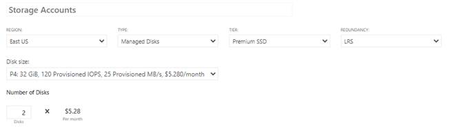
For Disaster Recovery purpose, you should use Azure Site Recovery. Site Recovery helps ensure business continuity by keeping business apps and workloads running during outages. Site Recovery replicates workloads running on physical and virtual machines (VMs) from a primary site to a secondary location. When an outage occurs at your primary site, you fail over to secondary location, and access apps from there. After the primary location is running again, you can fail back to it. · Refer Azure to Azure DR architecture : https://docs.microsoft.com/en-us/azure/site-recovery/azure-to-azure-architecture recovery architecture in Azure Site Recovery - Azure Site Recovery | Microsoft Docs · Benefits ASR will provide : https://docs.microsoft.com/en-us/azure/site-recovery/site-recovery-overview#what-does-site-recovery-provide/site-recovery-overview#what-does-site-recovery-provide · You can replicate VMs present in these regions : https://azure.microsoft.com/en-us/global-infrastructure/services/?products=site-recovery · You can replicate and recover VMs between any two regions within the same geographic cluster. Geographic clusters are defined keeping data latency and sovereignty in mind : https://docs.microsoft.com/en-us/azure/site-recovery/azure-to-azure-support-matrix#region-support/azure-to-azure-support-matrix#region-support ASR Pricing : Azure Site Recovery is billed based on number of instances protected. Every instance that is protected with Azure Site Recovery is free for the first 31 days. Azure Site Recovery is billed in units of the average daily number of instances you are protecting over a monthly period. For example, if you consistently protected 20 instances for the first half of the month and none for the second half of the month, the average daily number of protected instances would be 10 for that month. a. What charges you will incur : https://azure.microsoft.com/en-in/pricing/details/site-recovery// b. Even though Site Recovery is free during the first 31 days of a protected instance, you might incur charges for Azure Storage, storage transactions, and data transfer. A recovered virtual machine might also incur Azure compute charges. c. You will be only charged for storage as the replica disks will be created as part of replication. d. There is no separate cost for DR drill. There will be compute charges after the VM is created after the test failover. e. As mentioned above, ASR is charged on the basis of instance number i.e. as per the no. of VMs you are protecting. Hence, using Azure Pricing calculator- https://azure.microsoft.com/en-in/pricing/calculator/, you can add up number of VMs you are planning to replicate and get an estimate for ASR service. Next, add storage type you will be taking up as replica disks. The count of disks will be same as in source region. This will be your estimate. Further add up VM instances to calculate the compute charges post failover. Next, you queried whether you can use the source network as DR network or you have to setup your VNet in target region : You cannot select the source network as DR network. Hence, please create a similar network environment in you target region. Once created, select the same while enabling replication in ASR. Support Matrix : https://docs.microsoft.com/en-us/azure/site-recovery/azure-to-azure-support-matrix recovery with Azure Site Recovery - Azure Site Recovery | Microsoft Docs This article summarizes support and prerequisites for disaster recovery of Azure VMs from one Azure region to another, using ASR. Tutorial to setup Azure to Azure DR : https://docs.microsoft.com/en-us/azure/site-recovery/azure-to-azure-tutorial-enable-replication recovery with Azure Site Recovery - Azure Site Recovery | Microsoft Docs792Views2likes0CommentsEnable Azure Backup with Azure Policy
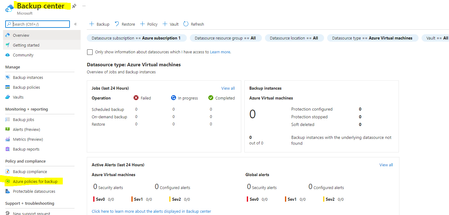
All Services ==> Backup Center ==> "Azure policies for backup" Choose the policy and clique assisgn First step : Choose the scope (it can be the mgmt group or subscription or RG) Parameteres : ** Location : the location of your deployed VMs to protect. ** Backup policy : You need to select the subscription + the vault + the policy ** Remediation : The assignment only takes effect for the newly created VMs. The existing VMs ca be updated via a remediation task after the policy is assigned. ** Managed identity : must be created in a region # than the source. non-compliance messages : alert you that u'r VM(s) is/are not protected by azure backup The time to take effect w'ill be more than 20min. Note that you can verify the Azure backup policy ...1KViews1like0Comments(Preview) Arrêter ou démarrer automatiquement une machine virtuelle dans Azure
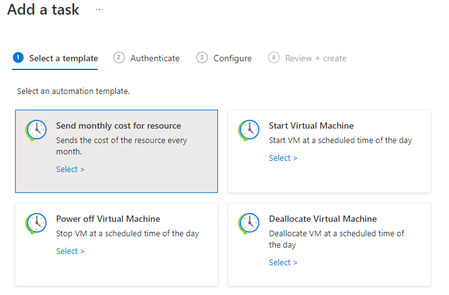
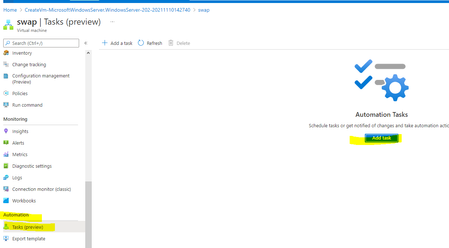
==> Planifier l’arrêt et le démarrage automatique d’une VM grâce à Azure Logic Apps Cliquez sur Add Cliquez sur Start Virtual Machine Vous devrez vous authentifier Choisir l’heure et le type de récurrence que vous souhaitez mettre en place La tâche START a été crée. Vous pourriez faire les même étapes pour la tâche STOP. ==> L'essentiel que vous optimisez vos coûts en stoppant les VMs lorsque vous n’en avez pas le besoin658Views1like0CommentsHub-Spoke communication using vNet Peering and User Defined Routes
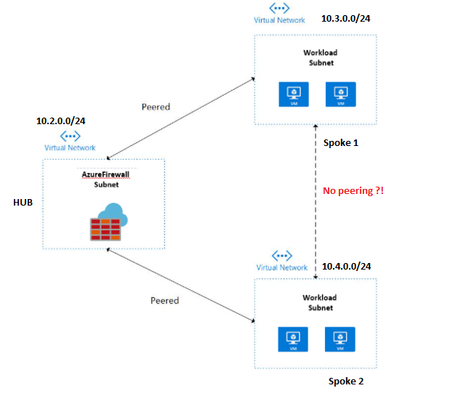
Keyword : Hub VNet. Virtual network used to deploy the Hub, The hub is the central point of connectivity to host services and internet. Services deployed in Hub vnet can be consumed by the different workloads hosted in the spoke VNets. Workload subnet. The subnets defined in the Spoke Vnets.. Spoke VNets. Spokes can be used to isolate workloads in their own VNets, managed separately from other spokes. Each workload might include multiple tiers, with multiple subnets connected through Azure load balancers. VNet peering. To establish communication between two VNets. Azure Firewall Azure Firewall is deployed in the hub, which provides an additional layer of security. Scenario : SPOKE networks must communicate with each other, but peering between them was not allowed. Problem : -- SPOKE 1 is peered with the HUB network -- HUB is peered with SPOKE 2 -- No communication between SPOKE 1 and SPOKE 2 Solutions : 1- a Network Virtual Appliance (NVA) from the market place : a VM with a configured Firewall/Router within the HUB and configure it to forward traffic to and from the Spoke1 & 2. 2- a Virtual Gateway attached to the HUB network : enable communication between spokes with the defined routes. We will see the 2nd solution 1- Create the Hub Vnet (10.2.0.0/16) 2- Create the spoke1 Vnet (10.3.0.0/16) 3- Create the spoke2 Vnet (10.4.0.0/16) We have 03 Vnets : 3- Configure peering **** With Portal Azure Hub <> Spoke1 Hub <> Spoke2 ****************************************************************************** Or you can do it **** With PowerShell Script example : create peering Hub <> Spoke1 $SpokeRG = "Networks" $SpokeRM = "spoke1" $HubRG = "Networks" $HubRM = "centralHub" $spokermvnet = Get-AzVirtualNetwork -Name $SpokeRM -ResourceGroup $SpokeRG $hubrmvnet = Get-AzVirtualNetwork -Name $HubRM -ResourceGroup $HubRG Add-AzVirtualNetworkPeering ` -Name SpokeRMtoHubRM ` -VirtualNetwork $spokermvnet ` -RemoteVirtualNetworkId $hubrmvnet.Id ` -UseRemoteGateways Add-AzVirtualNetworkPeering ` -Name HubRMToSpokeRM ` -VirtualNetwork $hubrmvnet ` -RemoteVirtualNetworkId $spokermvnet.Id ` -AllowGatewayTransit ****************************************************************************** 4- Create a Virtual Network Gateway It's created now 😉 5- Now, go back to the Peering section of each of the SPOKE Networks and configure “Use Remote gateways” option 6- Create the route tables and define users routes needed for the SPOKE to SPOKE communication Add route : --The Gateway subnet : CIDR /29 ==> The first and last IP are reserved for azure services. --The internal IP address will be from the 4 ==> 10.2.1.4 ****RT of Spoke01 The Address prefix must be the network of the Spoke2 Virtual Network 10.4.0.0/16 Virtual appliance : Next hop type Next hop address : internal address of the Virtual Network Gateway 10.2.1.4 ****RT of Spoke02 The Address prefix must be the network of the Spoke2 Virtual Network 10.3.0.0/16 Virtual appliance : Next hop type Next hop address : internal address of the Virtual Network Gateway 10.2.1.4 7- Associate these Route tables with our Virtual Networks In the Route table field select, Spoke1RouteTable and click Save ***Vnet Spoke1 ***Vnet Spoke2 ===> The two SPOKE Virtual Networks are able to communicate with each other via the HUB 8- Testing --Create two windows VMs ===> The first in Spoke 1 network and the second The VM in Spoke 2 network --Allow ICMP ping in the firewall of the 02 VMs First VM in Spoke 1 network Second VM in Spoke 2 network ====> The result of the test : Ping from VM1 To VM2 Ping from VM2 to VM14.7KViews2likes0CommentsSwitch backup policy for a VM
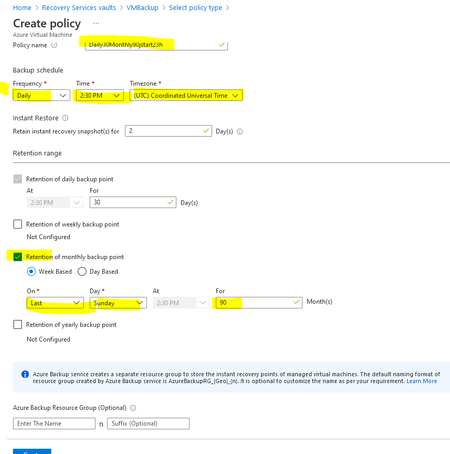
Step 1 : Create a new policy ( For example : Daily30Monthly90j ) Step 2 : From Protected items and Backup Items, select Azure Virtual Machine. ==> Search for the target VM and click Step 3 : From the vault item's dashboard ==> select the backup policy ==> change policie and select the new one and then select Save. The new policy is immediately applied to the vault. Step 4 : Run an on-demand backup. ==> Select The VM and select Backup Now to create an on-demand backup. (triggering backup launched) The Backup Now pane appears. Select OK to run the backup job. To track the job's progress, on the vault dashboard, select the Backup Jobs tile Clique on 'View details' to see the progress Officiel Source : https://docs.microsoft.com/en-us/azure/backup/backup-azure-manage-vms952Views0likes0CommentsScript PowerShell : Delete VM Item backup and the Recovery Service Vault
***Steps : -Disable soft delete for the Azure Backup Recovery Services vault -Check if there are backup items in a soft-deleted state and reverse the delete operation -Stop protection and delete data for all backup-protected items -Delete the Recovery Services vault ******************************************************************************************* ## Variables $rgBackup = "RG_Name" $rgBackupInstanRecovery = "RG_Name" $vaultName = "vault_name" $vault = Get-AzRecoveryServicesVault -ResourceGroupName $rgBackup -Name $vaultName ## ---------------------------------------------------------------------------------------------------------------------------------------------------------------------------------- ## Disable soft delete for the Azure Backup Recovery Services vault Set-AzRecoveryServicesVaultProperty -Vault $vault.ID -SoftDeleteFeatureState Disable Write-Host ($writeEmptyLine + " # Soft delete disabled for Recovery Service vault " + $vault.Name)` ## ---------------------------------------------------------------------------------------------------------------------------------------------------------------------------------- ## Check if there are backup items in a soft-deleted state and reverse the delete operation $containerSoftDelete = Get-AzRecoveryServicesBackupItem -BackupManagementType AzureWorkload -WorkloadType MSSQL -VaultId $vault.ID | Where-Object {$_.DeleteState -eq "ToBeDeleted"} foreach ($item in $containerSoftDelete) { Undo-AzRecoveryServicesBackupItemDeletion -Item $item -VaultId $vault.ID -Force -Verbose } Write-Host ($writeEmptyLine + "# Undeleted all backup items in a soft deleted state in Recovery Services vault " + $vault.Name) ## ---------------------------------------------------------------------------------------------------------------------------------------------------------------------------------- ## Stop protection and delete data for all backup-protected items $containerBackup = Get-AzRecoveryServicesBackupItem -BackupManagementType AzureVM -WorkloadType AzureVM -VaultId $vault.ID | Where-Object {$_.DeleteState -eq "NotDeleted"} foreach ($item in $containerBackup) { Disable-AzRecoveryServicesBackupProtection -Item $item -VaultId $vault.ID -RemoveRecoveryPoints -Force -Verbose } Write-Host ($writeEmptyLine + "# Deleted backup date for all cloud protected items in Recovery Services vault " + $vault.Name)` ## ---------------------------------------------------------------------------------------------------------------------------------------------------------------------------------- ## Delete the Recovery Services vault Remove-AzRecoveryServicesVault -Vault $vault -Verbose Write-Host ($writeEmptyLine + "# Recovery Services vault " + $vault.Name + " deleted" + $writeSeperatorSpaces + $currentTime)3.9KViews0likes0Comments

Recent Blog Articles
No content to show