User Profile

ammarjaved
Iron Contributor
Joined Aug 30, 2021


User Widgets
Recent Discussions
How to Hide Desktop Icons on Windows 11 (3 Ways)
1. Make use of the Desktop Context Menu • To begin, go to the desktop and right-click on a blank area. • Next, go to View and uncheck the box beside Show desktop icons. (external link removed by moderator) 2. Make use of the Local Group Policy Editor • To launch the Run command dialogue box, press Win + R. • To open the Local Group Policy Editor, type gpedit.msc and press Enter. • Select User Configuration > Administrative Templates > Desktop. • On the right-hand side pane, double-click the "Hide and disable all items" on the desktop option. • Select Enabled in the following box, then click Apply and OK. (external link removed by moderator) 3. Make use of the Registry Editor • To launch the Run command dialogue box, press Win + R. • To launch the Registry Editor, type regedit and click Enter. • Goto HKEY CURRENT USER > Software > Microsoft > Windows > CurrentVersion > Policies > Explorer • Then, in the right-hand side pane, right-click a blank space and choose New > DWORD (32-bit) Value. • Enter NoDesktop as the value for the DWORD. • Set the NoDesktop Value Data to 1 by double-clicking it. • To save these changes, click OK and then restart your computer.236KViews1like3CommentsHow to Disable Startup Programs in Windows 11 ( 3 Ways)
Disable Startup Programs using the Settings app In Windows, launch the Settings app. On the left side of Settings, choose Apps and Select the Startup navigation option. To disable any startup apps that are now active, click the toggle switches next to them. (external link removed by moderator) Disable All Startup Programs using the MSConfig app Open the Run window by pressing Win + R on the keyboard. In the Run text box, type msconfig. To open MSConfig, click the OK button. To disable this feature, uncheck the Load startup items checkbox on the General tab. To save the updated boot settings, click Apply and select the OK button. On the dialogue box prompt, click Restart. (external link removed by moderator) Disable Startup Programs using theTask Manager app In Windows, launch the Task Manager app. Navigate to the Startup tab. Click the Disable option after right-clicking on the enabled application.502KViews0likes1CommentHow to use Focus Assist Windows 11
Focus assist is a feature that helps you stay focused on your work and avoid distractions. The main idea behind this new feature is that it will automatically switch off notifications and other alerts when you are working on something important. It is available in the Settings app and can be turned on or off. This feature will allow you to focus on what’s important by filtering out the distractions. Microsoft focus assist can be configured to turn off notifications for specific apps such as email, social media, or even just certain websites. Focus Assist is a feature that will help you focus on the task at hand by blocking out all other distractions. Contents How to Turn On Focus Assist How to Set Up Focus Assist Priority only mode in Windows 11 How to Manage Automatic Focus Assist Rules How to Turn Off Focus Assist Conclusion How to Turn On Focus Assist Launch the Windows Settings app. In the left pane of the Settings app, choose System and then select Focus assist. Enable one of the modes by expanding the Focus assist box. Off: The focus assist feature is turned off, and you will get all app and contact notifications. Priority only: Only allows notifications that you have enabled will be shown. Alarm only: It will hide all app notifications and only displays alarms. "The focus assists feature is now activated" How to Set Up Focus Assist Priority only mode in Windows 11 Launch the Windows Settings app. In the left pane of the Settings app, choose System. Enable Priority only mode by clicking and expanding the Focus assist box. Underneath, select the Customize priority list option. Under the title calls, text, and reminders select the option you wish to enable while doing anything. Show incoming calls, including VoIP. Show reminders, regardless of the app used. Under the title, People click add contacts option and add contacts you wish to get notifications from. Under the title, Apps click Add an app option and add an app from which you want to get notifications. (external link removed by moderator) How to Manage Automatic Focus Assist Rules Launch the Windows Settings app. In the left pane of the Settings app, choose System and then select Focus assist. Read More: (external link removed by moderator)5.9KViews0likes0CommentsHow to Lock Windows 11 PC (4 Ways)
How to Lock Windows 11 using a Keyboard Shortcut When you press the Win Key + L simultaneously, your account will automatically lock. (external link removed by moderator) How to Lock Windows 11 using Command Prompt Launch the Command Prompt application. Then, at the command prompt, enter the below command and press enter: Rundll32.exe user32.dll,LockWorkStation Read More =(external link removed by moderator)72KViews1like0CommentsHow to See Wi-Fi Password on Windows 11
1. Launch the Windows Settings app. 2. Select "Network & Internet" from the left sidebar. 3. Select "More Network Adapter Options" from the "Related Settings" section after clicking "Advanced Network Settings." (external link removed by moderator) The "Network Connections" window will appear. 4. Select "Status" from the context menu when you right-click your wireless adapter. A window titled "Wi-Fi Status" will appear. (external link removed by moderator) 5. Select the "Wireless Properties" button. 6. Click the "Security" tab at the top of the "Wireless Network Properties" window. 7. Enable the "Show Characters" option beneath the "Network Security Key" field. The password for your presently connected Wi-Fi network will display in the "Network Security Key" section immediately.2.6KViews0likes0CommentsHow to Configure a Windows Sleep Timer Shutdown in Windows 11
1. Using Command Prompt • Open the Windows Command Prompt. • Type in the following command: Shutdown -s -t 3600 The -s argument specifies that your machine should be shut down, and the -t argument specifies that there should be a 3600-second wait. (external link removed by moderator) 2. Sleep Timer Desktop Shortcut • Right-click on your desktop and then select New > Shortcut. • Paste below command: Shutdown -s -t 3600 • Type the name of the shortcut and then click on the Finish button. (external link removed by moderator) Sleep Timer Cancellation Shortcut • Right-click on your desktop and then select New > Shortcut. • Paste below command: Shutdown -a • Type the name of the shortcut and then click on the Finish button.64KViews1like0CommentsEnable or Disable Encrypting File System in Windows 11
How to Enable Encrypting File System in Windows 11 1. In the taskbar, click the Search icon. 2. In the search bar, type Command Prompt. 3. Run the command prompt as administrator. 4. To enable the EFS feature, write the below command and hit Enter: fsutil behavior set disableencryption 0 (external link removed by moderator) How to Disable File System Encryption in Windows 11 1. In the taskbar, click the Search icon. 2. In the search bar, type Command Prompt. 3. Run the command prompt as administrator. 4. To disable the EFS feature, write the below command and hit Enter: fsutil behavior set disableencryption 1 (external link removed by moderator)63KViews0likes10CommentsHow to Limit Data Usage in Windows 11
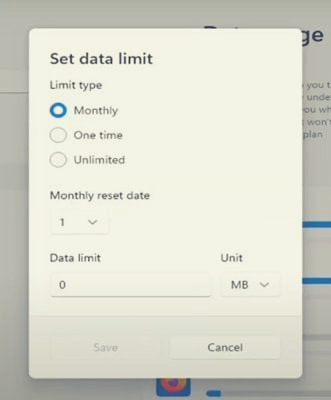
1. Navigate to the Settings app. 2. Select "Network & Internet." 3. Click "Data usage" on the top right side. (external link removed by moderator) 4. Choose "Wi-Fi or Ethernet" from the drop-down menu next to the title "Enter data limit." 5. Set the limit by clicking the "Enter Limit" button. (external link removed by moderator) 6. Choose a time period (Limit type), a monthly reset date/days till data expires, and a data limit (Unit as either MB or GB). 7. Click the "Save" button.Solved113KViews0likes6CommentsHow to Disable Background Apps Windows 11
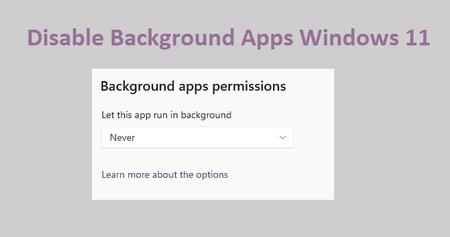
Disable Background Apps in the Settings app 1. Launch the Windows Settings app. 2. Click "Apps" on the left sidebar, then "Apps & features." 3. Locate the app, then click the "three-dots" button to the right of the app's name and select "Advanced options." If the "Advanced options" option is not available, then the app does not support managing its background app permission. 4. Under the section "Background app permissions," select "Never" from the dropdown list. (external link removed by moderator) Disable Background Apps in the Battery Settings 1. Launch the Windows Settings app. 2. Click "System" in the left sidebar. 3. Click "Power & battery" on the right side. 4. Click "Battery usage" under the "Battery" section. 5. Then, in the section "Battery usage by app" locate the app, then click the "three-dots" button to the right of the app's name, and then choose "Manage background activity." If the "Manage background activity" option is not available, then the app does not support managing its background app permission. 6. Under the section "Background app permissions," select "Never" from the dropdown list. (external link removed by moderator) Disable Background Apps for all users with Group Policy Editor 1. Enter gpedit.msc into the Run text box by pressing Win + R. 2. Navigate to "Computer Configuration\Administrative Templates\Windows Components\App Privacy" 3. Double-click the "Let Windows apps run in the background" policy in the right pane. 4. Select the "Disabled" choice, then select "Apply" and "OK." (external link removed by moderator)1.3MViews3likes17CommentsHow to Block a Program from Accessing the Internet Windows 11
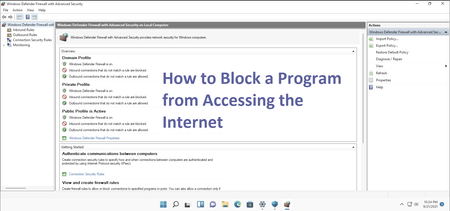
1. Launch the Windows Settings app. 2. In the left sidebar, select "Network & internet." 3. Then, Click "Advanced network settings" and choose "Windows Firewall." (external link removed by moderator) 4. Select "Advanced settings" from the center bottom. 5. Select "Outbound Rules" from the left sidebar. 6. Select "New Rule" from the right sidebar. (external link removed by moderator) 7. Select "Program" and then click Next. 8. Browse to the program's path and then click Next. 9. Choose the "Block the connection" option and then click Next. (external link removed by moderator) 10. Regardless, select all three choices and then click Next. 11. Fill in the program's name and description (optional), then click Finish.1MViews10likes12CommentsHow to Schedule any App Windows 11
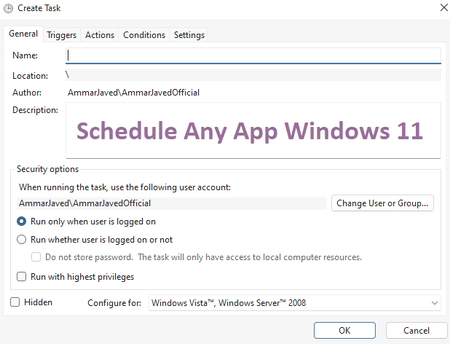
1. Click on Windows or Search Icon located at the taskbar. 2. Type "Task Scheduler" in the search bar and open the app. 3. In the "Actions" menu on the right pane and then click on "Create Task." (external link removed by moderator) 4. In General tab, fill in the task name and description. 5. Then go to the "Triggers" tab and click "New." 6. In the "New Trigger" dialog box, select options as your need e.g weekly from Monday to Friday and then starting and ending date and time, and then click "OK." (external link removed by moderator) 7. Then go to the "Actions" tab and click "New." 8. Browse the location of the app and then click "OK" and again click "OK." Video Tutorial (external link removed by moderator)How to Download Windows 11 ISO
How to Download Windows 11 ISO Using Official Website Navigate to the https://www.microsoft.com/software-download/windows11 for Windows 11 ISO. Scroll down and under the title "Download Windows 11 Disk Image (ISO)" click the Select Download drop-down and select Windows 11 (multi-edition ISO). To proceed, click the Download button. Select your preferred language by clicking the Choose One drop-down under the title "Select the product language." To proceed, click Confirm. When you click the 64-bit Download button, the ISO file will begin to download. (external link removed by moderator) How to Download Windows 11 ISO Using Media Creation Tool Navigate to the Microsoft Windows 11 https://www.microsoft.com/software-download/windows11. To get the setup file, click the Download Now button under the heading "Create Windows 11 Installation Media." Run the MediaCreationToolW11.exe file and choose Yes when prompted by UAC. To accept the terms, click Accept in the Setup window. Check the language and edition you want to use, then click Next to proceed. Select ISO File and click Next in the Choose which media to use section. Choose a location to download and save the ISO file, then click Save.935KViews0likes2CommentsHow to Run App as Administrator by Default in Windows 11
1. When you've located the file, right-click it to open its context menu. Then, select "Properties." 2. Navigate to the "Compatibility" tab. (external link removed by moderator) 3. Check the option next to "Run this Program as Administrator." 4. To apply this new choice, click "Apply" and then "OK" to exit the window.730KViews7likes31CommentsHow to Install or Uninstall RSAT in Windows 11
Remote Server Administration Tools (RSAT) is an essential tool for Windows administrators. This tool is designed to help administrators manage and maintain the servers from a remote location. Remote Server Administration Tools (RSAT) are used by IT administrators to handle Windows Server roles and features. It was introduced in Windows Server 2008 R2. Viewing Remote Server Administration Tools List in Windows 11 Open the Command Prompt App with Administrative Privileges. Type the below command and press Enter key. Get-WindowsCapability -Name RSAT* -Online | Select-Object -Property DisplayName, State You'll get a list of all RSAT features and their current state whether installed or not present. Related: (external link removed by moderator) Installing Remote Server Administration Tools in Windows 11 Launch the Windows 11 Settings app. Select Apps from the left pane. Choose Optional features. Read More At: (external link removed by moderator)2.4MViews9likes107CommentsHow to Boot Safe Mode in Windows 11
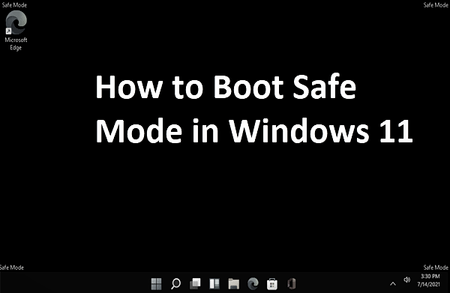
Using the Start Menu 1. By clicking the "windows icon" in the taskbar, you can access the Start menu. 2. In the lower-right corner, click the "power icon." 3. Hold down the Shift key on your keyboard and hit the "Restart" option. (external link removed by moderator) Using the Settings App 1. Launch the Windows Settings app. 2. Select "System" from the sidebar of the Settings App. 3. Select "Recovery." 4. Click the "Restart Now" button next to the title "Advanced Setup." 5. A pop-up dialogue box appears, prompting you to save your work before restarting, and then select "Restart Now." (external link removed by moderator) Windows will reboot into a blue screen after shutting down. 6. Choose "Troubleshoot." 7. Select "Advanced Options" in Troubleshoot. 8. Select "Startup Settings" from the Advanced Options menu. 9. Click "Restart" in Startup Settings. (external link removed by moderator) The computer will restart into a "Startup Settings" menu with several options. 10. To enter Safe Mode, press the "4" key on your keyboard. Windows will replace desktop image with a black background color and the title "Safe Mode" will appear in the corners.579KViews0likes7CommentsHow to Launch Windows 11 without Password
The password's primary aim is to keep prying eyes away from your computer. If you use a local account, you can bypass the login screen and go straight to your Windows desktop every time you power up. However, if you're logged in using a Microsoft account, you must verify yourself at the log-in screen. Contents How to Disable the Password Option in Windows 11 How to Enable the Password Option in Windows 11 How to Add a Picture Password in Windows 11 How to Setup a PIN Authentication System in Windows 11 What is Netplwiz command? Is password required for Windows 11? How to Disable the Password Option in Windows 11 This procedure is just for a local account, not a Microsoft account. Press the Windows key + R at the same time. Enter netplwiz in the Run window search box field. The User Accounts window will open. Select the account you want to use to automatically log in. Check the option that indicates Users must enter a user name and password to use this computer. Click the OK button. Enter your password once, then again to confirm it. Click the OK button. Restart your computer and the login screen password lock will now be skipped and directly opens the desktop. How to Enable the Password Option in Windows 11 Press the Windows key + R at the same time. Enter netplwiz in the Run window search box field. The User Accounts window will open. Select the account you want to disable the password option. Uncheck the option that indicates Users must enter a user name and password to use this computer. Click the OK button. Restart your computer and the login screen password lock will appear. How to Add a Picture Password in Windows 11 On Windows 11, open the Settings app.796KViews1like37CommentsHow to install the Linux Windows Subsystem in Windows 11
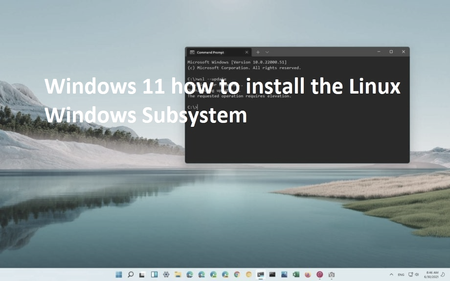
Install using Command Prompt Step 1: Start CMD with administrative privileges. Step 2:Execute "wsl --install" command. Step 3:Run "wsl -l -o" to list other Linux releases. Step 4:You can install your favorite Linux distribution, use "wsl --install -d NameofLinuxDistro." When the operation is finished, restart your PC.You can start the Linux distribution from your Start menu. Install Using Windows Features Step 1:Open the Start menu and type "Windows features" into the search bar and click on "Turn Windows Features On or Off". Step 2:Tick the "Windows Subsystem for Linux" checkbox and press the “OK” button. Step 3:When the operation is complete, you will be asked to restart your computer. After that, use the Microsoft Store app and look for the Linux distribution you want to use. Install the Linux distro of your choice. Step 4:The Linux distribution can be launched from the Start menu.1.5MViews6likes73Comments

Recent Blog Articles
No content to show