Forum Discussion

ardamis
Oct 06, 2023Copper Contributor
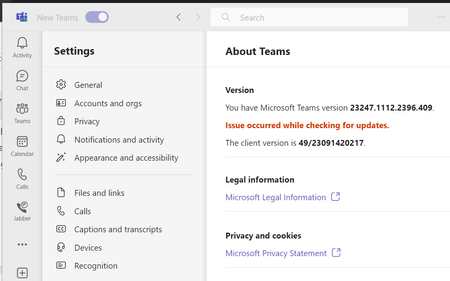
"Issue occurred while checking for updates." new Teams cannot update...
Currently running the new Teams client version 23247.1112.2396.409 in a corporate environment with CIS benchmarks configured via GPO, SSL packet inspection and content filtering, etc... So, lots of o...

vladimirgagula
Jan 30, 2024Copper Contributor
We have exactly the same error pattern in my organisation. In our organisation, the "DODownloadMode" is also set to "100" and this prevents the new Teams from updating.
However, this setting is essential for our Configuration Manager infrastructure.
Is there another alternative to make the new Teams updates possible?
However, this setting is essential for our Configuration Manager infrastructure.
Is there another alternative to make the new Teams updates possible?

Kristaps_Esterlins
Jan 30, 2024Copper Contributor
Hi,
>However, this setting is essential for our Configuration Manager infrastructure.
See the Microsoft Documentation here - https://learn.microsoft.com/en-us/windows/deployment/do/waas-delivery-optimization-reference#download-mode
Starting in Windows 11, this option is deprecated. Don't set Download mode to '100' (Bypass), which can cause some content to fail to download. If you want to disable peer-to-peer functionality, set DownloadMode to (0). If your device doesn't have internet access, set Download Mode to (99). When you set Bypass (100), the download bypasses Delivery Optimization and uses BITS instead. You don't need to set this option if you're using Configuration Manager.
>However, this setting is essential for our Configuration Manager infrastructure.
See the Microsoft Documentation here - https://learn.microsoft.com/en-us/windows/deployment/do/waas-delivery-optimization-reference#download-mode
Starting in Windows 11, this option is deprecated. Don't set Download mode to '100' (Bypass), which can cause some content to fail to download. If you want to disable peer-to-peer functionality, set DownloadMode to (0). If your device doesn't have internet access, set Download Mode to (99). When you set Bypass (100), the download bypasses Delivery Optimization and uses BITS instead. You don't need to set this option if you're using Configuration Manager.