Forum Discussion

MacOS unable to share screen, Teams not listed under Screen Recording in settings
 Oct 20, 2020
whitmarshdaniel I kind of got a workaround/fix for the time being. This is what I did.
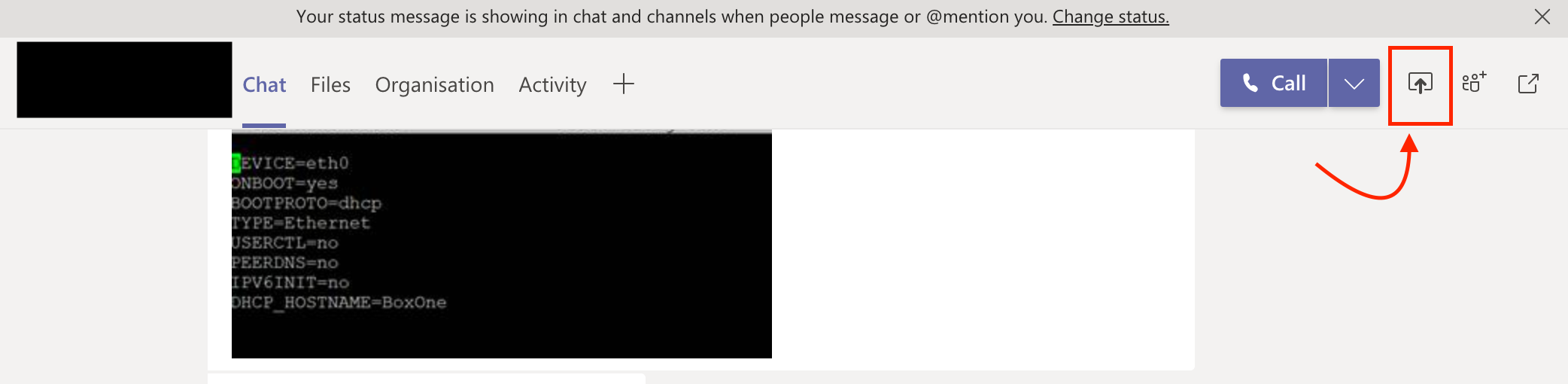
Rather than trying to share the screen from the call/meeting (which obviously gave me the warning and opening of the "Security & Privacy" setting didn't show Teams in Screen Recording" - I tried sharing the screen from the chat window of the same call and it opened a dialog box asking whether I need to deny or allow "Teams from sharing the screen. From there I opened the "Security & Privacy" -> Screen Recording and there it was - "Teams" and selected "Teams"
I attached a screenshot.
PS: Additionally I earlier did add "Teams" to accessibility and not sure whether that helped too.

WheelsBAI I'm new to MacOS, only about 30days in so the whole privacy/permission settings setup was new to me. I keep getting the prompt to allow Teams under Screen Recording permissions, but Teams was not an option.
My solution: Under Teams > Settings > uncheck new meeting experience > restart Teams. Start new meeting and try to share. privacy settings prompt comes up and NOW Teams is available under Screen Recording, select Teams to allow. Go back to Teams and voila, screen share works now! I prefer the new meeting experience so I went back in to the Settings and turned it back on. Restarted Teams and screen share is working for me now! 🙂
I suggest to toggle the meeting experience off or on to try and get Teams to show under Screen Recording option for you.
 Mike_FeinNov 11, 2020Copper Contributor
rickyroca73 This solution needs to be widely propagated. As I suspected it was something/setting within the Teams App that was causing Teams not to show up in Security&Privacy - Screen Recording.
Bravo!!
 chrism2509Nov 10, 2020Copper Contributor
rickyroca73 Thanks so much - this is the only work around that worked for me!