Forum Discussion

MacOS unable to share screen, Teams not listed under Screen Recording in settings
 Oct 20, 2020
whitmarshdaniel I kind of got a workaround/fix for the time being. This is what I did.
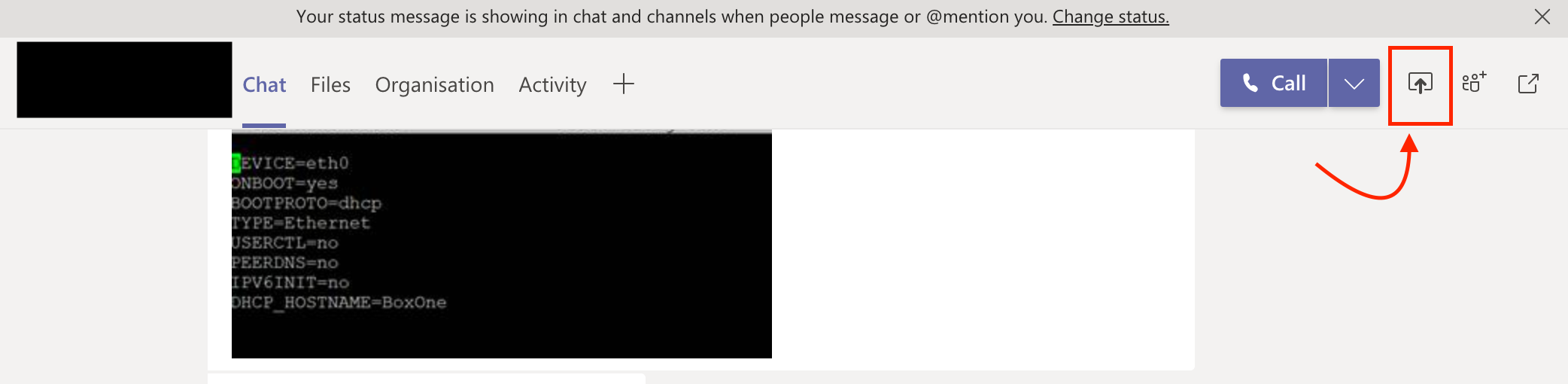
Rather than trying to share the screen from the call/meeting (which obviously gave me the warning and opening of the "Security & Privacy" setting didn't show Teams in Screen Recording" - I tried sharing the screen from the chat window of the same call and it opened a dialog box asking whether I need to deny or allow "Teams from sharing the screen. From there I opened the "Security & Privacy" -> Screen Recording and there it was - "Teams" and selected "Teams"
I attached a screenshot.
PS: Additionally I earlier did add "Teams" to accessibility and not sure whether that helped too.

On the Mac, I have followed your instructions to add Teams to Accessability, but it does not show up under Screen Recording still. Any idea how to fix this?gjsa73

MacBobL I have the same problem - can anyone help?
- RangithOct 20, 2020Former Employee
whitmarshdaniel I kind of got a workaround/fix for the time being. This is what I did.
Rather than trying to share the screen from the call/meeting (which obviously gave me the warning and opening of the "Security & Privacy" setting didn't show Teams in Screen Recording" - I tried sharing the screen from the chat window of the same call and it opened a dialog box asking whether I need to deny or allow "Teams from sharing the screen. From there I opened the "Security & Privacy" -> Screen Recording and there it was - "Teams" and selected "Teams"
I attached a screenshot.
PS: Additionally I earlier did add "Teams" to accessibility and not sure whether that helped too.
 ManishWadhaiFeb 23, 2024Copper Contributor
1. Go to System Preferences > Click Security & Privacy > Privacy tab.
2. If there is a Team Application, try to delete it first by select the "Teams Application list" and click the minus " - " sign in the left corner of the selection box
3. When finished, click the plus " + " sign in the left corner of the selection box, browse the Application > select the Microsoft Team (work or school).app and click OPEN
4. Now retry the share screen on Teams, it should work. pyramedmentionsApr 14, 2021Copper Contributor/Users/dr.ketan/Desktop/Screenshot 2021-04-14 at 5.08.07 PM.png
Hi! Unfortunately, did not work for me. I tried uploading from the chat option and still had a blank window.- Mike_FeinNov 11, 2020Copper ContributorNot the solution.
- Kyle_Mac_SpecialistNov 11, 2020Copper Contributor
Mike_Fein Have you tried the resolution I listed? I am an MSP and it has worked every time for me on multiple Macs running Catalina and Teams. If you have not seen my one.... long story short is create a new user account, sign your teams account in there, got to meet now, create a meeting, then share your screen, do the security tick box there, log out and it carries over to the actual user account and instance of teams. it has worked in the double figures for myself as I specialise in Macs I have seen this many times during 2020. Mght not work for all but it takes five minutes to try it.