Forum Discussion

MacOS unable to share screen, Teams not listed under Screen Recording in settings
 Oct 20, 2020
whitmarshdaniel I kind of got a workaround/fix for the time being. This is what I did.
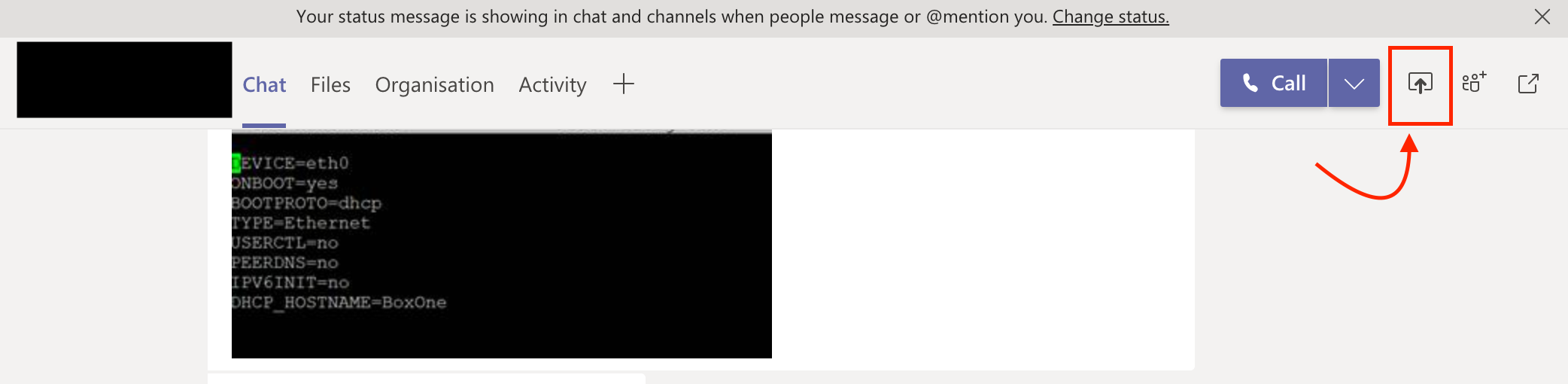
Rather than trying to share the screen from the call/meeting (which obviously gave me the warning and opening of the "Security & Privacy" setting didn't show Teams in Screen Recording" - I tried sharing the screen from the chat window of the same call and it opened a dialog box asking whether I need to deny or allow "Teams from sharing the screen. From there I opened the "Security & Privacy" -> Screen Recording and there it was - "Teams" and selected "Teams"
I attached a screenshot.
PS: Additionally I earlier did add "Teams" to accessibility and not sure whether that helped too.

Aitje Solving this involved these steps for me running macOS 10.15/Catalina:
1. Add Teams manually to the list of apps allowed to control your mac in:
Security & Privacy -> Accessibility
2. Then go to Security & Privacy -> Screen Recording and Teams will have appeared in that list for you with a tick box for you to allow screen sharing permission
3. It will require Teams to restart for the permission to take affect
4. You can now remove Teams from Security & Privacy -> Accessibility if you wish

On the Mac, I have followed your instructions to add Teams to Accessability, but it does not show up under Screen Recording still. Any idea how to fix this?gjsa73
 whitmarshdanielOct 19, 2020Copper Contributor
MacBobL I have the same problem - can anyone help?
- RangithOct 20, 2020Former Employee
whitmarshdaniel I kind of got a workaround/fix for the time being. This is what I did.
Rather than trying to share the screen from the call/meeting (which obviously gave me the warning and opening of the "Security & Privacy" setting didn't show Teams in Screen Recording" - I tried sharing the screen from the chat window of the same call and it opened a dialog box asking whether I need to deny or allow "Teams from sharing the screen. From there I opened the "Security & Privacy" -> Screen Recording and there it was - "Teams" and selected "Teams"
I attached a screenshot.
PS: Additionally I earlier did add "Teams" to accessibility and not sure whether that helped too.
 ManishWadhaiFeb 23, 2024Copper Contributor
1. Go to System Preferences > Click Security & Privacy > Privacy tab.
2. If there is a Team Application, try to delete it first by select the "Teams Application list" and click the minus " - " sign in the left corner of the selection box
3. When finished, click the plus " + " sign in the left corner of the selection box, browse the Application > select the Microsoft Team (work or school).app and click OPEN
4. Now retry the share screen on Teams, it should work.