Forum Discussion

MacOS unable to share screen, Teams not listed under Screen Recording in settings
 Oct 20, 2020
whitmarshdaniel I kind of got a workaround/fix for the time being. This is what I did.
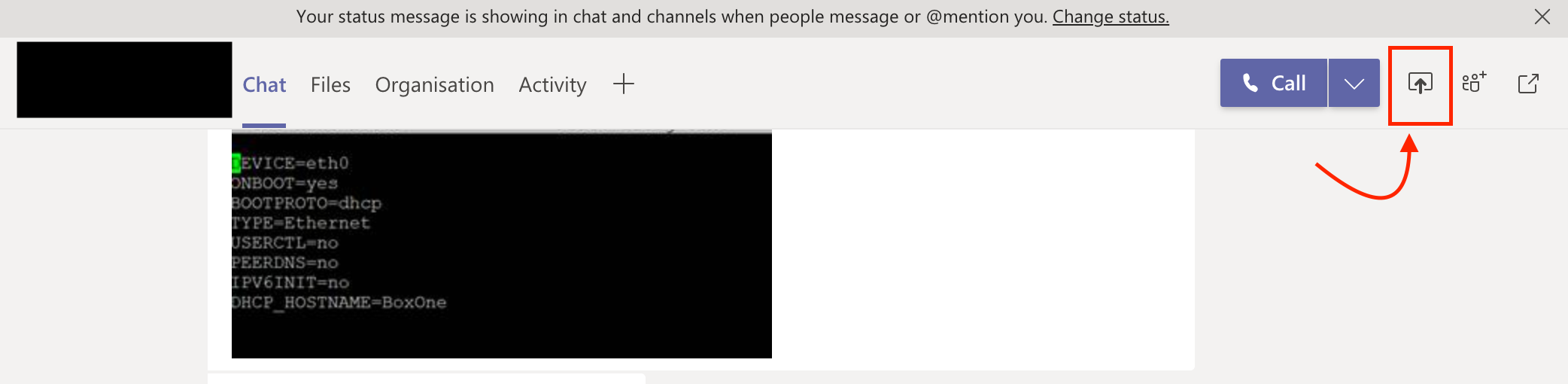
Rather than trying to share the screen from the call/meeting (which obviously gave me the warning and opening of the "Security & Privacy" setting didn't show Teams in Screen Recording" - I tried sharing the screen from the chat window of the same call and it opened a dialog box asking whether I need to deny or allow "Teams from sharing the screen. From there I opened the "Security & Privacy" -> Screen Recording and there it was - "Teams" and selected "Teams"
I attached a screenshot.
PS: Additionally I earlier did add "Teams" to accessibility and not sure whether that helped too.

WheelsBAI and all!
I have the exact same problem. I just don't see how I can get Teams listed in Screen-recording - Privacy
I have version 1.3.00.9271. No updates available.
Any -other- suggestions? Getting desperate here.

Aitje Solving this involved these steps for me running macOS 10.15/Catalina:
1. Add Teams manually to the list of apps allowed to control your mac in:
Security & Privacy -> Accessibility
2. Then go to Security & Privacy -> Screen Recording and Teams will have appeared in that list for you with a tick box for you to allow screen sharing permission
3. It will require Teams to restart for the permission to take affect
4. You can now remove Teams from Security & Privacy -> Accessibility if you wish
 hlbomfimApr 28, 2021Copper ContributorOk in Big Sur too.
You save my life.
Thank's krzbztttApr 28, 2021Copper Contributor
It seems that Microsoft disabled the "Old meeting experience" in a recent update.
However, in Big Sur (at least for me) there is now the possibility to MANUALLY ADD any application to the list of tickable apps to the app list in the section "System Preferences -> Security&Privacy -> Privacy -> Screen Recording". Just click the "+" button below the list. A file dialog will show where you can select Teams.app from the /Applications folder (Or drag-and-drop Teams.app from the finder to the list). whousseauxJul 19, 2021Copper ContributorDidn't work for me. macOS Big Sur (11.4) with Teams version 1.4.00.7175 and all boxes checked. Need a way to reset all permissions. Only user having this problem out of 14 others who don't have this issue. I need help! Thanks!
- toddcranstonNov 29, 2020Copper Contributorworked a treat, thanyou.
 MacBobLAug 28, 2020Copper Contributor
On the Mac, I have followed your instructions to add Teams to Accessability, but it does not show up under Screen Recording still. Any idea how to fix this?gjsa73
 whitmarshdanielOct 19, 2020Copper Contributor
MacBobL I have the same problem - can anyone help?
- RangithOct 20, 2020Former Employee
whitmarshdaniel I kind of got a workaround/fix for the time being. This is what I did.
Rather than trying to share the screen from the call/meeting (which obviously gave me the warning and opening of the "Security & Privacy" setting didn't show Teams in Screen Recording" - I tried sharing the screen from the chat window of the same call and it opened a dialog box asking whether I need to deny or allow "Teams from sharing the screen. From there I opened the "Security & Privacy" -> Screen Recording and there it was - "Teams" and selected "Teams"
I attached a screenshot.
PS: Additionally I earlier did add "Teams" to accessibility and not sure whether that helped too.