3 things every admin should do now that apps have arrived
Last week we announced app building in Copilot Studio and Copilot Cowork. Makers can now describe business outcomes and produce full-stack apps with built-in source control, deployment stages, and version isolation—all on Microsoft-hosted infrastructure that requires no infrastructure provisioning, hosting configuration, or deployment pipeline.
With those capabilities built in, your administrative scope is narrower and more familiar. Apps are created in the maker's personal developer environment following the environment routing policies you already have. That means things like connector permissions and data policies apply to an app both while it is being built and after it is published. Apps also access connected data on behalf of the signed-in user, which means publishing or sharing an app never grants anyone access to data they could not already reach.
With these new capabilities, there are three things that every admin should be thinking about:
- Review your app estate
- Control cost with credit caps
- Choose where makers can build apps
Review your app estate
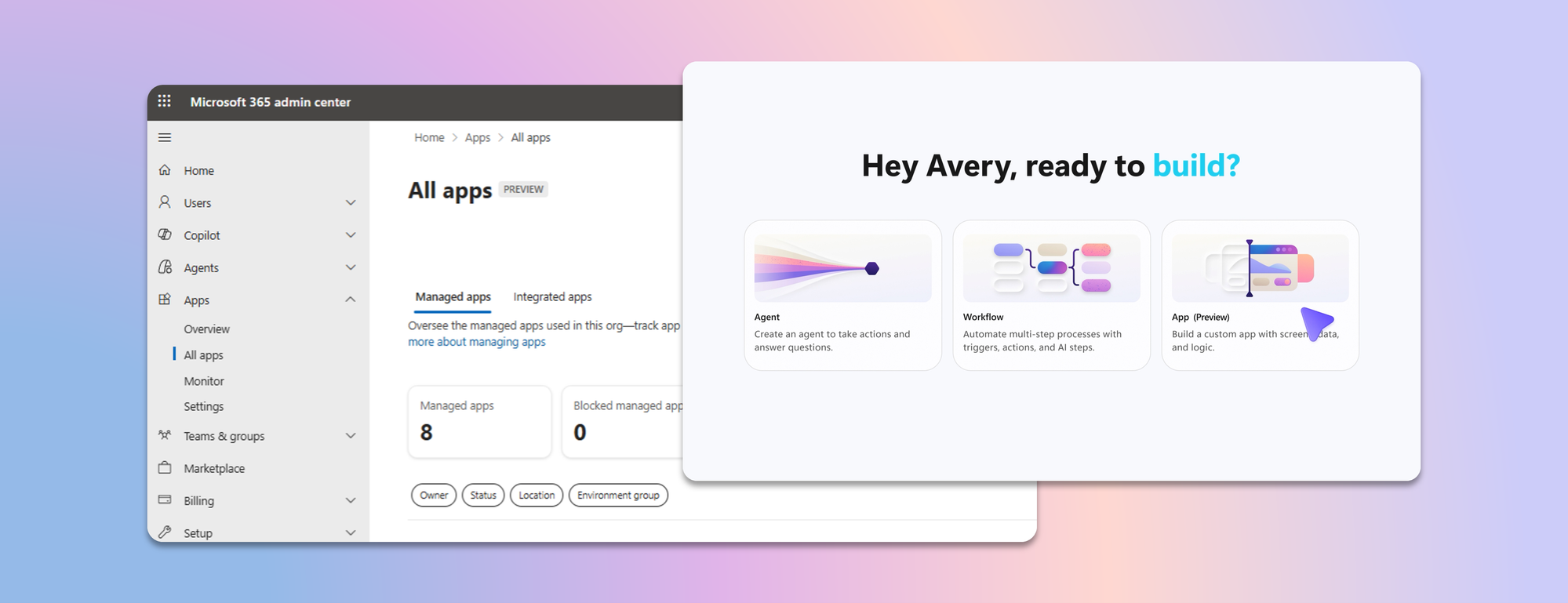
Published apps are inventoried in the Microsoft 365 admin center. Each app shows:
- Who built it
- Its lifecycle state
- Which data sources and connectors it uses
- Which policies apply to it
- Usage and operational metrics
From the same experience, you can also block or disable a published app, remove a connector, bring an app back within policy, control whether it can be shared, and retire apps that are no longer used.
Control cost with credit caps
Building and running apps are both charged through Copilot Credits usage-based billing, and are metered as two separate services. This distinction lets you manage maker cost and app runtime cost independently. Build consumption varies with the language model used, the complexity of the app, and how much iteration is involved. Runtime consumption, on the other hand, varies with the volume and complexity of the tasks the app processes.
At runtime, if the user holds a Power Apps Premium license, usage is included within existing request limits. Beyond those limits, or without a license, usage bills through Copilot Credits. You can learn more by reviewing the Copilot Credits licensing guide.
As an admin, you can define credit cap policies to manage your costs. For both maker and runtime usage, caps are set per user, and the controls are managed through usage-based billing. For makers, think of a cap as a per-user budget: you can set the same budget for everyone, or different budgets for groups of users, such as departments that carry separate budgets of their own.
Choose where makers can build apps
By default, app creation is available to all users in both Copilot Studio and Copilot Cowork. However, you may want to limit where people can build apps. To do so: In the Microsoft 365 admin center, navigate to Apps, then Overview, and find ‘Choose where people can make apps’.
Two paths appear:
- Copilot Studio, where makers build directly, which is on by default and recommended
- Copilot Cowork, where people create apps through chat, with availability managed by your organization's participation in the Frontier program
Note that turning a path off prevents new apps being created that way. However, apps that are already published through that path will continue to run.
Key takeaways for managing apps built in Copilot Studio
- The Microsoft 365 admin center is the one place to review the app estate, adjust app policies, and decide which creation paths stay open.
- Set credit caps as per-user budgets today, uniformly or by group, and plan for environment-level caps as project budgets when they arrive.
- Decide who is accountable for overseeing published apps before makers start publishing, as you would for any other application estate.

 Microsoft
