security
2 TopicsManaging apps built in Copilot Studio
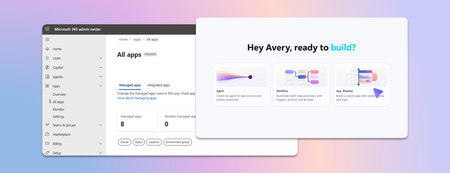
Last week we announced app building in Copilot Studio and Copilot Cowork. Makers can now describe business outcomes and produce full-stack apps with built-in source control, deployment stages, and version isolation—all on Microsoft-hosted infrastructure that requires no infrastructure provisioning, hosting configuration, or deployment pipeline. With those capabilities built in, your administrative scope is narrower and more familiar. Apps are created in the maker's personal developer environment following the environment routing policies you already have. That means things like connector permissions and data policies apply to an app both while it is being built and after it is published. Apps also access connected data on behalf of the signed-in user, which means publishing or sharing an app never grants anyone access to data they could not already reach. With these new capabilities, there are three things that every admin should be thinking about: Review your app estate Control cost with credit caps Choose where makers can build apps Review your app estate Published apps are inventoried in the Microsoft 365 admin center. Each app shows: Who built it Its lifecycle state Which data sources and connectors it uses Which policies apply to it Usage and operational metrics From the same experience, you can also block or disable a published app, remove a connector, bring an app back within policy, control whether it can be shared, and retire apps that are no longer used. Control cost with credit caps Building and running apps are both charged through Copilot Credits usage-based billing, and are metered as two separate services. This distinction lets you manage maker cost and app runtime cost independently. Build consumption varies with the language model used, the complexity of the app, and how much iteration is involved. Runtime consumption, on the other hand, varies with the volume and complexity of the tasks the app processes. At runtime, if the user holds a Power Apps Premium license, usage is included within existing request limits. Beyond those limits, or without a license, usage bills through Copilot Credits. You can learn more by reviewing the Copilot Credits licensing guide. As an admin, you can define credit cap policies to manage your costs. For both maker and runtime usage, caps are set per user, and the controls are managed through usage-based billing. For makers, think of a cap as a per-user budget: you can set the same budget for everyone, or different budgets for groups of users, such as departments that carry separate budgets of their own. Choose where makers can build apps By default, app creation is available to all users in both Copilot Studio and Copilot Cowork. However, you may want to limit where people can build apps. To do so: In the Microsoft 365 admin center, navigate to Apps, then Overview, and find ‘Choose where people can make apps’. Two paths appear: Copilot Studio, where makers build directly, which is on by default and recommended Copilot Cowork, where people create apps through chat, with availability managed by your organization's participation in the Frontier program Note that turning a path off prevents new apps being created that way. However, apps that are already published through that path will continue to run. Key takeaways for managing apps built in Copilot Studio The Microsoft 365 admin center is the one place to review the app estate, adjust app policies, and decide which creation paths stay open. Set credit caps as per-user budgets today, uniformly or by group, and plan for environment-level caps as project budgets when they arrive. Decide who is accountable for overseeing published apps before makers start publishing, as you would for any other application estate. Go to the Microsoft 365 admin center2.7KViews1like2Comments
Governance is becoming agentic, too: How enterprises can operate AI at scale
Organizations have spent the past few years trying to get people building with AI. That effort is working: Agents are moving beyond experimentation and into real business processes. For IT teams, this kind of successful adoption creates a new set of questions. What agents exist across the organization? Who owns them and what systems and data can they access? How are they being used, and what do they cost to operate? Are they healthy? And how do you know when an agent’s risk profile or behavior changes? These questions get harder as the agent estate of an organization grows. Agents may be built by different teams or on different platforms. Some may operate outside the Microsoft ecosystem entirely. Their capabilities can also change as they connect to new data and tools. We’ve been thinking a lot about this challenge as we prepare for the Microsoft Power Platform Conference (PPCC) in October 2026. One idea comes up again and again: Scaling agents doesn’t just mean governing more things. It requires changing how governance itself works. Inventories, reviews, and administrator controls remain important. But they need to become part of a more continuous operating model. I see that evolution in three parts: observe continuously, respond proportionately, and automate where appropriate. Observe continuously You can’t govern what you can’t see. And when it comes to agents, visibility means more than maintaining an inventory. It means understanding each agent in context: its ownership, identity, access, usage, health, and behavior. It is important to note that that context isn’t static. A maker or admin could give an agent access to a new tool or data source. They could change the agent's owner. The way people use it in production may reveal something about the build that wasn’t apparent during development. And, of course, usage of that agent (hopefully) will grow over time. That makes observability, defined as visibility into agent activity and behavior through telemetry, an ongoing requirement. Then, at enterprise scale, there’s the question of coverage. In my experience, many enterprises plan to build agents in multiple places. They may be built with Microsoft platforms like Copilot Studio, third-party platforms, and/or custom development. This is where cross-platform management layers like Microsoft Agent 365 become especially important. A shared agent control plane—that is, a common layer for managing and governing agents across platforms—makes observability actionable across the agent estate, rather than leaving signals isolated within individual platforms. IT can use those signals to detect changes such as risk, usage, cost, and health over time. isualize how agents fit into the broader ecosystem, connect with other agents, and perform over time to simplify monitoring and resolve issues quickly. At PPCC, the Agent 365: Securely Managing and Governing Agents at Scale workshop will go deeper into the controls and operating practices behind this model. If these are questions you’re working through in your organization, I hope you’ll join us there. Respond proportionately Once you have signals, the next question is what you do with them. Not every agent represents the same level of risk. An agent that answers employee questions from approved internal documentation is very different from one that can access sensitive data and take actions in a production system. They shouldn’t necessarily go through the same governance process. At enterprise scale, treating every agent identically creates problems in both directions. Too little oversight introduces unnecessary risk. Too much can create bottlenecks for scenarios that fit established policies. A more scalable approach is to align the response with the risk. Identity, permissions, data access, autonomy, and available actions all provide useful context. Organizations can use that content to determine which policies apply and where additional review is appropriate. For example, imagine an agent gains access to a new data source. That change is a signal. What’s the appropriate response? If the new access falls within established policies and risk boundaries, the agent may not need additional intervention. If it introduces a higher level of risk—such as access to sensitive data—it could trigger stronger controls or human review. This type of program might look something like this: The important shift seen with this approach is that governance becomes less dependent on applying the same manual process to every agent. Instead, organizations can establish patterns for different levels and types of risk. That makes governance more predictable for builders, too. Teams know the boundaries they’re working within, while higher-risk agents can receive additional scrutiny. We’re applying this principle inside Microsoft as well. At PPCC, How Microsoft Does IT: Managing and Governing Agents with Risk-Aligned Oversight will share how we’re approaching risk-aligned agent governance across Copilot Studio, Agent 365, Microsoft Defender, and Microsoft Purview. Automate where appropriate Once you can observe changes and determine the appropriate response, the next question is: Does a person need to execute that response every time? At enterprise scale, the answer increasingly needs to be no. Many governance decisions are repeatable. Organizations already know the policies they want to enforce, the boundaries agents should operate within, and the conditions that require additional review. This is where I think governance starts to become agentic, too. One useful way I’ve found to think about it is as a continuous loop: Observe → assess → act → escalate At a high level, this loop represents how a more automated governance framework can work. Basically, in such a framework: The governance system detects a relevant signal and evaluates it against the context and policies the organization has established. When the appropriate response is clear, an automated control can act. When the situation falls outside those boundaries or requires judgment, it can be escalated to a person. The goal isn’t to automate every governance decision, but rather to automate the decisions we already know how to make. People will continue to be responsible for setting policies, defining risk tolerances, and deciding where human judgment is required. The objective here is to let automation handle more of the repeatable work inside those boundaries. In practice, that changes the job of IT teams and Centers of Excellence (CoEs). Instead of inspecting and configuring agents one at a time, they can spend more of their effort designing how governance operates: defining trusted patterns, establishing risk thresholds, and deciding when human intervention is required. You can see some of this shift from visibility toward action at PPCC. The Agentic Governance: Secure, Govern, and Operate Your Power Platform at Scale session will explore real-time inventory and telemetry alongside automated controls and security, using the Power Platform API as an extensibility layer for enterprise governance. Governance must evolve with the agent estate The goal isn’t a future where people disappear from agent governance. It’s one where their attention is used more deliberately. As agents become more capable, the systems around them need to become better at sensing change. As the estate grows, oversight needs to reflect actual risk. And as routine governance work increases, organizations need to decide what can be handled through established policy and what needs human judgment and accountability. That is the shift I mean when I say governance is becoming agentic, too. And we’re only beginning to explore what that operating model can look like at enterprise scale. If you’re working through these questions in your own organization, we’ll be digging into them throughout PPCC. Here are a few sessions and workshops I recommend: Sessions Governance of All Your Agents at Scale How Microsoft Does IT: Managing and Governing Agents with Risk-Aligned Oversight Observability and Governance for Your Third-Party Agents with Minimal Configuration and Maximum Control Secure by Design: Preparing Agents for Production and Scale Governance First, Agents at Scale: How Wells Fargo Built Copilot Studio Agents in a Regulated Bank Workshops Agent 365: Securely Managing and Governing Agents at Scale Mastering Governance at Scale: Unlock the Full Potential of Your Power Platform and Agent Estate Nobody Knows How Many Agents You Have993Views0likes0Comments