Forum Discussion

adamfmiko
Nov 19, 2026Copper Contributor
Windows Update block week D updates
How do I block week D updates from appearing?

Ryan_C1
Nov 19, 2026Iron Contributor
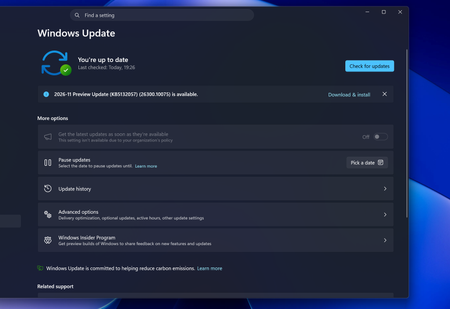
Your screenshot shows an optional preview update with a “Download & install” link, not an update already being installed. The “Get the latest updates…” switch is already off, so turning that off again won’t remove this banner.
There are two separate things here:
- Dismiss the offer: click the X on the right of the banner. This dismisses the current notification, but isn’t a permanent block on future preview offers.
- Control optional updates: on supported Windows 11 Pro/Enterprise systems, check Group Policy under Computer Configuration → Administrative Templates → Windows Components → Windows Update → Manage updates offered from Windows Update → Enable optional updates. Setting this policy to Disabled prevents receipt of optional updates under that policy; it isn’t a guaranteed way to hide every preview banner across Windows builds.
Your screenshot says an organisation’s policy controls the setting. If this is a managed PC, ask IT to check the effective optional-update policy rather than adding conflicting registry settings.
If your goal is simply to avoid installing the preview, leave “Download & install” alone. You can still receive the normal monthly security updates, which generally incorporate the preceding preview’s fixes. Don’t pause all updates just to suppress this offer.