Forum Discussion

adamfmiko
Nov 19, 2026Copper Contributor
Windows Update block week D updates
How do I block week D updates from appearing?

ButchLuisi53
Nov 19, 2026Occasional Reader
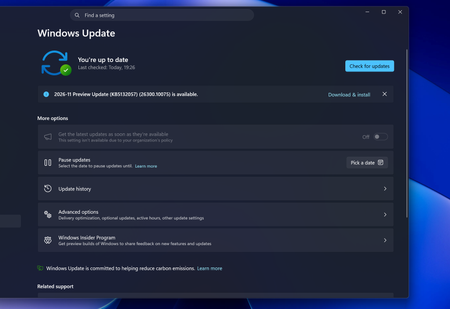
To block Week D Windows Updates (optional preview updates released in the fourth week):
1. Open Settings → Windows Update.
2. Turn on Get the latest updates as soon as they're available → OFF.
3. Avoid clicking Download and install under optional updates.
4. If available, pause updates until the next Patch Tuesday.
For permanent blocking: Use Group Policy (`gpedit.msc`) → Computer Configuration → Administrative Templates → Windows Components → Windows Update → Manage updates offered from Windows Update.
Set Select when Preview Builds and Feature Updates are received to defer preview builds.
This helps prevent optional preview updates from being installed automatically.