Forum Discussion

The file size display format in Windows 11 File Explorer has changed
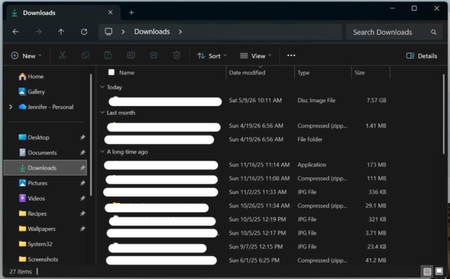

The screenshot already shows File Explorer’s normal automatic size format: larger files are shown in GB, medium-sized files in MB, and smaller files in KB. For example, it shows 7.57 GB, 1.41 MB, and 336 KB.
Windows 11 does not provide a File Explorer setting to force every file size to use only MB or GB. Explorer selects the most readable unit automatically, so a small file will remain in KB rather than being displayed as a very small MB value.
To make sure the size column is visible, open the folder, select View > Details, then right-click a column heading and make sure Size is selected. For an exact value in bytes, right-click an individual file and choose Properties.
If the concern is folder sizes, blank entries for folders are normal. File Explorer does not calculate and show each folder’s total size in the Details view by default.