Forum Discussion

zzzsl9
May 10, 2026Copper Contributor
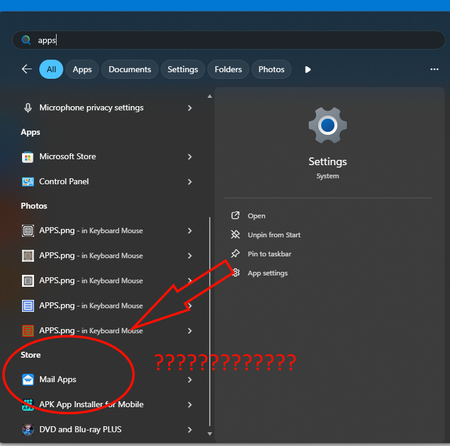
How do I remove SLOP from my START MENU
EVERYTIME I search in my start menu I get SLOP recommendations from the store and its REALLY FRUSTRATING because I used to use the start menu to type PRIVATE/PERSONAL INFORMATION before copying a...

BreckenFoster
May 18, 2026Steel Contributor
To optimize my PC performance in Windows 11, search for Disk Cleanup in the Start menu, select your C: drive, and click the Clean up system files button to reveal hidden, high-volume redundancy. In the expanded list, check the boxes for Windows Update Cleanup (which often holds onto gigabytes of obsolete installation data) and Temporary Internet Files, then click OK to perform a deep scrub of your storage. This manual process penetrates deeper than standard deletion methods, making it a superior way to optimize my PC performance in Windows 11 by reclaiming critical disk space and reducing file system overhead.
ps
- If you selected a previous Windows installation, you will not be able to roll back to an earlier version of Windows in the event of a failure. Only delete this folder if your current system is running stably.
- Disk Cleanup sometimes includes a “Downloads” checkbox. Be sure to move all important files out of the Downloads folder before running the cleanup, or simply uncheck the box.
- It is best to perform a Windows Update cleanup only after confirming that the latest updates are functioning properly, as deleting these files will remove the backup copies used for uninstallation.
- For users with SSDs, this process is designed to reclaim space rather than defragment the drive.
- Maintaining more available space allows the SSD’s wear-leveling algorithm to operate more efficiently, thereby preserving long-term read and write speeds.