Forum Discussion

Can I safely delete these three extra partitions after a clean Windows 11 install?
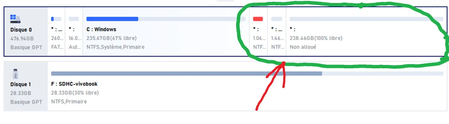

Don’t delete all three circled areas. Your screenshot shows two small NTFS partitions followed by 238.46 GB of unallocated space. That last area is already free space, not a partition that needs deleting.
The two small partitions may be recovery partitions, but the screenshot doesn’t identify them well enough to say which can safely go. The approximately 260 MB FAT partition and 16 MB reserved partition to the left of C: should be left alone.
Before making changes:
- Back up important files and save your BitLocker/device-encryption recovery key.
- Open Terminal as administrator and run:
reagentc /info
Check Windows RE status and Windows RE location. The location identifies the partition currently used for Windows Recovery Environment. If it’s disabled or the location is blank, that does not prove both small partitions are disposable. - Use Disk Management or read-only partition details to match that location to the actual disk layout. Don’t assume the first or second small partition is the obsolete one.
The other complication is that those two partitions sit between C: and the unallocated space. Windows Disk Management can only extend C: into unallocated space immediately to its right.
Your practical choices are:
- Safest and simplest: create a new data volume in the 238.46 GB unallocated space, leaving the existing partitions untouched.
- To enlarge C: identify the recovery partitions first, then either move the required partition out of the way with a suitable partition tool, or deliberately recreate WinRE afterward. That needs a verified backup and bootable recovery media.
There isn’t a safe deletion order to give from this screenshot alone. Deleting an active recovery partition may not stop normal Windows startup, but it can remove repair and recovery options you’ll want if another lockout occurs.