Forum Discussion

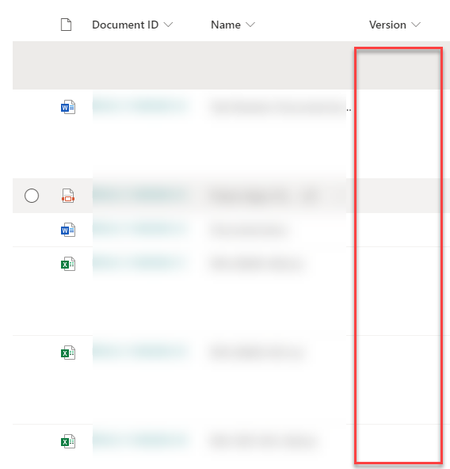
Show the No. version of version history.
- Apr 28, 2021
Great, glad it is working for you now.
Can you please like my above response & Mark as Best Response? It will help others with similar question in future to find the correct answer easily.


I found out why I wasn't seeing the Version number - there are two possible columns to add to the document library called Version but only one updates automatically. It's possible you did as I did and added the wrong one first.
The correct way
- Click the gear icon, then Library Settings, More library settings.
- Click the View you want to add the Version number to. In this case I chose All Documents
- Scroll down the list of possible fields - I found Version right at the bottom. Tick the check box and choose a position
- Click OK to save the changes
You should now see the Version column populated with numbers
The wrong way
- Click the gear icon, then Library Settings, More library settings.
- Click Add from existing site columns
- Scroll down the left hand box to find Version, click once and then click Add>
- Click OK
There's now a Version column but there's nothing in it.
How to spot the difference
It's hard when the names are identical but I realised the wrong Version column had a type of Single line of text, not number.
Just to make life that little bit harder the correct Version column does not appear in the Columns list in the Settings page.