Forum Discussion

Show the No. version of version history.
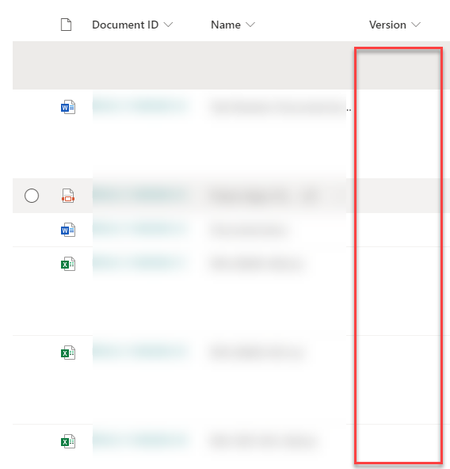
- Apr 28, 2021
Great, glad it is working for you now.
Can you please like my above response & Mark as Best Response? It will help others with similar question in future to find the correct answer easily.

mmchx I have tried it on my SharePoint site & it is working fine for me:
Can you please check what are the versioning settings on your document library. Is versioning enabled on document library?
Below are versioning settings for my document library:
Please click Mark as Best Response & Like if my post helped you to solve your issue. This will help others to find the correct solution easily. It also closes the item. If the post was useful in other ways, please consider giving it Like.

I have already set. now it works thank you very much.
- ganeshsanapApr 28, 2021MVP
Great, glad it is working for you now.
Can you please like my above response & Mark as Best Response? It will help others with similar question in future to find the correct answer easily.
 MVCuserApr 09, 2024Brass Contributor
Hi ganeshsanap
I followed all the steps on this posts, and I can see the column, but i cannot see the version.
Any thoughts please? thank you
 Silex7Jun 06, 2021Copper Contributor
Hello, What 'Add column' option do you choose ?, I've set the versioning setting as you explained , but how will that reflect in my column?
I would so much appreciate your help !
- ganeshsanapJun 06, 2021MVP
Silex7 Version column is not listed in Add Column - Show/hide columns panel.
You have to add the Version column in library view using old/classic way:
1. Go to SharePoint library & click on settings (gear) icon
2. Select Library settings.
3. Scroll down to the Views section on library settings page
4. Click on the view name where you want add Version column --> If you have only one view, probably it will be All Items
5. On view settings page, check the checkbox against Version column in Columns section.
6. Scroll down/up & click OK to save the changes.
Please click Mark as Best Response & Like if my post helped you to solve your issue. This will help others to find the correct solution easily. It also closes the item. If the post was useful in other ways, please consider giving it Like.