Forum Discussion

Map Network Drive SharePoint List Attachments 2022
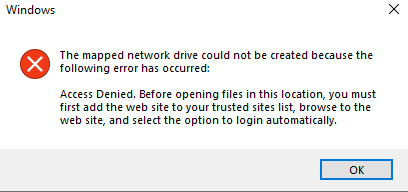

I was able to get this to work by turning on Allow under Settings > Allow sites to be reloaded in Internet Explorer mode (IE mode). Clicked the Restart button that I was then presented with. Opened the path to SharePoint folder I plan to map in Edge in Internet Explorer mode. It didn't load properly as expected as it tells me to upgrade my browser. But, that did the trick for me and others in my organization. You can choose to Exit IE mode for that SharePoint path now. Then, go into File Explorer and map that path.
Long version:
Open MS Edge. Go to Settings. Search for and go to the Internet Explorer compatibility section and change Default to Allow. It will then give you a Restart button to restart Edge. When Edge opens again, go to your SharePoint documents path that you want to map. After it loads and you see the file and folder structure, click Edge's 3 dot menu and choose Reload in Internet Explorer mode. The page won't load correctly but it's made the change we need. Click the 3 dots again and choose Exit Internet Explorer mode. Go into File Explorer, Right Click on This PC. Choose Map Network Drive. Select a Drive letter. Make sure there is a check in the box for Reconnect at sign-in. Paste the SharePoint path you pasted into Edge into the Folder field and then click Finish.
I got the path I wanted to map this way: opened MS Word, then chose Open, clicked on Sites - organization name, and then clicked on the Team that has the document path to map, then clicked Documents and finally right clicked on the next folder listed to "Copy path to the clipboard."