Forum Discussion

How to remove count number from grouping title in SharePoint List?
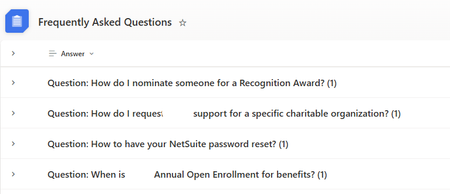

You can do this by creating a new view of the list and setting the grouping in List settings. Then format the view in advanced mode with the JSON below.
In my example the list has the following columns:
This is the JSON:
{
  "$schema": "https://developer.microsoft.com/json-schemas/sp/v2/row-formatting.schema.json",
  "hideSelection": true,
  "hideColumnHeader": true,
  "hideListHeader": true,
  "groupProps": {
    "headerFormatter": {
      "elmType": "div",
      "attributes": {
        "class": "sp-row-card"
      },
      "style": {
        "color": "black",
        "background-color": "#FAF9F9",
        "flex-grow": "1",
        "display": "flex",
        "flex-direction": "row",
        "box-sizing": "border-box",
        "padding": "4px 8px 5px 8px",
        "border-radius": "6px",
        "align-items": "center",
        "flex-wrap": "nowrap",
        "overflow": "auto",
        "margin": "1px 4px 4px 1px"
      },
      "children": [
        {
          "elmType": "img",
          "style": {
            "max-width": "24px",
            "max-height": "24px",
            "margin-top": "2px",
            "border-radius": "2px"
          }
        },
        {
          "elmType": "div",
          "children": [
            {
              "elmType": "span",
              "style": {
                "padding": "5px 5px 5px 5px",
                "font-weight": "500",
                "font-size": "15px"
              },
              "txtContent": "@group.fieldData.displayValue"
            }
          ]
        },
        {
          "elmType": "div",
          "children": [
            {
              "elmType": "div",
              "style": {
                "display": "flex",
                "flex-direction": "column",
                "justify-content": "center"
              }
            }
          ]
        }
      ]
    }
  },
  "rowFormatter": {
    "elmType": "div",
    "attributes": {
      "class": "ms-bgColor-themeLighterAlt"
    },
    "style": {
      "justify-content": "start",
      "color": "ms-fontColor-Primary",
      "display": "flex",
      "padding": "1px 8px 5px 20px",
      "border-radius": "6px",
      "max-width": "905px",
      "margin": "1px 4px 4px 60px"
    },
    "children": [
      {
        "elmType": "div",
        "style": {
          "text-align": "left",
          "font-weight": "400",
          "font-size": "15px"
        },
        "children": [
          {
            "elmType": "span",
            "style": {
              "margin-top": "8px",
              "padding-left": "1px",
              "color": "black"
            },
            "attributes": {
              "class": "ms-fontSize-m",
              "iconName": "Lightbulb"
            }
          },
          {
            "elmType": "span",
            "attributes": {
              "class": "sp-row-listPadding"
            },
            "txtContent": "Answer",
            "style": {
              "font-weight": "500",
              "color": "black",
              "padding-left": "4px"
            }
          },
          {
            "elmType": "div",
            "attributes": {
              "class": "sp-row-listPadding"
            },
            "txtContent": "[$Answer]",
            "style": {
              "flex-grow": "1",
              "display": "flex",
              "flex-direction": "column",
              "flex-wrap": "nowrap",
              "align-items": "center",
              "max-width": "900px",
              "min-width": "205px",
              "margin-top": "8px",
              "margin-bottom": "8px"
            }
          },
          {
            "elmType": "button",
            "customRowAction": {
              "action": "defaultClick"
            },
            "txtContent": "Show more",
            "attributes": {
              "class": "sp-row-button"
            },
            "style": {
              "display": "=if([$ShowMore] == 'Yes', 'block', 'none')",
              "margin-bottom": "8px",
              "color": "white",
              "background-color": "#0077DB"
            }
          }
        ]
      }
    ]
  }
}
This is the result:
Rob
Los Gallardos
Microsoft Power Automate Community Super User.
Principal Consultant, SharePoint and Power Platform WSP Global (and classic 1967 Morris Traveller driver)

Thank you so much, It looks really good! However, I seem to be getting formatting details in my "Answer" column. Do you know why this is?
- BrianThyNov 25, 2024Copper Contributor
- Rob_ElliottNov 25, 2024Silver Contributor
Your answer column is set as enhanced text, it should just be plain text. Go to list settings to change it.
- BrianThyNov 25, 2024Copper Contributor
I also notice, it seems to indent the question a fair amount when I choose the dropdown, unlike your example.