Forum Discussion

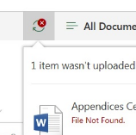
File not found error while trying to upload a file to a sharepoint site library
 DeletedMay 08, 2018
Please try below steps
- Navigate to the Library settings
- Click Manage files which have no checked in version
- go and checkin in all the files
- Delete everything at %USERPROFILE%\AppData\Local\Microsoft\WebsiteCache
- Delete everything at %APPDATA%\Microsoft\Web Server Extensions\Cache
If it still doesn't work try to update your file name and re upload.
Please try below steps
- Navigate to the Library settings
- Click Manage files which have no checked in version
- go and checkin in all the files
- Delete everything at %USERPROFILE%\AppData\Local\Microsoft\WebsiteCache
- Delete everything at %APPDATA%\Microsoft\Web Server Extensions\Cache
If it still doesn't work try to update your file name and re upload.
 Hammad Hassan KhanMay 10, 2018Tin Contributor
Hey. I am a newbie in this. Cant file the adresses that you mentioned. I tried them in the file explorer after putting my userprofile. Thanks in advance!
 Russell GriffithMay 10, 2018Copper Contributor
Here is what I did.
Open a command prompt and type (without quotes) `cd %USERPROFILE%\AppData\Local\Microsoft\WebsiteCache`
This will change the directory to the right directory. Then copy that Address (starting with C:\Users...) to Windows explorer to get to these files there.
Russell
- Hammad Hassan KhanMay 11, 2018Tin Contributor
I did the same thing and got this. Am I doing something wrong. I tried it with website cache and the other cache too but cudn't find the folders.
- Russell GriffithMay 09, 2018Copper ContributorI'm having the exact same issue only in the modern browser view. When I switch to classic view this works fine. I emptied both cache folders and had no unchecked in items. Any other thoughts? I've tried this in all browsers with the exact same result.