Forum Discussion

Eric ALEXANDRE
Jan 07, 2020Copper Contributor
Context menu 'Manage access' is missing for some users
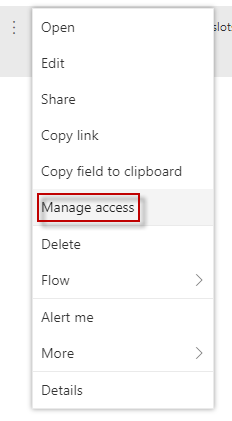
While I have the context menu 'Manage access' in modern lists or libraries (see attached screenshot) some users in my company miss this context menu. Can anybody tell me why it is so? I must add that...

GraemeNZ
Nov 16, 2021Brass Contributor
This seems to be a Microsoft update issue. I see the same thing occurred in 2018 (https://techcommunity.microsoft.com/t5/sharepoint/link-to-advanced-permissions-management-disappeared-from/m-p/293682), then again in 2020.
Now it is November 2021 and its happened again. I was able to 'manage access' 3 weeks ago, but now I can't. I've asked our IT provider to escalate the issue to MS Support.

Kathy Grube
Nov 18, 2021Copper Contributor
We have same issue. All document libraries have lost "manage access". It's been moving around for a few weeks and now disappeared completely. We can create a shared link, but this is not suitable as we need to control access directly to individual documents. I, as the site owner, can return to Classis SharePoint and control permissions, but none of my colleagues who need to manage access to documents have this tool available to them.
- Kathy GrubeNov 18, 2021Copper ContributorOur awesome SharePoint team showed me a very simple solution - Add "Name (linked to document with edit menu)" to current view or a new view. The manage access function then appear son the context menu next to the field. 🙂
 Fred_HughesMay 26, 2022Copper Contributor
This sounds like what I need to do, but I'm afraid I didn't quite follow (I'm new to managing SharePoint). I need to add what to where? Thanks if you can clarify for me.
- GraemeNZNov 18, 2021Brass ContributorMy Awesome IT guy showed me this is still here but looks different and is arguably easier to do but also has less options than the classic view.
If you click the Share icon beside the item, SharePoint displays a pop-up showing who this item is shared with. It's not obvious, but if you click on the thumbnails you'll get another pop-up where you can change edit to view etc. Here you can also share a link. Remember to state whether all people with the link can use it or only some, and also their read or edit permission. Note that you can't opt out of sending an email, so this is a pain.
On balance, I think I'll continue to use the classic interface, so thanks again Kathy for describing how to do this.