Forum Discussion

Button on SharePoint Online to link other list
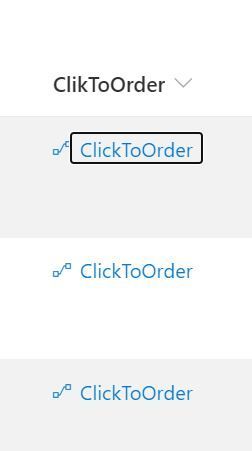
- Jan 15, 2021
You can add "target": "_blank" to open the link in new browser tab.
You can use below JSON to open another SharePoint list in new browser tab:
{
   "$schema": "https://developer.microsoft.com/json-schemas/sp/v2/column-formatting.schema.json",
   "elmType": "a",
   "txtContent": "Click to Order",
   "attributes": {
      "target": "_blank",
      "href": "https://<tenant>.sharepoint.com/sites/siteName/Lists/listName/"
   }
}
Replace the URL in href attribute with the actual URL of your 2nd list.
Please click Mark as Best Response if my post helped you to solve your issue. This will help others to find the correct solution easily. It also closes the item. If the post was useful in other ways, please consider giving it Like.

You can add "target": "_blank" to open the link in new browser tab.
You can use below JSON to open another SharePoint list in new browser tab:
{
   "$schema": "https://developer.microsoft.com/json-schemas/sp/v2/column-formatting.schema.json",
   "elmType": "a",
   "txtContent": "Click to Order",
   "attributes": {
      "target": "_blank",
      "href": "https://<tenant>.sharepoint.com/sites/siteName/Lists/listName/"
   }
}
Replace the URL in href attribute with the actual URL of your 2nd list.
Please click Mark as Best Response if my post helped you to solve your issue. This will help others to find the correct solution easily. It also closes the item. If the post was useful in other ways, please consider giving it Like.

ganeshsanap how to change icon to be button? because when I change on elmtype it not working
thanks for your help
- sascha1065Aug 14, 2023Copper Contributor
i have found a simple tool on this site: https://sharepointdashboards.com/LITE/
you can try this code i have modified. the original code can be found on the site above.
{ "$schema": "https://developer.microsoft.com/json-schemas/sp/v2/column-formatting.schema.json", "elmType": "a", "attributes": { "class": "ms-fontColor-white ms-fontColor-black--hover", "href": "Yourlink.com", "target": "=if(1==1,'_blank','_self')" }, "style": { "border": "none", "cursor": "pointer", "background-color": "transparent", "display": "" }, "children": [ { "elmType": "div", "attributes": { "class": "ms-bgColor-tealLight ms-bgColor-success--hover ms-fontColor-white ms-fontColor-black--hover" }, "style": { "font-size": "16px", "font-family": "arial", "border": "1px solid LightGray", "border-radius": "=if(1==1,'7px','0px')", "box-shadow": "=if(1==1,'2px 2px #999','none')", "padding": "3px 5px 3px 5px" }, "children": [ { "elmType": "div", "attributes": { "iconName": "AccountManagement" }, "style": { "display": "=if('AccountManagement' != '','inline-block','none')", "vertical-align": "middle", "padding-right": "5px" } }, { "elmType": "div", "txtContent": "Your Button Text", "style": { "display": "inline-block", "font-family": "arial", "vertical-align": "middle" } } ] } ] }- ganeshsanapAug 14, 2023MVP
You will have to wrap the hyperlink ("a" element) inside the button element. Check the JSON samples given in below articles to make the hyperlink look like a button using SharePoint JSON formatting:
- Download Image from SharePoint Image column using JSON formatting
- SharePoint Online: Download files using JSON Formatting
Please click Mark as Best Response & Like if my post helped you to solve your issue. This will help others to find the correct solution easily. It also closes the item. If the post was useful in other ways, please consider giving it Like.