Forum Discussion

"Automatically" option for the Organization version history limit, how it works??
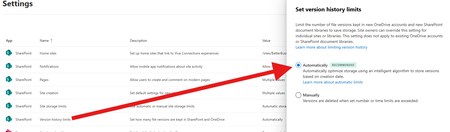

1. Configure version history restrictions: Open the SharePoint site and navigate to the target document library.
Click on Settings > Library Settings.
In Version Control Settings, select Manual and set the maximum number of versions (e.g. 100).
2. Check storage space: Open the SharePoint Administrator Center.
Navigate to Storage Metrics and check storage usage.
If you are running low on storage space, consider purging old files or increasing your storage quota.
3. Configure version history using PowerShell:
Open SharePoint Management Shell (administrator privileges).
Run the following command to set version history limits:
powershell
$web = Get-SPWeb “https://yoursharepointsite”
$list = $web.Lists[“YourDocumentLibrary”]
$list.EnableVersioning = $true
$list.MajorVersionLimit = 100
$list.Update()
4. Contact Microsoft Support: If none of the above methods satisfy the requirement, it is recommended to contact Microsoft support team with detailed error messages and screenshots for further assistance.