Forum Discussion

Outlook attachments and OneDrive recent files
- Jun 23, 2026
Here is the breakdown of how Outlook determines those Suggested and Recent files, and why you are seeing that "random" behavior.
The Criteria for "Suggested" vs. "Recent" Files
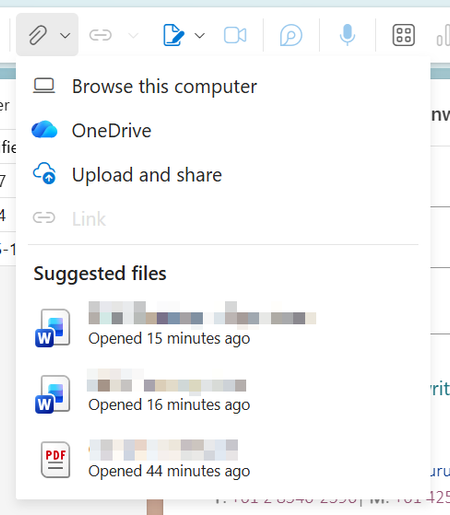
- "Suggested Files" (Top 3): This shows up to 3 files you have recently interacted with in the cloud (OneDrive or SharePoint). Outlook uses a predictive algorithm here—it looks at who you are emailing, the subject line, and your past behavior to guess which single file (or top 3) is most relevant to that specific email.
- "Recent Files" (the full list under OneDrive): This shows your last ~12 files that you have actively opened or edited across OneDrive, SharePoint, and even locally synced folders.
The #1 Golden Rule for both lists: The trigger is user-initiated "Open" or "Edit" actions, not filesystem changes (creation, download, or save).
Why does it feel so "random"? (Your specific cases explained)
Why does opening a SharePoint file make it appear immediately in "Suggested" but sometimes not in "Recent" without a refresh?
- Suggested gets a real-time push signal from the Office apps (Word/Excel/PDF readers).
- The Recent list in the attachment picker relies heavily on the browser's local cache and the Microsoft Graph API's indexing. If you open a file, the server records it instantly, but your browser tab’s cached list of "Recent" might not pull the fresh data until you manually refresh the page (F5) to force a new API call.
Why does a downloaded PDF saved to a synced OneDrive/SharePoint folder NOT show up?
- Because saving/downloading a file is NOT "opening" it. The system only registers the file as "Recent" when the PDF reader (like Edge, Adobe, or Word) sends a signal back to Microsoft 365 saying "This user opened this specific PDF file."
- Simply downloading it from a website and saving it to your synced folder only updates the Windows File Explorer—Outlook's attachment picker has no idea you touched that file until you actually double-click to open it.
Why do I sometimes have to open a file before it appears?
- Exactly as above. Outlook is designed to prioritize files you have actively worked on, not files that just landed in your folder via automation or downloads. It assumes you don't want to attach random files that were merely saved to a folder by a script or a background sync.
How to make your target file appear reliably (without refreshing)
- Always "Open" the file first before clicking "Attach" in Outlook. Even just opening it in the browser viewer and closing it counts.
- If it still doesn't show, use the "Browse web locations" (or "Browse OneDrive") option at the bottom of the attachment menu to manually navigate to the exact SharePoint/OneDrive folder and pick it directly—bypassing the "Recent" list entirely.
- For local files: Save them to your actual Desktop or Documents folder first, then use the "Browse this computer" option. The "Recent" cloud list will not reliably pick up local files unless you opened them via an Office app recently.
- Force a cache refresh: If you just opened a file and it still isn't showing up in "Recent" under OneDrive, simply close the attachment dialog, hit F5 to refresh the entire Outlook Web tab, and open the attachment picker again. This forces Outlook to fetch the absolute latest Graph data.
Bottom Line
Outlook’s attachment picker is not a file explorer—it is an "Activity History" viewer. It only shows files you have interacted with, not files you have created or saved. If you want it to appear, you must double-click to open it at least once.
My answer comes without any guarantee or warranty!
I hope this helps you.

Here is the breakdown of how Outlook determines those Suggested and Recent files, and why you are seeing that "random" behavior.
The Criteria for "Suggested" vs. "Recent" Files
- "Suggested Files" (Top 3): This shows up to 3 files you have recently interacted with in the cloud (OneDrive or SharePoint). Outlook uses a predictive algorithm here—it looks at who you are emailing, the subject line, and your past behavior to guess which single file (or top 3) is most relevant to that specific email.
- "Recent Files" (the full list under OneDrive): This shows your last ~12 files that you have actively opened or edited across OneDrive, SharePoint, and even locally synced folders.
The #1 Golden Rule for both lists: The trigger is user-initiated "Open" or "Edit" actions, not filesystem changes (creation, download, or save).
Why does it feel so "random"? (Your specific cases explained)
Why does opening a SharePoint file make it appear immediately in "Suggested" but sometimes not in "Recent" without a refresh?
- Suggested gets a real-time push signal from the Office apps (Word/Excel/PDF readers).
- The Recent list in the attachment picker relies heavily on the browser's local cache and the Microsoft Graph API's indexing. If you open a file, the server records it instantly, but your browser tab’s cached list of "Recent" might not pull the fresh data until you manually refresh the page (F5) to force a new API call.
Why does a downloaded PDF saved to a synced OneDrive/SharePoint folder NOT show up?
- Because saving/downloading a file is NOT "opening" it. The system only registers the file as "Recent" when the PDF reader (like Edge, Adobe, or Word) sends a signal back to Microsoft 365 saying "This user opened this specific PDF file."
- Simply downloading it from a website and saving it to your synced folder only updates the Windows File Explorer—Outlook's attachment picker has no idea you touched that file until you actually double-click to open it.
Why do I sometimes have to open a file before it appears?
- Exactly as above. Outlook is designed to prioritize files you have actively worked on, not files that just landed in your folder via automation or downloads. It assumes you don't want to attach random files that were merely saved to a folder by a script or a background sync.
How to make your target file appear reliably (without refreshing)
- Always "Open" the file first before clicking "Attach" in Outlook. Even just opening it in the browser viewer and closing it counts.
- If it still doesn't show, use the "Browse web locations" (or "Browse OneDrive") option at the bottom of the attachment menu to manually navigate to the exact SharePoint/OneDrive folder and pick it directly—bypassing the "Recent" list entirely.
- For local files: Save them to your actual Desktop or Documents folder first, then use the "Browse this computer" option. The "Recent" cloud list will not reliably pick up local files unless you opened them via an Office app recently.
- Force a cache refresh: If you just opened a file and it still isn't showing up in "Recent" under OneDrive, simply close the attachment dialog, hit F5 to refresh the entire Outlook Web tab, and open the attachment picker again. This forces Outlook to fetch the absolute latest Graph data.
Bottom Line
Outlook’s attachment picker is not a file explorer—it is an "Activity History" viewer. It only shows files you have interacted with, not files you have created or saved. If you want it to appear, you must double-click to open it at least once.
My answer comes without any guarantee or warranty!
I hope this helps you.