Forum Discussion

OneDrive suddenly became empty after university storage policy change Is recovery still possible?
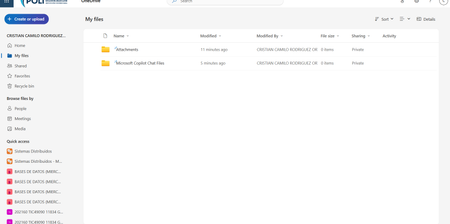

Good news first: Your files are almost certainly NOT permanently deleted.
What likely happened is that the university's system replaced your old OneDrive space with a brand-new, empty one when they changed the storage limits. Think of it like your old digital locker being moved to a "backup warehouse" while a new empty locker was put in its place.
Because this happened only a few days ago (July 15th), that "backup warehouse" still has your files, and they can be brought back. Microsoft keeps deleted sites for 93 days, so we have plenty of time—but we need to act now to avoid delays.
Here is your simple, step-by-step action plan:
Step 1: Do this RIGHT NOW (Offline)
- Turn off your Wi-Fi or unplug your ethernet cable.
- Go to your computer's File Explorer and find your OneDrive folder (usually C:\Users\YourName\OneDrive – [Your University]).
- Copy that entire folder to an external USB drive or a different folder on your computer (like your Desktop).
- Why? This protects your local copies. Once you reconnect to the internet, the app might try to "sync" with the empty cloud. By copying them first, you have a safe backup regardless of what happens next.
Step 2: Send this exact message to your IT Department (as soon as possible)
Copy and paste the text below into your existing ticket or a new email to the helpdesk. It uses their technical language so they know exactly what to do:
"Dear IT Team,
Regarding my empty OneDrive (ticket #[Your Ticket Number]): I have confirmed that my current site is a newly provisioned, empty site. My original files are likely still in the SharePoint 'Deleted Sites' or as an orphaned site.
To recover them, I kindly request the following actions:
- Please check the SharePoint Admin Center > Deleted Sites for my old personal URL (/personal/my_username_domain) and restore it. Note: You will need to delete the current empty site first to avoid a URL conflict.
- Before restoring, please temporarily increase the storage quota on that restored site so I can download my files, as my data exceeds the new 30GB limit.
- If the site is not in 'Deleted Sites', please run Get-SPOSite -IncludePersonalSite $true to find my old orphaned site (look for storage usage > 0 GB and a last modified date of July 15th).
I have an offline copy of my local files, so once the restored site is online, I just need the temporary quota bump to sync them down safely.
Thank you for your help!"
Step 3: Follow up wisely
- If you don't hear back within 2 to 3 business days, reply to your ticket politely and ask if they have checked the "Deleted Sites" folder yet.
- If they still don't reply after a week, remind them that they can escalate this to Microsoft Support (Education tenants have direct support) using the July 15th date to look at the backend audit logs.
The bottom line: This is a routine administrative fix for your IT team. Your data is safe in Microsoft's retention system. By sending them the specific commands above, you are saving them hours of troubleshooting and making it very easy for them to say "yes" and restore everything quickly. You've got this!
My answers are voluntary and without guarantee!
Hope this will help you.
Was the answer useful? Mark as best response and like it!
This will help all forum participants.