Forum Discussion

Files-On-Demand status on OneDrive for Mac is confusing
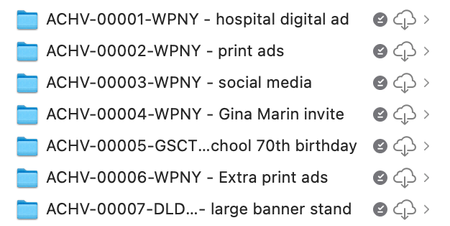

Mystery #1 (Folder Size After Freeing Space):
- The folder size reported by Finder or DaisyDisk is the total size of the files in the cloud, not the actual space used on your local disk. This is why you still see 400 GB for the folder size even after freeing up space. The placeholders are small, but the reported size reflects the cloud storage usage.
Mystery #2 (Downloading and Icons):
- When you select "Always keep on this device," OneDrive starts downloading the files. The initial lack of activity in the menu bar icon might be due to the download starting in the background without immediate visual feedback.
- The presence of both the "downloaded locally" checkmark and the "in the cloud" icon indicates that the file is in the process of being downloaded or that there's a sync status inconsistency.
- The pie chart icon you see when clicking the cloud-with-arrow icon indicates that OneDrive is verifying or downloading the file. This process can take time, especially for large files or folders.
What You Can Do
Verify Download Progress:
Check the OneDrive sync activity by clicking the OneDrive icon in the menu bar. It should show the progress of downloads.
You can also check the "Activity" tab in the OneDrive settings for more detailed information.
Check Local Storage:
After selecting "Always keep on this device," monitor your local storage to see if th available space decreases, indicating that files are being downloaded.
Restart OneDrive:
Sometimes, restarting OneDrive can resolve sync status inconsistencies. You can do this by quitting OneDrive from the menu bar and relaunching it.
Backup Strategy:
If you're backing up your OneDrive files, ensure that you're backing up the actual files, not the placeholders. You might need to temporarily set the files to "Always keep on this device" before backing them up.
The behavior you're observing is due to how OneDrive's Files On-Demand feature works. The folder size reported by Finder or third-party tools reflects the total size of the files in the cloud, not the actual space used on your local disk. When you select "Always keep on this device," OneDrive downloads the actual files, which can take time. The icons you see represent different sync states, and the pie chart indicates that a file is being downloaded or verified.
My answers are voluntary and without guarantee!
Hope this will help you.
Was the answer useful? Mark as best response and like it!
This will help all forum participants.