Forum Discussion

"Save and Close" missing from Calendar Event entry window - Office 2016/365 Win

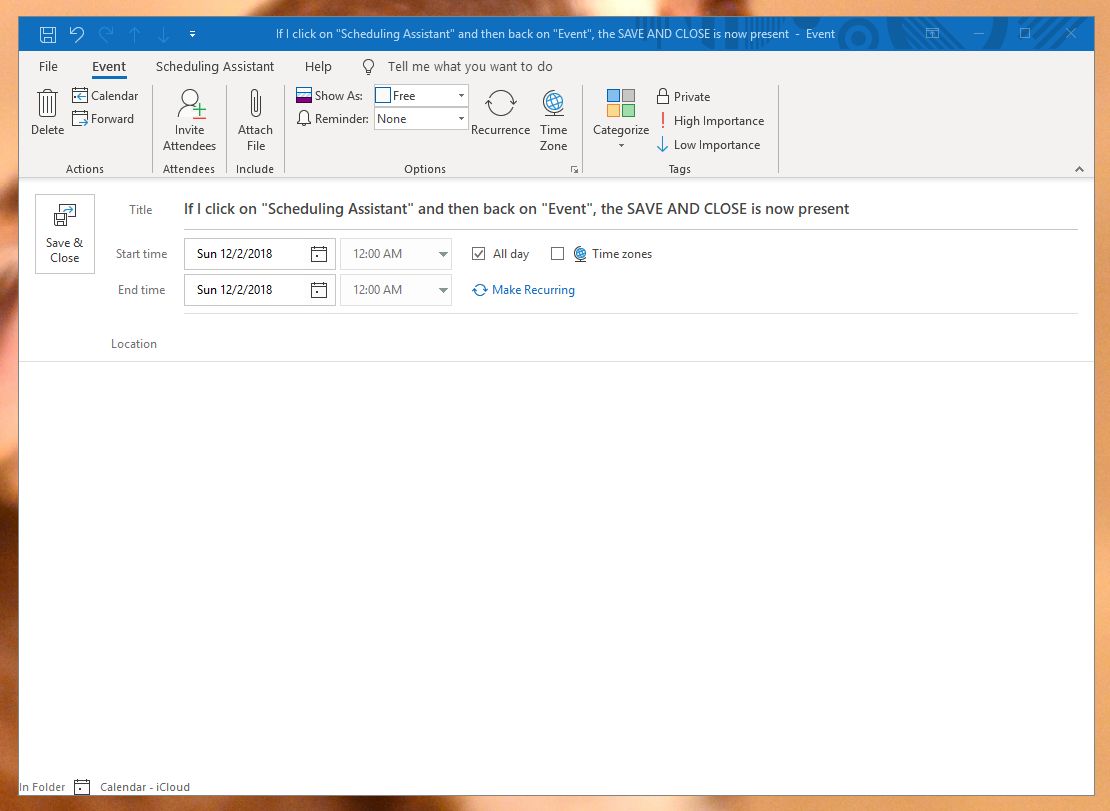

Same issue here. Discovered this omission earlier today. Can't believe MS could allow this removal to occur if they're testing their new builds before releasing to its customer base.
I was able to add "Save and Close" to the Quick Command toolbar. I guess this would be a band-aid until MS restores necessary functionality to the standard Ribbon commands.

#1 Open a new Calendar Appointment/Event window, Right Click on the Ribbon and choose "Customize the Ribbon". (( Make sure you have the NEW APPOINTMENT / EVENT window open, this will not work on the initial Calendar screen))
#2 On the right side of this next screen, click on APPOINTMENT and at the bottom select NEW GROUP.
#3 Rename the NEW GROUP to (SAVENCLOSE).
#4 Then highlight the new group name and use the arrows on the right to move it to the top of the menu.
#5 Make sure the new group name is highlighted first, then on the middle column under CHOOSE COMMAND FROM: use the drop down and SELECT ALL COMMANDS.
#6 Scroll down until you see SAVE & CLOSE, highlight and click ADD in the middle of the window.
#7 This will add the SAVE & CLOSE to the new group SAVENCLOSE.
Once this is complete, click OK at the bottom and it will be restored.
We had a large customer experience this yesterday and this is how we resolved it. It was due to a recent Windows/Office update. Hope this helps everyone.
 Steve AchelisJun 05, 2019Copper Contributor
That worked, thanks. I'd suggest using a name other than "SAVENCLOSE", because the name ends up on the Ribbon. Also, you'll need to follow these steps for other Outlook types if the Save & Close is missing (e.g., email).
- ONESOLUTIONIAJun 05, 2019Copper Contributor
Thanks for the update. Strange because ours did not display the Group Name. It kept the SAVE & CLOSE from the available commands. Either way, glad it helped.
- Steve AchelisJun 05, 2019Copper Contributor
For me, the group name appeared at the bottom of the group (similar to Actions, Show, Skype Meeting, Meeting Notes, etc). Just FYI. Thanks for posting this. I've gotten used to just clicking the disk on the quick access bar (or pressing Ctrl+S) and pressing Escape to close things.