Forum Discussion

Comcast email transition to Yahoo
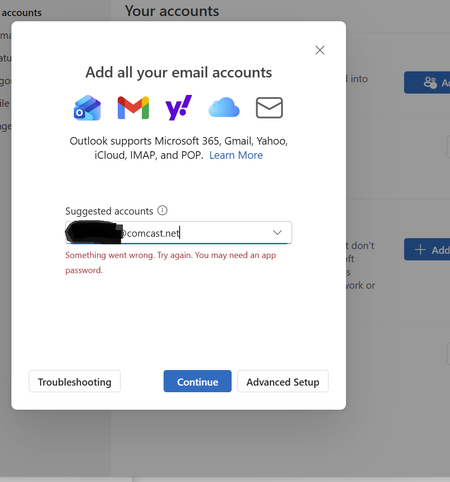

See whether below can help:
1. Use Outlook Classic
• Since it works reliably with Yahoo’s app password, stick with it until Microsoft and Yahoo resolve the sync issue.
• You can disable the “Try the new Outlook” toggle to stay in Classic mode.
2. Try Adding the Account via IMAP in New Outlook (Advanced Setup)
• Go to New Outlook > Add Account > Advanced Setup > IMAP
• Use these settings:
o Incoming server: imap.mail.yahoo.com, Port: 993, SSL: Yes
o Outgoing server: smtp.mail.yahoo.com, Port: 465 or 587, SSL: Yes
o Username: your full Comcast.net email
o Password: Yahoo app password (not your regular password)
3. Generate a Fresh App Password in Yahoo
• Go to your Yahoo account security settings
• Generate a new app password specifically for Outlook
• Use this new password when setting up the account
4. Avoid OAuth Setup for Now
• The new Outlook tries to use OAuth for Yahoo, which may not be fully supported for Comcast.net aliases.
• Stick to manual IMAP setup with app password until OAuth integration is stabilized.

I managed to get all my email folders with the emails using Mozilla Thunderbird. I have tried everything using Outlook Classic as the New Outlook just flat out refuses to talk to Yahoo servers. In Classic I can download everything, but the folders are not where they belong etc. If I organize them on the server or in Outlook classic on the next send receive and update folders it goes back to how they were before i sorted them. Thunderbird plays nice and downloads and syncs everything as I have arranged it and it stays the same on Yahoo. So for some reason Xfinity/Comcast must have jumped the gun etc. as Yahoo is no way ready for this.