Forum Discussion

Trying to calculate sum with letter in the front
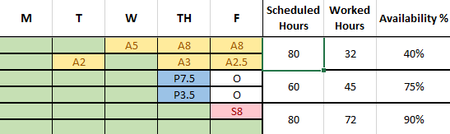
- Sep 09, 2022
Lucy_McMahon The attached is one option. I used 10*countif("O") to adjust from 80 to 60 hours but that is obviously very case specific to this case. Then I use a subtraction. Note I also formatted it all as a table so all the formulas autofill all the rows (instead of an array formula) but could be reformatted not using a table. I also added conditional formatting to automatically color those columns based on the letter entered (or blank) but only had a subset at the time.


Could you back up a bit and tell us more of what the "big picture" is here? I assume this plays some part in the process of determining what a person will get paid; but do the letters also indicate types of leave, or other conditions that may be paid in some cases but attributed to, say, training or travel?
Second, I'm confused by what appear to be discrepancies between what I see and what you describe. If we're to subtract the numbers after the letters from the default value of 8, why does the person in the top two rows get credited with only 32 hours worked--that would correspond to the four totally green cells, yes, but it certainly doesn't take into account the hours remaining after subtracting the various hours preceded by the letter A. So maybe you could explain "the math" that you are not wanting to do manually. What would it be in that case?
- mtarlerSep 09, 2022Silver Contributoractually I think that exactly explains the top and bottom bi-week rows. They don't have the formula to add/subtract the partial hours so the "worked hours" only takes into account the 'green' cells right now. The middle 2 rows are my question with how to handle the "O" and how those rows make 60 hrs scheduled and 45hrs worked.
a simple answer to how to get numbers after 1 letter is = --mid(A1,2,99)
but you will get errors and stuff and probably need to add IFERROR() around it and still do something about that "O" I suspect. Lucy_McMahonSep 09, 2022Tin Contributor
The O is for off. Those people only work for 60 hours a week. If I can get the formula for 80 hours I can just adjust it for 60. Those 2 cells that say O won't be included in the range.
- mathetesSep 09, 2022Gold Contributor
To follow up with Matt's suggestions, he's right, first, to recommend against merged cells (they can look nice to humans viewing the spreadsheet, but can have unintended negative consequences when it comes to spreadsheet performance). The idea of taking two weeks and laying them out horizontally is very viable, would put each employee on one row, giving a different kind of clarity.
I suspect, further, that he and I would both recommend against making a modified formula to handle the 60 hour weeks of those who have (in the example you posted) Friday's off. What you want is a single formula that has been tested for accuracy and that handles all cases, all types of leave, all types of work weeks.
Having worked in my professional career (retired now for almost exactly 20 years) I worked several years as director of the HR/Payroll database of a major corp. So this kind of data and the processing of it was an everyday matter.
So to help us help you come up with a layout and viable formula(s) that cover the range of situations, would you be willing to spell out the various codes (types of leave) and the rules around them if they're in any way different from just adding up hours so coded.
I'm assuming in this case we're dealing with bi-weekly payroll, right?
Would it be helpful to have a range of cells that clearly spells out for each employee, for each bi-weekly period:
- Hours scheduled
- Hours worked
- Hours on Leave type A
- Hours on Leave type B.... (etc)
- Other hours (please be specific)
- Lucy_McMahonSep 09, 2022Tin Contributor
Yes, the letters indicate different kinds of leave. The letters are not essential for this calculation but are used elsewhere so I can't remove them. We are tabulating data on each kind of leave used but I need the two week period to calculate the hours correctly first. The formula is inaccurate for what I have so far.
This is because each green cell has the number 8 in the same color text at the fill to default a full 8 hour workday. Any entry in the B:F columns -as of right now- substracts the default 8 from the sum. Which works fine if someone took the whole day off. But I ran into the problem with partial requests (i.e. A1.5). This file was only being used for my own ease of access for timecard processing so I was just doing the math manually should a partial day off occur. But the powers that be have seen it and want me to expand the usage. So now I need to find a way for it to accurately calculate so I don't have to manually subtract the leave taken from the 80 hour work week for all 40 people in our department.
I am perfectly happy to remove the default 8 in the B:F columns if I can figure out a way to sum the H column correctly. For ease, the H column would look like =80-sum(complicated formula to ignore text in cell range and tabulate numbers in range), The cells with no leave entries would just be green but with no hidden numerical data. Ideally I wouldn't need an additional column for the output as in extracting the value. I was trying to figure out an array formula but the cell is merged so it won't work with it as.
- mtarlerSep 09, 2022Silver Contributorand by the way, I always recommend avoiding merged cells whenever possible. I would highly recommend you consider just adding 5 more columns for the second week. Those columns are already almost 2x wider than necessary so if you added 5 more but made them more narrow the overall width won't change much and you can have each employee on 1 row and solve a LOT of present and future issues.