Forum Discussion

Top n vs. Others in Excel
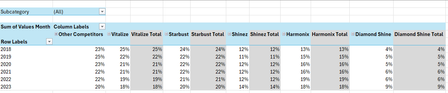
- Feb 04, 2026
Thank you very much for providing the full context. Looking at the chart I better understand what Your challenge was 🤔
The attached option uses the same approach we've been discussing these last days. In summary:
- TableSource is filtered by the Slicer(s)
- PIVOTBY calc. the %age by [Year] & [Brand] relative to the Row Total. Data are sorted DESC according to [Brand] "best Total"
- The formula (below):
- Takes the PIVOTBY resulting array to Group [Brand] above - if any - the TOPN parameter
- Padds the [Brand] left with the appropriate number of Zero Width Space chars. to ensure [Brand] will be ordered according to there rank in the PivotTable & Chart, with [Grouped Brand] always as the last [Brand] whatever its rank is
- Unpivots the data as a single array that's used as PivotTable Data Source
PivotTable
- [Brand] must be sorted A-Z
- Until MSFT releases the PivotTable Auto Refresh functionality, any change on the Slicer(s) requires a Refresh of the PivotTable
Side effect of the Zero Width Spaces
- None on screen
- According to my researches none on printing - to be checked though...
- [Brand] on PivotTable/Chart <> TableSource[Brand]*
* I will provide more information on a separate post later
Formula
I did my best to make the variable names as clear as possible and decomposed as much as possible - any question let me know:
// Source_PivotTable
=LET(
  TOPN_value,         IF( ISBLANK( SETTINGS!TOPN_Default ), 5, SETTINGS!TOPN_Default ),
  GROUPED_BrandName,  IF( ISBLANK( SETTINGS!TOPN_GROUPED_Names ), "Other Brands", SETTINGS!TOPN_GROUPED_Names ),

  pivotedAllBrands,
    PIVOTBY(
      TableSource[Year], TableSource[Brand], TableSource[Values Month],
      PERCENTOF,
      0, 0, 1, 0, -2,
      TableSource[NOT_Filtered],
      1
    ),

  OtherBrand_Exists?,           COLUMNS( pivotedAllBrands) -1 > TOPN_value,
  groupedOtherBrand_If_Exists,
    IF( OtherBrand_Exists?,
      LET(
          TopnBrand_series,     CHOOSECOLS( pivotedAllBrands, SEQUENCE(, TOPN_value, 2 ) ),
          TopnBrand_values,     DROP( TopnBrand_series, 1 ),
          GroupedBrand_values,  BYROW( TopnBrand_values, LAMBDA(rw, 1 -SUM(rw) ) ),
          AllBrand_series,      VSTACK(
                                  HSTACK( TAKE( TopnBrand_series, 1 ), GROUPED_BrandName ),
                                  HSTACK( TopnBrand_values, GroupedBrand_values )
                                ),
          AllBrand_series
      ),
      pivotedAllBrands
    ),

       prep_UnPivoting_BEG,  "------------------------------------------------------",
            LeftCol_ToDrop,   --NOT( OtherBrand_Exists? ),
                brandNames,   DROP( TAKE( groupedOtherBrand_If_Exists, 1 ),, LeftCol_ToDrop ),
                brandCount,   COLUMNS( brandNames ),
           brandRanks_Desc,   SEQUENCE(, brandCount, brandCount, -1 ),
          paddedBrandNames,   REPT( UNICHAR(8203), brandRanks_Desc ) & brandNames,
                     years,   DROP( TAKE( pivotedAllBrands,, 1 ), 1 ),
                    values,   DROP( groupedOtherBrand_If_Exists, 1, LeftCol_ToDrop ),
            valuesNotBlank,   NOT( ISBLANK( values ) ),
       prep_UnPivoting_END,  "------------------------------------------------------",

    UnPivotedData,
      LET(
        UnPivot,            LAMBDA(array, TOCOL( IF( valuesNotBlank, array ) ) ),
        UnPivoted_years,    UnPivot( years ),
        UnPivoted_brands,   UnPivot( paddedBrandNames ),
        UnPivoted_values,   TOCOL( values ),
        HSTACK( UnPivoted_years, UnPivoted_brands, UnPivoted_values )
      ),

  VSTACK( {"Year", "Brand", "Value"}, UnPivotedData )
)
Cheers
Lz.

(You're welcome - Smart people deserve smart service and this case is definitively more interesting than anticipated)
Updated Chart from dynamic array challenge and TBH I now doubt there's - with current version - a solution. Nevertheless the approach works in your case as you're only concerned by the TOP 5 & Grouped Brands. So the report array always has max. 7 columns (1 for year(s) + 5 Top brands + 1 Grouped brands)
In the previous version with the CHART sheet and its Named ranges, when there's not enough data (simulated below) we get a Chart where the Legend is what it is and all the researches I did lead to the same conclusion: there's no way to hide Legend items with no/invalid values
Instead of using Named ranges for the Chart, the attached version generates an array of 7 columns in any case and the Chart is setup from that array in following the bullet points in Chart from dynamic array challenge. #N/A - instead of <blank> - display in the Legend on scenarios like the above one (replacing #N/A with <blank> is doable...):
- The #N/A columns & values are hidden with Conditional Formatting
- The Chart Title is dynamically adjusted to reflect what's displayed
- If you keep the sheet protected you won't see the little triangles on cells with errors
- If you change your mind and want to look at i.e. the TOP 3, see the SETTINGS sheet
Cont. on next post...
 Anonymous29007Feb 02, 2026Brass Contributor
Hi Lorenzo,
Ah thank you so much! You've truly been such an amazing contributor and sole problem solver on this challenge. I can't thank you enough. This wasn't easy 😅. You've been so willing to help and you persisted until you found better solutions, and that's more than I could have ever asked for. If I could mark more than one approach as a solution, believe me I would. You really deserve it, given all your time and efforts.
Nevertheless, I've truly learnt a lot from you in this challenge and it gave me a newfound interest for advanced Excel 😁.
This is going to be a bit long, but let me take you through my thought process and why I was wanting a solution like the one we've been working on.
In this image (prior to me coming here), the chart originally looked like this, (without any grouping)... Now, this chart looked very cluttered and we wouldn't be able to distinguish or compare any brands visually below 2-3% for example. Even greying out the bottom didn't seem to do much justice here, and it just looked a bit distracting.
The goal for this study was to see how these Shampoo brands market share evolved over time. One specific supplier, has 2 brands (Shinez and Starbust). These 2 brands are most important to me, because I'm doing a Net Revenue Management study for a fictional supplier called HealthMax.
After completing my analysis, I realised that Shinez and Starbust were consistently in the Top 5 brands for each region (Center, North & South) and in all regions (when no filter/slicer selection is made).
To improve the visual and UX, I thought it might be better to show the individual Top 5 brands evolution over time (years) vs. "Other brands" (remaining 20 brands). In this way, we still have the goal in mind except, instead of looking at all 25 brands on a single visual (like the image above), it would make sense to compare HealthMax's (Shinez and Starbust) brands performance against and it's closest competitors brands (HealthMax's brands + Top 3 competitor brands to make Top 5) vs. "other brands" who hold very little to no market share.
- LorenzoFeb 04, 2026Silver Contributor
Thank you very much for providing the full context. Looking at the chart I better understand what Your challenge was 🤔
The attached option uses the same approach we've been discussing these last days. In summary:
- TableSource is filtered by the Slicer(s)
- PIVOTBY calc. the %age by [Year] & [Brand] relative to the Row Total. Data are sorted DESC according to [Brand] "best Total"
- The formula (below):
- Takes the PIVOTBY resulting array to Group [Brand] above - if any - the TOPN parameter
- Padds the [Brand] left with the appropriate number of Zero Width Space chars. to ensure [Brand] will be ordered according to there rank in the PivotTable & Chart, with [Grouped Brand] always as the last [Brand] whatever its rank is
- Unpivots the data as a single array that's used as PivotTable Data Source
PivotTable
- [Brand] must be sorted A-Z
- Until MSFT releases the PivotTable Auto Refresh functionality, any change on the Slicer(s) requires a Refresh of the PivotTable
Side effect of the Zero Width Spaces
- None on screen
- According to my researches none on printing - to be checked though...
- [Brand] on PivotTable/Chart <> TableSource[Brand]*
* I will provide more information on a separate post later
Formula
I did my best to make the variable names as clear as possible and decomposed as much as possible - any question let me know:
// Source_PivotTable
=LET(
  TOPN_value,         IF( ISBLANK( SETTINGS!TOPN_Default ), 5, SETTINGS!TOPN_Default ),
  GROUPED_BrandName,  IF( ISBLANK( SETTINGS!TOPN_GROUPED_Names ), "Other Brands", SETTINGS!TOPN_GROUPED_Names ),

  pivotedAllBrands,
    PIVOTBY(
      TableSource[Year], TableSource[Brand], TableSource[Values Month],
      PERCENTOF,
      0, 0, 1, 0, -2,
      TableSource[NOT_Filtered],
      1
    ),

  OtherBrand_Exists?,           COLUMNS( pivotedAllBrands) -1 > TOPN_value,
  groupedOtherBrand_If_Exists,
    IF( OtherBrand_Exists?,
      LET(
          TopnBrand_series,     CHOOSECOLS( pivotedAllBrands, SEQUENCE(, TOPN_value, 2 ) ),
          TopnBrand_values,     DROP( TopnBrand_series, 1 ),
          GroupedBrand_values,  BYROW( TopnBrand_values, LAMBDA(rw, 1 -SUM(rw) ) ),
          AllBrand_series,      VSTACK(
                                  HSTACK( TAKE( TopnBrand_series, 1 ), GROUPED_BrandName ),
                                  HSTACK( TopnBrand_values, GroupedBrand_values )
                                ),
          AllBrand_series
      ),
      pivotedAllBrands
    ),

       prep_UnPivoting_BEG,  "------------------------------------------------------",
            LeftCol_ToDrop,   --NOT( OtherBrand_Exists? ),
                brandNames,   DROP( TAKE( groupedOtherBrand_If_Exists, 1 ),, LeftCol_ToDrop ),
                brandCount,   COLUMNS( brandNames ),
           brandRanks_Desc,   SEQUENCE(, brandCount, brandCount, -1 ),
          paddedBrandNames,   REPT( UNICHAR(8203), brandRanks_Desc ) & brandNames,
                     years,   DROP( TAKE( pivotedAllBrands,, 1 ), 1 ),
                    values,   DROP( groupedOtherBrand_If_Exists, 1, LeftCol_ToDrop ),
            valuesNotBlank,   NOT( ISBLANK( values ) ),
       prep_UnPivoting_END,  "------------------------------------------------------",

    UnPivotedData,
      LET(
        UnPivot,            LAMBDA(array, TOCOL( IF( valuesNotBlank, array ) ) ),
        UnPivoted_years,    UnPivot( years ),
        UnPivoted_brands,   UnPivot( paddedBrandNames ),
        UnPivoted_values,   TOCOL( values ),
        HSTACK( UnPivoted_years, UnPivoted_brands, UnPivoted_values )
      ),

  VSTACK( {"Year", "Brand", "Value"}, UnPivotedData )
)
Cheers
Lz.- LorenzoFeb 09, 2026Silver Contributor
Hi Anonymous29007
A friend of mine with a different issue is also concerned about the unavailability of the Pivot Auto Refresh functionality. In the meantime she wanted a visual flag to remind users to Refresh the PivotTable when required. It's been implemented with a Green/Red icon above the PivotTable:Due to the hack we put in place to sort the [Brand] as expected on the PivotTable the above solution requires a little customization. Before I spend time on this, are you interested?
If you are I need to know if you made changes - other than updating your data in TableSource - to the last wbook I shared (PivotChart_v2).
Let me know…
Lz.
- LorenzoJan 31, 2026Silver Contributor
… cont.
IMHO there's something inconvenient with a Line Chart when you filter on a single year: you can't compare the Brands as the Chart shows nothing on the Plot area - a Bar Chart does
The attached version is the same as the previous one but displays a Bar Chart when there's only 1 Year reported, a Line Chart otherwise. This is done in following the demo. on Show or hide a Chart based on a condition. The 2 Charts (Bar / Line) are on hidden sheet 'HIDDEN_CHARTS'
Cheers
Lz.- Anonymous29007Feb 02, 2026Brass Contributor
Hi Lorenzo,
Lorenzo wrote:
Nevertheless the approach works in your case as you're only concerned by the TOP 5 & Grouped Brands. So the report array always has max. 7 columns (1 for year(s) + 5 Top brands + 1 Grouped brands)
Cont. from previous reply... In terms of this ☝️, my goal wasn't to use years as a slicer at all. Because, as you also discovered 👇
Lorenzo wrote:
you can't compare the Brands as the Chart shows nothing on the Plot area
which is true. The years was only for the chart to show a time period, not to filter or slice. Therefore, I just wanted to filter/slice by Region and maybe Subcategory so that we could see the market share trend over time for a specific subcategory/all subcategories across a specific region/all regions.
I'm so sorry for not clarifying this earlier. I was wondering why you initially had years in the slicer all along. I didn't know this is what you were trying to show me (as you showed in the bar chart where we're comparing Top 5 vs. other brands for a specific year selected) - not in this case, so that won't be necessary.
The goal here is to just show how the brands market share evolved over a period of time (years) per region/all regions (slicer) and/or subcategory/all subcategory (slicer).
Hope this helps and my sincere apologies again.
Kind regards,
YP