Forum Discussion

Text After Delimiter
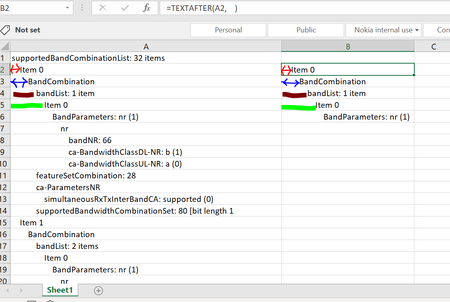

Maybe I'm simplifying things a bit too much (or not understanding the goal here) but if the objective is to pull the text after the leading spaces (which might be 4, 8, 12 spaces, etc). Why not use TRIM?
=TRIM(A2)

Patrick2788Thanks Patrick , but the intention is to put the text with different space in different columns
Br,
Anupam
- Patrick2788May 26, 2023Silver Contributor
Then I will have to indulge:
=LET( Level, (LEN(List) - LEN(TRIM(List))) / 4, MAKEARRAY( ROWS(List), 7, LAMBDA(r, c, IF(c = INDEX(Level, r), INDEX(List, r), "")) ) )- anupambit1797May 29, 2023Steel Contributor
Patrick2788Thank you Very much Patrick, this is very cool! Sorry for stupid question though..
List , I understood you used the Name Manager, what does "Level" ,"r" and "c" stands for here? and how to check their definition.. in the Name Manager only "List" is defined,
Thanks & Regards
Anupam Shrivastava
- PeterBartholomew1May 29, 2023Silver Contributor
In Patrick's proposed solution, 'level' 'r' and 'c' are local variables, both defined and used within the formula. It is the LET function that defines 'level' to be the count of spaces trimmed, divided by 4.
Similarly, 'r' and 'c' are integer variables that are passed as parameters to the LAMBDA function by the helper function MAKEARRAY. 'r' will go from 1 to the number of rows, whilst 'c' increments over 7 columns. If you look up the documentation for the functions, the syntax should become a little clearer.
As I mentioned above, there is nothing in traditional spreadsheets that would prepare one for modern Excel! The share a common library of functions, but from that point there is little similarity.
