Forum Discussion

Structured Reference
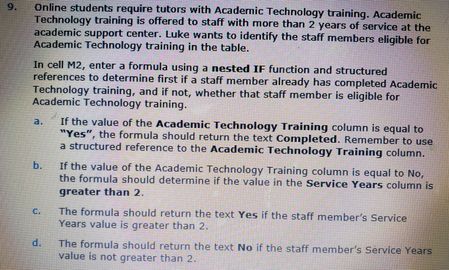

The image just doesn't make enough clear. Can't even tell for sure what cell is M2 from the image; you didn't include the top and side of the sheet, showing the row and column references. Nor do you show whatever nested IF formula you wrote.
Is it possible for you to post the spreadsheet itself?

mathetes I hope all this information helps. There were three cell formulas that gave us trouble that we finally got help on the community to figure out how to get them to say the right information, well except for M2. My professor and I are still having issues figuring out why it is still saying mine is wrong but when she types it in on my document then it is right. So I am including pictures of the instructions for M2 and I am including pictures of the formulas of the other two cells that gave us trouble. I also included a picture of what I have in M2 as well. Hopefully this helps.
- mathetesSep 21, 2020Gold Contributor
You can't seriously expect those images to be any more helpful than your first.
- I asked at the start if you could post the spreadsheet itself (it's part of a class, from all appearances, and can't therefore contain any proprietary or confidential info)
- I also noted you had not shown us the formula you have entered. At the very least, you can copy the formula from cell M2 (or wherever it is) and paste it here. My guess--and it's only a guess, although I don't understand why your professor is unable to diagnose the issue--is that you've left off something very small, like a quote mark (") or two, i.e., something that's easy to overlook especially in a nested IF formula.
Any way, if you seriously want help, post the spreadsheet itself or, at the very least, the errant formula.
- tommygirl_73703Sep 21, 2020Copper Contributor
mathetes in cell M2 the formula used is =[@[Subject Leader]]
I am doing the best I can at providing what you need. The problem we are having is she will open my document I send her and type in the formula and it will be correct, however, when I type it in at home, the same formula on the same document, it is wrong.
- mathetesSep 21, 2020Gold Contributor
You said just now: "in cell M2 the formula used is =[@[Subject Leader]]"
But in the assignment you posted in your very first message the instructions read as follows:
"in cell M2, enter a formula using a nested IF function and structured references to determine first....." [emphasis in the original]
So my question remains: what is the nested IF function that you've attempted to write in cell M2?
I don't understand at all how =[@[Subject Leader]] can even come close (for you OR your professor) to satisfying the assignment. What is going on there?
And if you can post a picture, posting the actual spreadsheet uses the same method; I appreciate that it can be confusing to navigate this website, but you've managed with all these other steps. Please do yourself the favor of posting the actual spreadsheet.
- SergeiBaklanSep 20, 2020Diamond Contributor
In Windows there are many ways to make screenshot (e.g. Win+Shift+S) except mobile phone.
And I believe your professor could answer on your questions.
- tommygirl_73703Sep 21, 2020Copper Contributor
SergeiBaklan Thank you for telling me how to do a screenshot on the computer. I did not know how to do that. I have never posted on here before and I am trying to do it the best I can. I do not know what information if needed to get help because I do not know what I did wrong.
- SergeiBaklanSep 21, 2020Diamond Contributor
Screenshots: - you may pin to taskbar Snip & Scatch or/and Snipping Tool, but work. Or use shortcuts to use them.
Excel difference: - template is made for Excel 2016 which doesn't support Dynamic Arrays, and you are on Excel 365 which is more modern one and has Dynamic Arrays by default. Most probably the difference was since in some of formulas implicit intersection operator @ was missed. In some cases that could give different results (if no error appeared).


