Forum Discussion

Spread a value proportionally across several cells (with rounding)

I'm intrigued enough to jump in, hopefully extending the questions asked by my on-line friend m_tarler : it might help those of us here in the forum if you explained not just the what that you're doing but also the why.
In your reply to Matt's question you state "As for how they're spread, ideally I'd put the higher values at the top of the column..." The use of the word "ideally" caught my eye. What makes that arrangement more "ideal"? What is it about the big picture here that would lead you to say that?
Most important, what IS the big picture? What do these numbers represent in the real world? Or are you just playing with numbers in some utterly arbitrary way?

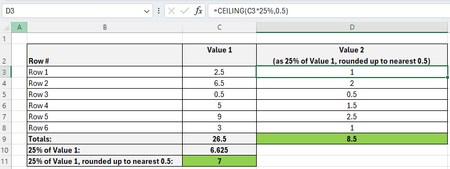
Hi mathetes. My team uses a cost model spreadsheet to calculate the amount of project management days (Value 2) which should be allocated against a specified amount of engineering days (Value 1). The default policy (at least, once you exceed a certain quantity of engineering days) is to provide a number of project management days based on 25% of the engineering days.
The existing spreadsheet consistently overcooks the no. of project management days, as it calculates them on a per-project-stage (Row#) basis, and rounds up each time. (There's other variables which also impact on the calculation, inc. multiple engineering tabs with their own dedicated project management calcs, but lets not go there.) I've been updating a few things but this is one problem I've ducked until now.
I say 'ideally' as the policy is somewhat arbitrary, is subject to adjustment on a case-by-case basis, isn't being applied correctly at the moment, in 90% of cases the per-stage breakdown of days doesn't technically matter (although explaining this to other parts of the business could cause me problems), and in the case of large projects the rounding errors are less significant. Currently we either run with the overcooked value, or manually adjust. Obviously automated is better, and as long as the overall project management effort adds up and *appears* to be spread roughly proportionally per stage, I'm good.
The current spreadsheet involves a fair few tabs, tables, named ranges, data validation, XLOOKUPS, pivot tables, one recorded macro with a button to update pivots (no other VBA), that sort of stuff... I'd guess it's Intermediate+ level excel, but there's nothing super advanced that a teammate couldn't understand if they put their mind to it. It needs to avoid going into super-advanced territory otherwise this stops being a spreadsheet and becomes unsupportable shadow IT. @m_tarler's suggestion is a work of art but no-one in the team would understand it or be able to troubleshoot it.
I suspect I'm looking for a simple answer where there isn't one, I'd be OK with a more arbitrary/less accurate solution if it was easier. I've updated my original post with a possible workaround but I suspect the results will be problematic.
- mathetesSep 18, 2024Gold Contributor
I say 'ideally' as the policy is somewhat arbitrary, is subject to adjustment on a case-by-case basis, isn't being applied correctly at the moment, in 90% of cases the per-stage breakdown of days doesn't technically matter ... , and in the case of large projects the rounding errors are less significant. Currently we either run with the overcooked value, or manually adjust. Obviously automated is better, and as long as the overall project management effort adds up and *appears* to be spread roughly proportionally per stage, I'm good.
I'm not so sure, given what you wrote earlier in that same paragraph, that automation is obviously better. Especially if the number of projects is as finite as what you have shown in this series of messages. What could be automated (via some conditional formatting, perhaps) is the highlighting of discrepancies that need to be addressed, facilitating manual adjustment. Until such time as you've built AI into the process, being able to consider non-quantitative dimensions and make manual adjustments could be a good thing.
The current spreadsheet involves a fair few tabs, tables, named ranges, data validation, XLOOKUPS, pivot tables, one recorded macro with a button to update pivots (no other VBA), that sort of stuff... I'd guess it's Intermediate+ level excel, but there's nothing super advanced that a teammate couldn't understand if they put their mind to it.
The attached article is nearly two decades old, but contains some principles of spreadsheet design that you might find helpful. [I say this solely on the basis of your quick description, so you're surely free to disregard this and any other unsolicited advice.] Excel, as you know, is incredibly powerful. As such, it's not uncommon to see people designing things that mis-use (or even abuse) that power, making tasks more complicated than they need to be, designing tables and tabs that are based on the multiple ledger sheets or PERT/GANTT charts that were used in "the old days" before 1-2-3 and Excel. I don't know that this applies to you, but reading about good design is never an exercise in futility.
- MattF1000Sep 19, 2024Copper Contributor
Thanks mathetes. I'm not in a position to roll it out (yet?) but I've built my own replacement spreadsheet from scratch (based loosely on someone else's well designed xls that we used at a previous company). It's a lot more simplified/streamlined vs the current one (single ledger sheet which removes the need for a load of workarounds/complexity etc)... looks like I'm on the right lines but that article will be a massive help/peace of mind.
Conditional formatting with an 'insert your own manual no.' column next to an unrounded calculation column is definitely an option. It would require an additional manual check each time the figures are updated but that might be workable. Really appreciate your responses, thanks.
- m_tarlerSep 18, 2024Bronze Contributor
mathetes Well in the spirit of "mis-use (or even abuse) that power, making tasks more complicated than they need to be" I have attached a sample spreadsheet using both the LAMBDA I proposed and using 2 helper columns that basically re-do the functionality of that Lambda. So the 3 columns (2 helper and final) are:
25% down - this will take the 25% and round DOWN to nearest increment
formula: =IFERROR(MROUND(B2:B7/4-0.25, 0.5),0)
remainder - this will take the remainder after 25% to the nearest increment and applies a small offset based on the row number just so each should have a unique RANK
formula: =MOD(B2:B7/4,0.5)-ROW(B2:B7)/10000000
25% adj - this is the final value where if its remainder is in the top X rank it will round UP
formula: =G2#+0.5*(RANK(H2#,H2#,0)<=(B10-SUM(G2#))/0.5)
note in this workbook I added the 'distribute' function into the name functions so in column E you can see how that cell equation is simply =distribute(B2:B7,0.25,0.5)
- MattF1000Sep 22, 2024Copper Contributor
m_tarler this is great, thanks! I can definitely use this (at least, I can use a version of the helper column version). I've spent my entire Sunday trying to take this apart and rebuild it so I can better understand it... with partial success...
I've dumbed it down a little (see Calc 2 in attached) by amending the formulae and breaking them out into as many separate columns as I could. This makes it easier for me to follow. If I can beg a little more help:
Does what I've done make sense?
Have I missed anything by swapping the MROUND function for FLOOR? (It seems a lot simpler. And I don't think I want the IFERROR wrap; this would cause an accidental minus input to default to a zero result, and I want an error message to be displayed instead.)This was my introduction to using # cell references with ranges and spills (thanks!!)... I've dumbed things down a little more in Calc 3 in attached) with dynamic arrays replaced with direct cell/range references for comparison. The #/range/spill versions are a lot more elegant than Calc 3, but are there any other strong reasons to avoid using Calc3? (The priorities are stability, simplicity, and performance, in that order. I suspect the dynamic arrays increase stability? NB I might be varying the no. of project stages in a future version but for now they'll be fixed at 6.)
Should I be converting this into a Table?
I'm planning to save the calculation in a protected worksheet to prevent accidents. I've had a test run at protecting the sheet and it seems fine, are you aware of any potential issues?
And now the annoying bit I didn't mention before! I'm trying to work around the following requirements, which mess up a very nice solution:- For historical and process reasons I should always have a value >0 (ideally a minimum of 0.5) in the final column for the first row/project stage.
- IDEALLY (!) I should always have a value >0 (ideally a minimum of 0.5) in the final column for ANY row/project stage where engineering days > 0.
The additional purple-highlighted workaround columns fulfil these requirements, but the result gets progressively less accurate with small no.s of engineering days in each row, as the rounding errors creep back in. NB:
- If total engineering days <=5, a different policy kicks in and I can apply an =IFS to apply that policy instead of the ~25% policy, making the problem go away.
- But for example with total engineering days =5.5, with engineering days in every row, I'm back to square 1 with the rounding issues (see example saved in Calc 2).
So... I'm considering a couple of workaround options:
- Manually force the Row 1 result to be 0.5 days (it'll never be higher than this anyway), and allow some other row results to round down to zero.
- Change my per-row rounding to 0.25 increments. As long as Row 1 >0, and as long as the overall total rounds up to a multiple of 0.5, I should get away with this.
I suspect other options/variants are available and may be easier. What would you recommend, and how would you adjust the xls to implement it?
Again, I really appreciate your help (and time), thanks.
