Forum Discussion

Stefan22
Feb 12, 2025Copper Contributor
Sorting data by time.
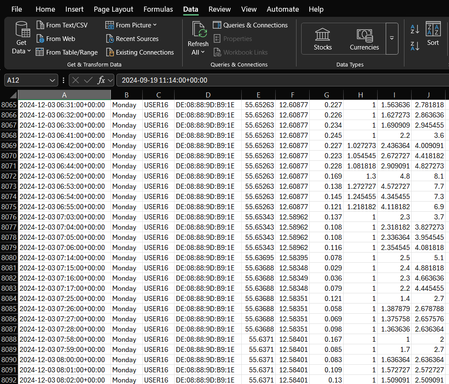
Dear community, I have this Excel file with lots of data that I have to filter. My issue is that I have a lot of duplicated coordinates (Column E and F); however, I can't delete all duplicated coord...

Kidd_Ip
Feb 12, 2025MVP
Take this:
Question 1: Filtering Data by Time
To filter data in Excel based on time intervals (e.g., removing rows with less than 5 minutes between each other), you can use a combination of formulas and sorting. Here's a step-by-step approach:
- Add a Helper Column: Insert a new column next to your time column (let's say Column A has your time data). In the helper column (Column B), calculate the time difference between each row and the previous row. You can use the formula:
=IF(A2=A1, TEXT(0, "mm:ss"), TEXT(A2-A1, "mm:ss"))
- Sort by Helper Column: Sort your data by the helper column to group rows with less than 5 minutes difference.
- Filter Rows: Use the filter function to remove rows where the helper column shows less than 5 minutes.
Question 2: Compressing Duplicated Coordinates
To compress duplicated coordinates in Columns E and F without losing data from other columns, you can use a combination of formulas and conditional formatting:
- Identify Duplicates: Use a formula to identify duplicates in Columns E and F. For example, in Column G, you can use:
=IF(COUNTIF(E:E, E2)>1, "Duplicate", "Unique")
- Conditional Formatting: Apply conditional formatting to highlight duplicates in Columns E and F.
- Remove Duplicates: Manually delete the highlighted duplicates or use a more advanced formula to compress them while keeping data from other columns intact.
 Stefan22Feb 20, 2025Copper Contributor
Hi, it says there is a problem with the first formula. I have tried adding a helper column and added the formula you suggested but it does not work.