Forum Discussion

Simulating schedule changes with data stored by circular reference (SORTBY array not populating)
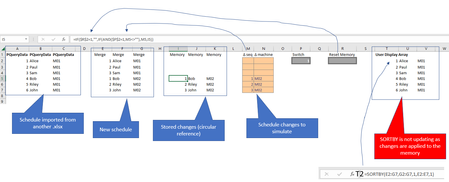

It sounds like you are working with a complex scheduling system in Excel 365, involving circular references, sorting, and dynamic data updates. Circular references can sometimes complicate formula behavior and lead to unexpected results. While SORTBY is a powerful function for sorting dynamic arrays, it might not behave as expected when combined with circular references.
Here are a few suggestions and potential alternatives for your scenario:
- Avoid Circular References: Circular references can make your spreadsheet more challenging to manage and can lead to calculation issues. If possible, try to restructure your model to avoid circular references. You might consider using helper columns or tables to manage intermediate data.
- Use Helper Columns: Instead of directly updating the schedule within circular references, you could use helper columns to store the changes. Then, you can use formulas to update the final schedule based on the helper columns' data. This could make it easier to sort and visualize the changes.
- VBA Macros: For more complex scenarios, using VBA macros might be a more flexible approach. With VBA, you can control when and how calculations are triggered, and you can update the schedule based on user input or events. This could provide better control over the sorting and updating process.
- Data Tables and PivotTables: Instead of using circular references, you could consider using data tables to store different scenarios of schedules. PivotTables can then help you visualize and analyze the data in various ways. This might provide a more structured and manageable approach to your scheduling tool.
- Dynamic Array Functions: Since you are using Excel 365, you have access to dynamic array functions like FILTER, SORT, and UNIQUE. These functions can help you achieve similar results without circular references. You could use FILTER to generate a dynamic list based on user inputs and then apply SORT to sort the data.
- Excel Add-ins: Depending on the complexity of your scheduling tool, you might want to explore Excel add-ins that are designed for scheduling and planning. Some add-ins offer more advanced capabilities and better performance for handling complex scenarios.
- Professional Scheduling Software: If your scheduling requirements are extensive and complex, you might consider using dedicated scheduling software that has designed for these tasks. This software often offers more advanced features and can handle intricate scenarios more effectively.
Remember that complex Excel models can become challenging to manage and prone to errors. Before implementing any major changes, it is a good practice to thoroughly test your solutions with various scenarios and data inputs to ensure accuracy and reliability.
My knowledge of this topic is limited, but since no one has answered it for at least one day or more, I entered your question in various AI. The text and the steps are the result of various AI's put together.
My answers are voluntary and without guarantee!
Hope this will help you.