Forum Discussion

Simple automate script mangles number formatting
I have a new laptop and I thought - i/o moving my macro - to create an Automated script.
I recorded the script with the same steps as the macro:
Select column A > data > text to column > Delimited on | sign > finish.
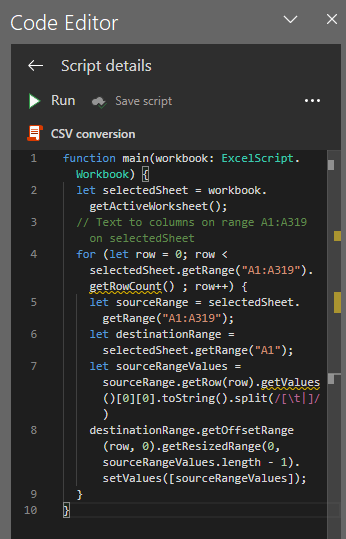
Attached is the Automation script after my first change: adjust the destination from B1 to A1, because otherwise a whole csv string remained in A1, and the the first item of the headers started in B2 i/o A1. Strangely enough the rest of the rows were filled correctly, with the first item in column A.
Later (after taking the screenshot) I also changed the range to A:A rather than a specified number of rows.
After the changes the script seemed to work as far as the Text to Column bit went. However: something strange happened with the numerical data in my 'price' column (U). By the way, my Excel regional settings have a comma separator.
The flat data in the csv contains this item in the form of 4 decimals. So 0 > 0,0000.
And actually the 0,0000 is the only one that remains the same after running the script.
All other amounts - while also starting out as a number with 4 digits after the comma - end up being translated as follows: 3,5500 becomes 35.500
I don't understand why the script would cause this deviation., and frankly this experience doesn't encourage playing around with it.
Kipopstok The reason it fails is because your recorded code converts string values to numbers. But Office Script expects US syntax for the numbers. So the comma poses issues, as that is normally the thousands separator.
You could try this version of the script (adjust the ranges):
function main(workbook: ExcelScript.Workbook) {
	let selectedSheet = workbook.getActiveWorksheet();
	// Text to columns on range A1:A3 on selectedSheet
	for (let row = 0; row < selectedSheet.getRange("A1:A3").getRowCount() ; row++) {
		let sourceRange = selectedSheet.getRange("A1:A3");
		let destinationRange = selectedSheet.getRange("A1");
		let sourceRangeValues = sourceRange.getRow(row).getValues()[0][0].toString().replace(/,/g,".").split(/[\t|]/)
		destinationRange.setNumberFormat("General");
		destinationRange.getOffsetRange(row, 0).getResizedRange(0, sourceRangeValues.length - 1).setValues([sourceRangeValues]);
	}
}

3 Replies
- JKPieterseSilver Contributor
Kipopstok The reason it fails is because your recorded code converts string values to numbers. But Office Script expects US syntax for the numbers. So the comma poses issues, as that is normally the thousands separator.
You could try this version of the script (adjust the ranges):
function main(workbook: ExcelScript.Workbook) { let selectedSheet = workbook.getActiveWorksheet(); // Text to columns on range A1:A3 on selectedSheet for (let row = 0; row < selectedSheet.getRange("A1:A3").getRowCount() ; row++) { let sourceRange = selectedSheet.getRange("A1:A3"); let destinationRange = selectedSheet.getRange("A1"); let sourceRangeValues = sourceRange.getRow(row).getValues()[0][0].toString().replace(/,/g,".").split(/[\t|]/) destinationRange.setNumberFormat("General"); destinationRange.getOffsetRange(row, 0).getResizedRange(0, sourceRangeValues.length - 1).setValues([sourceRangeValues]); } } KipopstokTin Contributor
JKPieterse Thank you! It works like a charm.
I'll go through the details to work out what you did, and then I'll have learned something new to encourage me to play around with it next time. That's the way I thought myself a wee bit of VBA as well. 🙂
- KipopstokTin ContributorBy the way: I think it's a fail that Office Script doesn't look at the regional settings of the target machine to decide which syntax to use. But that's neither here or there. 😉