Forum Discussion

Advanced Excel Formula discussion - Problem with dynamic range
- Dec 13, 2025
This may not be of much assistance for your current challenge but there are no issues with using defined names in conjunction with dynamic arrays. A defined name is simply a name given to a snippet of code that, when used within a worksheet formula will execute to formula to which it refers. The most widely used defined names refer to simple range references, e.g.
fixed range
= $A$1:$B$40
in which case you have an absolute range reference. However, it is quite possible to name the anchor cell of a dynamic range, in which case using the name followed by the # operator is the dynamic range. An alternative is to define the name to refer to the dynamic range by including the # within its definition.
anchor
= Sheet1!$A:$1

Worksheet formula
= anchor#

or

dynamicRange
=Sheet1!$A$1#

Worksheet formula
= dynamicRange
returns a reference to the same range.
Not only that, but
finalRow
=TAKE(anchor#,-1)
is a reference to the final row of a dynamic range and will move up and down the sheet as the data changes. Please accept my apologies if this is obvious to you, but it is likely that there will be other users that have never had cause to explore the possibilities.


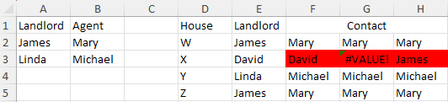
Instead of CHOOSECOLS(E2:E5,1) it also works with +E2:E5 or T(E2:E5) or E2:E5&"".
XLOOKUP() is expecting a single cell/value and using a range would not work, but using an array does.
- qazzzlytDec 13, 2025Brass Contributor
Thank you Lewin for the additional options.
I just tested and found both + and &"" returns an array, but T() returns the first value so T(E2:E5) seems no difference from just E2
Range Reference Array Defined Names T first all first Upon further testing, it's interesting to see T() is another function with potential problems. It may recognize first/all values depend on different types of input.
- LorenzoDec 14, 2025Silver Contributor
...but T() returns the first value so T(E2:E5) seems no difference from just E2
T( +E2:E5 ) returns an array:
=TYPE( F2# )     // 2
=TYPE( G2# )     // 64

