Forum Discussion

Python in Excel - Missing from desktop Excel but exist in web Excel

One more information: it came out the AX (A1, A3, A5) licenses are Educational licenses. So based on this official statement:
"If you have an Education subscription, Python in Excel is available on Windows through the Microsoft 365 Insider Program. Choose the Current Channel (Preview) Insider level and install the latest build of Excel. Python in Excel is available for Education subscriptions starting with Version 2406 (Build 17726.20016)."
So I enabled the "Microsoft 365 Insider" possibility for my computer and I regisitered on M365 Insider program, selected the Current channel. Now on my Excel Acccount details panel, the relevant part is:
Of course I ran Update Office, Update License, restarted computer .... but I still not have the Pyton in Excel function active. Not in the Formulas ribbon, and not by typing "=PY" function, still get the #CALC! error msg.
- SergeiBaklanMar 17, 2026Diamond Contributor
At least one thing is wrong - you are to be on Current (Preview), not on Current.
You may check build numbers for each channel here Release notes for Current Channel (Preview) releases - Office release notes | Microsoft Learn
You may deploy proper channel using Office Deployment Tool or by other way, details shall be on Insider site. Not sure how to do that exactly for consumer or educational subscriptions.
- m_tarlerMar 16, 2026Silver Contributor
so it appears the functionality changed at some point. Let me confirm you do SEE in the function tool tip/drop down the PY function right? As long as you see it there it is in Excel. So type "(" like you are entering a formula, instead of TAB or ENTER and see if that works for you.
- AndrasPazarMar 16, 2026Copper Contributor
Hi Tarler,
Thanks for your reply! You can see in my earlier post what happens when I press TAB key after =PY. If I type "=PY(" as you suggested, then Excel clears the cell's content and shows this error message:
Also, I cannot see the "Insert Python" icon or Formulas ribbon. This should be look like (found on Internet):
But my Formulas ribbon looks like this:
I've also read on net that maybe it just did not put this function to Formulas ribbon. So I went to Options - Customize Ribbon, selected All commands. But did not find "Insert Python" command.
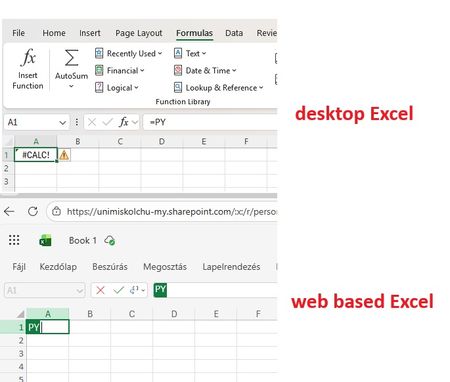
Logged on with with my same university's account to the web based Excel, it works fine. I have no more idea :-(
Of course, we can use web Excel as a "B plan". But would be much easier to have this function activated in the desktop Excel as well. I have also read Python in Excel is not an addin, this "feature" existits in all Excel, but not active except if ... you know the offical requirement list.
- Personally I have A3 license, so it is Educational license
- I have registered to Microsoft 365 Insider program. My Excel shows this information, also the correct Channel. I have put this screenshot earlier, but see it again:
- I have 64bit Office installed
- We have user based license, not shared device license.
- Connected and optional connected experiences are also enabled.
I don't know what else requirement I miss.
- m_tarlerMar 16, 2026Silver Contributor
Ok so I don't have the answer but do have a couple follow up questions:
so when I type =PY the drop down showing all the matching functions shows PY as a possible function:
Does your version show that?
Also when I click return or move from that cell at that point I also get the #CALC! error. My error says:
This may seem silly but I ask because your version appears to recognize the PY because if it didn't recognize it the error would be #NAME? not #CALC!
Finally, you mentioned you changed to the current channel (preview) license and I just have to make sure you have done a full restart of the computer since that latest update / version was installed.

