Forum Discussion

Problem with Conditional Formatting that have Formula
- Aug 27, 2022
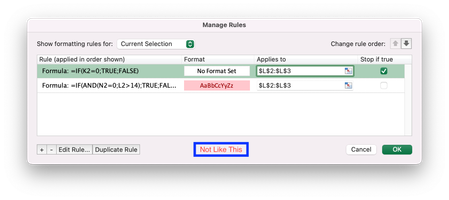
You should use rules as in the "not like this" screenshot.
Since the formulas in the rules use relative cell references, Excel will automatically adjust them for each cell in the 'Applies to' range, regardless of how large that range is.
By the way, it isn't necessary to explicitly use IF with TRUE and FALSE in the formulas.
=IF(K2=0;TRUE;FALSE)
is equivalent to
=K2=0
and
=IF(AND(N2=0;L2>14);TRUE;FALSE)
is equivalent to
=AND(N2=0;L2>14)

You should use rules as in the "not like this" screenshot.
Since the formulas in the rules use relative cell references, Excel will automatically adjust them for each cell in the 'Applies to' range, regardless of how large that range is.
By the way, it isn't necessary to explicitly use IF with TRUE and FALSE in the formulas.
=IF(K2=0;TRUE;FALSE)
is equivalent to
=K2=0
and
=IF(AND(N2=0;L2>14);TRUE;FALSE)
is equivalent to
=AND(N2=0;L2>14)

“Excel will automatically adjust them for each cell in the 'Applies to' range, regardless of how large that range is.”
As I mentioned before that does not help. Excel won’t change the cell numbers automatically regarding to based cell number. As you can see on the screenshot of “Not like this”, K, N and L are still in contrast to “apply to” cell changes. So If I leave it like this, “apply to” cells always check conditions in the cells of K2, N2 and L2. I need these conditions to be adjust relatively according to “apply to” cells..
Also, I thank you for the tips about IF statement.
- oayranciogluAug 28, 2022Copper ContributorHansVogelaar and oayrancioglu
It was my mistake. It's pretty complicated worksheet that I am working on so my references mixed up by me. As you said It's working well. It is adjusting itself automatically even if cell numbers don't change in the conditional formatting window. Thank you very much again.
Best wishes
Oguzhan