Forum Discussion

Percentage progress based on dates in a ROW for staff training
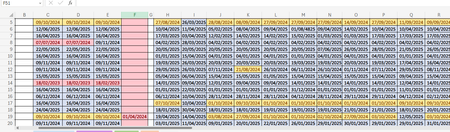

To calculate the percentage of tasks completed or in date for staff training and show this in column B, you can use a combination of Excel functions. Assuming your table is set up like this:
A | B | C | D | E | F | G | ... | S | T |
Staff Name | % Completed | Task 1 Date | Task 2 Date | Task 3 Date | ... | Task 19 Date |
We'll assume the task dates start from column C and go through column T.
Step-by-Step Solution
- Calculate the Number of In-Date Tasks: Use the IF and TODAY functions to determine if each task is up-to-date or not.
- Calculate the Percentage: Count the number of up-to-date tasks and divide by the total number of tasks (19 in this case).
Formula for Column B
Here’s a formula that you can use in column B to calculate the percentage of in-date tasks for each staff member:
=SUMPRODUCT(--(C2:T2>=TODAY()-365)) / 19
Explanation:
- C2:T2>=TODAY()-365 checks if each task date is within the last year.
- --(C2:T2>=TODAY()-365) converts the TRUE/FALSE results to 1/0.
- SUMPRODUCT(--(C2:T2>=TODAY()-365)) counts the number of tasks that are in-date.
- / 19 divides by the total number of tasks to get the percentage.
If your tasks are only valid for a specific period (e.g., they need to be renewed every 3 months), adjust the date range accordingly.
Adjusting for 3-Month Renewals
If tasks need to be renewed every 3 months, adjust the formula to:
=SUMPRODUCT(--(C2:T2>=TODAY()-90)) / 19
This formula checks if each task date is within the last 3 months.
Conditional Formatting
To show when tasks are out of date or due for renewal, you can use conditional formatting:
- Select the range C2:T2.
- Go to the Home tab.
- Click Conditional Formatting > New Rule.
- Select Use a formula to determine which cells to format.
- Enter the formula to highlight tasks that are out of date:
=C2<TODAY()-365
- Set the format to highlight the cells (e.g., red fill color).
- Repeat steps 3-6 for tasks due for renewal in 3 months:
=AND(C2>=TODAY()-365, C2<=TODAY()-90)
Example Table with Formulas
Here's an example table with formulas:
A | B | C | D | E | ... | T |
Staff Name 1 | =SUMPRODUCT(--(C2:T2>=TODAY()-90)) / 19 | 2023-04-01 | 2023-05-15 | 2023-02-01 | ... | 2022-12-01 |
Staff Name 2 | =SUMPRODUCT(--(C3:T3>=TODAY()-90)) / 19 | 2023-01-01 | 2023-06-15 | 2023-03-01 | ... | 2023-04-01 |
... | ... | ... | ... | ... | ... | ... |
Make sure to drag the formula in column B down for all rows containing staff names.
By using these formulas, you can calculate the percentage of in-date tasks for each staff member and apply conditional formatting to visually identify tasks that are out of date or due for renewal.
AI was partially deployed to support the text and formulas.
AI can make mistakes. Consider checking important information.
All formulas are untested, it is always recommended to make a backup of the existing file in advance before using the above formulas.
My answers are voluntary and without guarantee!
Hope this will help you.
Was the answer useful? Mark as best response and Like it!
This will help all forum participants.

Thank you