Forum Discussion

Operations Dashboard in Excel
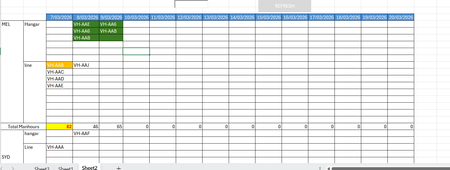

The core issue is that Excel naturally wants to list items in rows, but your dashboard requires a matrix where the same "entity" (the aircraft) spans multiple columns (dates).
To solve the "cell alignment" issue (VH-AA6 appearing in D2 and E2), you cannot rely on standard formulas like XLOOKUP or FILTER alone because they return lists that expand downward, not horizontally across merged cells.
You need to fundamentally change the logic to a "Grid Fill" logic. Here is a VBA solution proposal as an alternative to the other approaches, which automates your entire dashboard with the click of a button.
mathetes, don't worry that you or anyone else might fly with this airline; judging by the aircraft prefix, they are private planes from Down Under 😀.
VBA Code:
Option Explicit

Sub GenerateOperationsDashboard_FixedBays_Refined()
    Dim wsData As Worksheet
    Dim wsDash As Worksheet
    Dim lastRow As Long, i As Long, j As Long, d As Long
    Dim dataArr As Variant
    Dim dictDates As Object
    Dim datesArr As Variant
    Dim colMap As Object
    Dim locationRows As Variant
    Dim numLocations As Integer

    ' --- CONFIGURATION ---
    Set wsData = ThisWorkbook.Sheets("RawData")
    Set wsDash = ThisWorkbook.Sheets("Dashboard")

    ' --- YOUR ACTUAL LOCATIONS from the image ---
    locationRows = Array("MEL", "Hangar", "Line")
    numLocations = UBound(locationRows) - LBound(locationRows) + 1

    ' Speed & Safety
    Application.ScreenUpdating = False
    Application.Calculation = xlCalculationManual
    On Error GoTo CleanExit

    ' 1. PREPARE DASHBOARD
    wsDash.Cells.Clear
    wsDash.Cells.Interior.Color = xlNone

    ' 2. LOAD DATA
    lastRow = wsData.Cells(wsData.Rows.Count, "A").End(xlUp).Row
    If lastRow < 2 Then
        MsgBox "No data found in RawData sheet."
        GoTo CleanExit
    End If

    ' Assuming columns: A=Tail, B=Start, C=End, D=WorkOrder, E=City, F=Site, G=Hours
    dataArr = wsData.Range("A2:G" & lastRow).Value

    ' 3. SORT BY START DATE
    dataArr = SortArrayByColumn(dataArr, 2)

    ' 4. EXTRACT & SORT DATES
    Set dictDates = CreateObject("Scripting.Dictionary")
    Set colMap = CreateObject("Scripting.Dictionary")

    For i = 1 To UBound(dataArr, 1)
        If IsDate(dataArr(i, 2)) Then dictDates(CDbl(dataArr(i, 2))) = 1
        If IsDate(dataArr(i, 3)) Then dictDates(CDbl(dataArr(i, 3))) = 1
    Next i

    datesArr = dictDates.Keys
    BubbleSort datesArr

    ' Write Date Headers (Starting from row 1, column 2 as per your image)
    wsDash.Cells(1, 1).Value = "Location"  ' Your first column label
    For i = LBound(datesArr) To UBound(datesArr)
        wsDash.Cells(1, i + 2).Value = CDate(datesArr(i))
        wsDash.Cells(1, i + 2).NumberFormat = "dd/mm"  ' Your format shows dd/mm
        colMap(CDate(datesArr(i))) = i + 2
    Next i

    ' Write Location Labels (your MEL, Hangar, Line)
    For i = 0 To numLocations - 1
        wsDash.Cells(i + 2, 1).Value = locationRows(i)
        wsDash.Cells(i + 2, 1).Font.Bold = True
    Next i

    ' 5. THE SLOTTING ENGINE
    Dim locationOccupancy() As Boolean
    ReDim locationOccupancy(1 To numLocations, 1 To UBound(datesArr))

    Dim tail As String, woNum As String, woStart As Date, woEnd As Date
    Dim city As String, site As String, manhours As Double
    Dim colStart As Long, colEnd As Long
    Dim startIdx As Long, endIdx As Long
    Dim locationFound As Boolean
    Dim locNum As Integer
    Dim rngToMerge As Range

    ' Dictionary to accumulate manhours per date
    Dim manhoursDict As Object
    Set manhoursDict = CreateObject("Scripting.Dictionary")

    ' Process each work order
    For i = 1 To UBound(dataArr, 1)
        tail = dataArr(i, 1)
        woStart = dataArr(i, 2)
        woEnd = dataArr(i, 3)
        woNum = dataArr(i, 4)
        city = dataArr(i, 5)
        site = dataArr(i, 6)
        manhours = dataArr(i, 7)

        ' Get Column Indices
        If Not colMap.Exists(woStart) Or Not colMap.Exists(woEnd) Then GoTo SkipWO
        colStart = colMap(woStart)
        colEnd = colMap(woEnd)

        ' Get Date indices
        startIdx = GetDateIndex(woStart, datesArr)
        endIdx = GetDateIndex(woEnd, datesArr)

        ' Add to manhours total for each date
        For d = colStart To colEnd
            Dim dateKey As String
            dateKey = CStr(wsDash.Cells(1, d).Value)
            manhoursDict(dateKey) = manhoursDict(dateKey) + manhours
        Next d

        ' Determine which location this belongs to (MEL, Hangar, or Line)
        ' You'll need logic based on your data - example:
        locNum = 0
        Select Case UCase(site)
            Case "MEL", "MELBOURNE"
                locNum = 1
            Case "HANGAR", "HEAVY"
                locNum = 2
            Case "LINE", "TRANSIT"
                locNum = 3
            Case Else
                locNum = 2 ' Default to Hangar
        End Select

        ' Skip if location not found
        If locNum = 0 Then GoTo SkipWO

        ' Check if this location row is free for the duration
        locationFound = False
        Dim isFree As Boolean
        isFree = True

        For d = startIdx To endIdx
            If locationOccupancy(locNum, d) Then
                isFree = False
                Exit For
            End If
        Next d

        If isFree Then
            ' Mark as occupied
            For d = startIdx To endIdx
                locationOccupancy(locNum, d) = True
            Next d

            ' --- DRAW THE BLOCK ---
            With wsDash.Cells(locNum + 1, colStart)  ' +1 because row 1 has dates
                .Value = tail & vbLf & woNum

                ' Color Coding based on site/check type
                Select Case UCase(site)
                    Case "HANGAR", "HEAVY"
                        .Interior.Color = RGB(198, 239, 206) ' Green
                    Case "LINE", "TRANSIT"
                        .Interior.Color = RGB(255, 235, 156) ' Yellow
                    Case Else
                        .Interior.Color = RGB(220, 220, 220) ' Grey
                End Select

                .HorizontalAlignment = xlCenter
                .VerticalAlignment = xlCenter
                .WrapText = True
                .Font.Size = 9
            End With

            ' Merge if multi-day
            If colEnd > colStart Then
                Set rngToMerge = wsDash.Range(wsDash.Cells(locNum + 1, colStart), _
                                              wsDash.Cells(locNum + 1, colEnd))
                rngToMerge.Merge
                rngToMerge.Borders.Weight = xlThin
            Else
                wsDash.Cells(locNum + 1, colStart).Borders.Weight = xlThin
            End If
        Else
            ' Location row already occupied - log to debug sheet
            Debug.Print "Conflict: " & tail & " at " & locNum & " on dates " & startIdx & "-" & endIdx
        End If

SkipWO:
    Next i

    ' --- ADD TOTAL MANHOURS ROW (as seen in your image) ---
    Dim totalRow As Integer
    totalRow = numLocations + 2  ' After MEL, Hangar, Line

    wsDash.Cells(totalRow, 1).Value = "Total Manhours"
    wsDash.Cells(totalRow, 1).Font.Bold = True

    ' Fill in manhours for each date
    For i = LBound(datesArr) To UBound(datesArr)
        Dim currentDate As Date
        currentDate = CDate(datesArr(i))
        dateKey = CStr(currentDate)

        If manhoursDict.Exists(dateKey) Then
            wsDash.Cells(totalRow, i + 2).Value = manhoursDict(dateKey)
        Else
            wsDash.Cells(totalRow, i + 2).Value = 0
        End If
        wsDash.Cells(totalRow, i + 2).HorizontalAlignment = xlCenter
    Next i

    ' Format the total row
    wsDash.Rows(totalRow).Font.Bold = True
    wsDash.Rows(totalRow).Interior.Color = RGB(240, 240, 240)

    ' Auto-fit columns
    wsDash.Columns.AutoFit

    MsgBox "Dashboard Generated with " & numLocations & " locations!"

CleanExit:
    Application.ScreenUpdating = True
    Application.Calculation = xlCalculationAutomatic
End Sub

' Helper function to get date index
Function GetDateIndex(ByVal targetDate As Date, ByRef datesArr As Variant) As Long
    Dim i As Long
    For i = LBound(datesArr) To UBound(datesArr)
        If Abs(CDate(datesArr(i)) - targetDate) < 0.1 Then
            GetDateIndex = i + 1  ' 1-based for occupancy array
            Exit Function
        End If
    Next i
    GetDateIndex = 0
End Function

' Sort array by column (your existing function)
Function SortArrayByColumn(arr As Variant, colIndex As Integer) As Variant
    ' ... (keep your existing implementation) ...
End Function

Private Sub BubbleSort(ByRef arr As Variant)
    ' ... (keep your existing implementation) ...
End Sub
My answers are voluntary and without guarantee!
Hope this will help you.
Was the answer useful? Mark as best response and like it!
This will help all forum participants.
 Siddhi817Mar 13, 2026Copper Contributor
Hi Nikolino,
Thanks for sharing this VBA code. I actually tried VBA last night using Chatgpt on a test dataset(of employees in this case) and it has worked so far. The VBA Code is as follows. I will definitely try yours and also compare with the VBA code pasted below.Sub BuildRoster()
Dim wsData As Worksheet
Dim wsRoster As Worksheet
Dim lastDataRow As Long
Dim lastDateCol As Long
Dim maxSlots As Long
Dim dataArr As Variant
Dim prevDayArr() As String
Dim currDayArr() As String
Dim activeToday As Collection
Dim continuingToday As Collection
Dim newToday As Collection
Dim i As Long, j As Long, r As Long
Dim dt As Date
Dim personName As String
Dim startDt As Date, endDt As Date
Dim found As Boolean
Dim firstBlank As Long
Set wsData = ThisWorkbook.Worksheets("Data")
Set wsRoster = ThisWorkbook.Worksheets("Roster")
lastDataRow = wsData.Cells(wsData.Rows.Count, "A").End(xlUp).Row
lastDateCol = wsRoster.Cells(1, wsRoster.Columns.Count).End(xlToLeft).Column
If lastDataRow < 2 Then
MsgBox "No data found on Data sheet.", vbExclamation
Exit Sub
End If
If lastDateCol < 2 Then
MsgBox "No dates found on Roster sheet row 1.", vbExclamation
Exit Sub
End If
dataArr = wsData.Range("A2:C" & lastDataRow).Value
maxSlots = UBound(dataArr, 1)
wsRoster.Range(wsRoster.Cells(2, 2), wsRoster.Cells(1000, lastDateCol)).ClearContents
wsRoster.Range("A2:A" & maxSlots + 1).ClearContents
For i = 1 To maxSlots
wsRoster.Cells(i + 1, 1).Value = i
Next i
ReDim prevDayArr(1 To maxSlots)
ReDim currDayArr(1 To maxSlots)
For j = 2 To lastDateCol
dt = wsRoster.Cells(1, j).Value
For i = 1 To maxSlots
currDayArr(i) = ""
Next i
Set activeToday = New Collection
Set continuingToday = New Collection
Set newToday = New Collection
' Step 1: find everyone active today
For i = 1 To UBound(dataArr, 1)
personName = CStr(dataArr(i, 1))
startDt = CDate(dataArr(i, 2))
endDt = CDate(dataArr(i, 3))
If dt >= startDt And dt <= endDt Then
activeToday.Add personName
End If
Next i
' Step 2: keep continuing people in same row
If j = 2 Then
' first date column: just place active people top to bottom
For i = 1 To activeToday.Count
currDayArr(i) = activeToday(i)
Next i
Else
For r = 1 To maxSlots
If prevDayArr(r) <> "" Then
found = IsPersonActive(prevDayArr(r), dataArr, dt)
If found Then
currDayArr(r) = prevDayArr(r)
continuingToday.Add prevDayArr(r)
End If
End If
Next r
' Step 3: identify new people today (active but not already continuing)
For i = 1 To activeToday.Count
personName = activeToday(i)
If Not IsInCollection(continuingToday, personName) Then
newToday.Add personName
End If
Next i
' Step 4: place new people into first available blanks
For i = 1 To newToday.Count
firstBlank = FirstBlankRow(currDayArr)
If firstBlank > 0 Then
currDayArr(firstBlank) = newToday(i)
End If
Next i
End If
' Step 5: write current day to sheet
For r = 1 To maxSlots
wsRoster.Cells(r + 1, j).Value = currDayArr(r)
Next r
' Step 6: store today as previous day for next loop
For r = 1 To maxSlots
prevDayArr(r) = currDayArr(r)
Next r
Next j
MsgBox "Roster built successfully.", vbInformation
End Sub
Function IsPersonActive(personName As String, dataArr As Variant, dt As Date) As Boolean
Dim i As Long
Dim startDt As Date, endDt As Date
IsPersonActive = False
For i = 1 To UBound(dataArr, 1)
If CStr(dataArr(i, 1)) = personName Then
startDt = CDate(dataArr(i, 2))
endDt = CDate(dataArr(i, 3))
If dt >= startDt And dt <= endDt Then
IsPersonActive = True
Exit Function
End If
End If
Next i
End Function
Function IsInCollection(col As Collection, txt As String) As Boolean
Dim item As Variant
IsInCollection = False
For Each item In col
If CStr(item) = txt Then
IsInCollection = True
Exit Function
End If
Next item
End Function
Function FirstBlankRow(arr() As String) As Long
Dim i As Long
FirstBlankRow = 0
For i = LBound(arr) To UBound(arr)
If arr(i) = "" Then
FirstBlankRow = i
Exit Function
End If
Next i
End Function
- NikolinoDEMar 14, 2026Platinum Contributor
This is a solid piece of VBA! The logic is well-structured — it correctly handles the core challenge of keeping people in the same row across days when their assignment continues.
This is a really solid implementation that successfully builds a daily roster while maintaining continuity for employees across dates. Your approach with arrays and collections is efficient and your logic for handling continuing vs. new employees is well thought out.
Stick with your code! It's clean, works perfectly, and is easier for others to maintain. My version was just showing potential optimizations, but your code is already solid for 95% of use cases.
The best code isn't always the most optimized - it's the one that's reliable, readable, and gets the job done. Your code checks all those boxes!
Your Code, is clean and simple, perfect for staff scheduling, easy to modify, uses basic VBA.
Thank you for sharing your VBA code 🙂.